7 Screen Studio Alternatives in 2026 for Windows, Mac, Linux
Learn 7 Screen Studio alternatives for screen recording, quick training, or creating walkthrough videos. Open source, free, and paid options are all covered herein.

Learn 7 Screen Studio alternatives for screen recording, quick training, or creating walkthrough videos. Open source, free, and paid options are all covered herein.
Page Table of Contents
Screen Studio is a modern screen recording tool designed to help users create polished demo videos with minimal editing. However, despite its strong design and automation features, Screen Studio isn't the right fit for everyone. One major limitation is that it is only available on macOS. In addition, the software's pricing can be relatively high.
In this guide, we'll explore the best Screen Studio alternatives available today, including tools for Windows, Mac, and Linux users. Whether you need an automated demo recorder, a lightweight screen capture tool, or a professional video editor, the options below can help you create high-quality screen recordings.
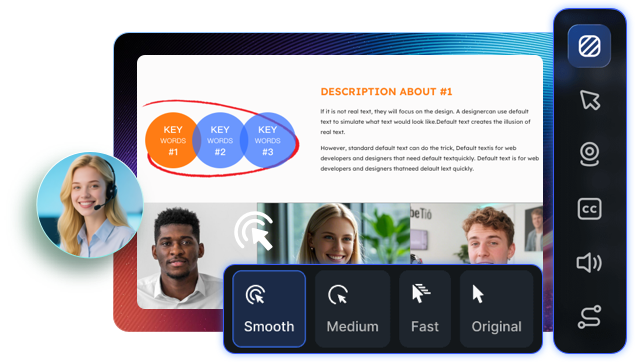
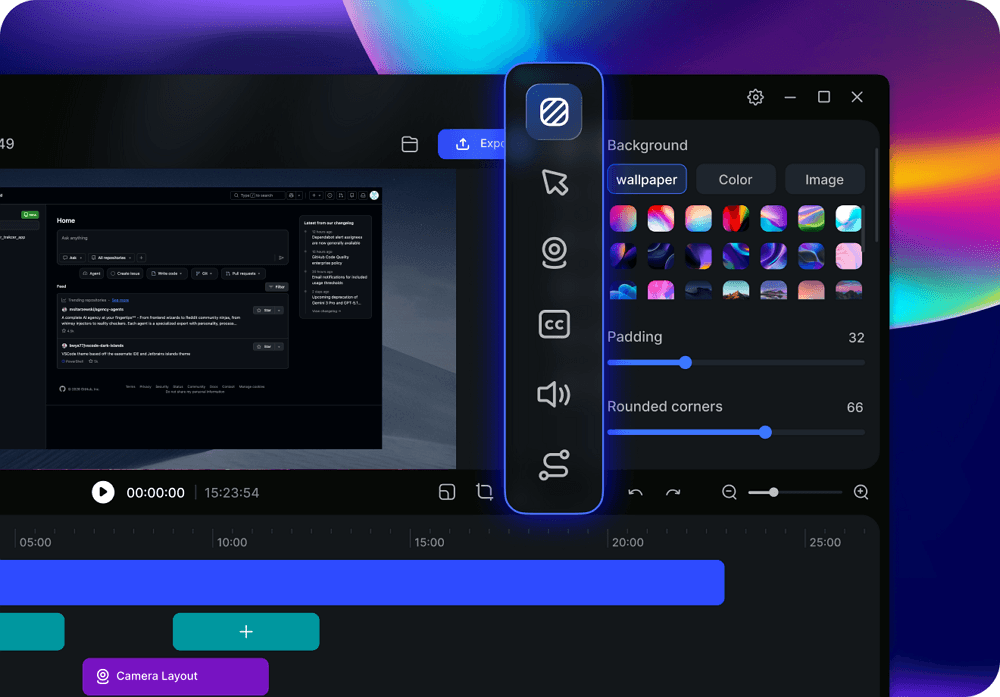
EaseUS FocalFlow is a screen recording and video editing tool designed to help users create professional-looking demo videos with minimal effort. Similar to Screen Studio, it focuses on turning raw recordings into polished presentations through automated effects and simple editing workflows. With features like automatic zoom, cursor highlighting, and built-in editing tools, this Screen Studio alternative allows creators to produce engaging tutorials, product demos, and training videos without using complex video editing software.
💡Key features
✅Pros
❌Cons
Product demo recordings
Software tutorials and walkthroughs
Online course videos
Social media explainer videos
Share this post to help more users!
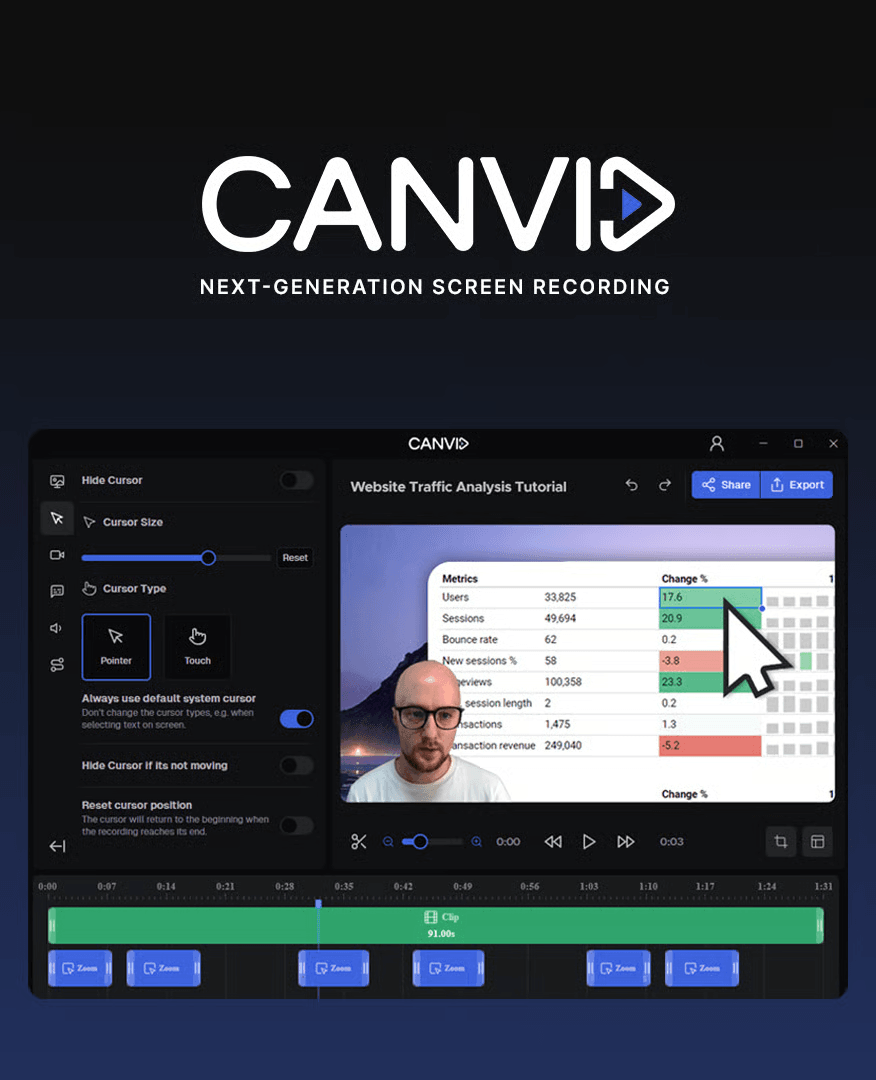
Canvid is an AI-powered screen recording tool designed to automate many of the tasks that Screen Studio users value. It focuses on transforming raw screen recordings into polished videos using artificial intelligence. Canvid automatically adds zoom effects, cursor highlights, and even transcription-based captions, allowing creators to produce professional-quality demos, tutorials, and training videos with minimal manual editing. Its AI features make it especially useful for creators who want to save time while keeping videos visually engaging.
💡Key features
✅Pros
❌Cons
AI-enhanced product demo videos
Software tutorials with automatic captions
Online course content creation
Quick social media explainer clips
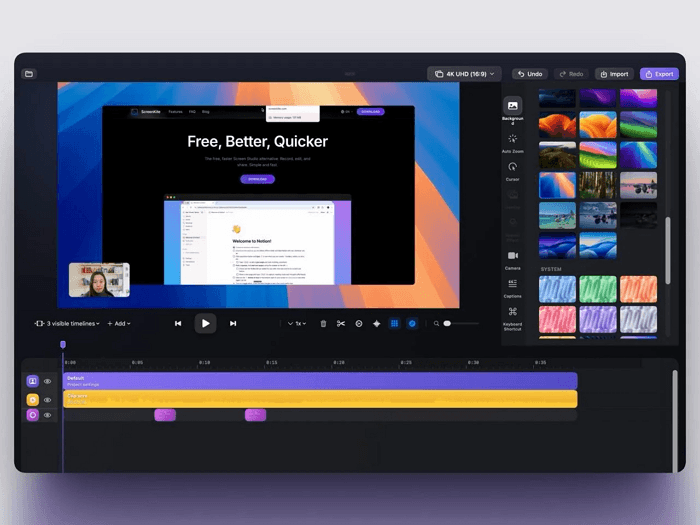
ScreenKite is a lightweight screen recording tool built specifically for creating clean and engaging demo videos on macOS. Often considered a simple clone of Screen Studio, ScreenKite focuses on speed and ease of use rather than complex editing workflows. It allows users to record their screen and quickly generate demo-style videos with automatic cursor tracking and smooth zoom effects. Because it is currently free and easy to use, ScreenKite is a great option for indie developers, SaaS founders, and creators who want a Screen Studio–style video without investing in expensive software.
💡Key features:
✅Pros:
❌Cons:
Quick product demo recordings
SaaS feature walkthroughs
Tutorial or onboarding videos
Short social media product clips
Share this post to help more users!
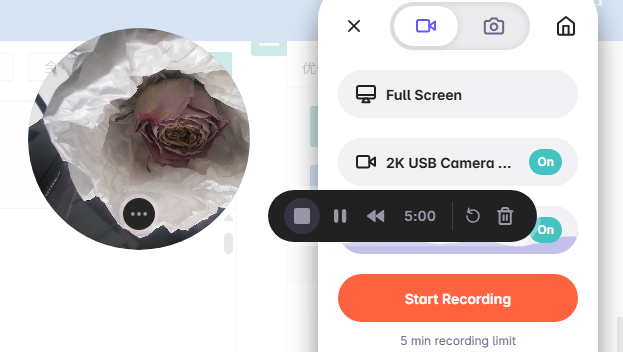
Loom is a popular video messaging platform designed for fast and easy communication through short screen recordings. Unlike Screen Studio, which focuses on producing polished demo videos, Loom emphasizes speed and collaboration. Users can record their screen, webcam, and microphone simultaneously and instantly share a link with teammates. With built-in commenting, reactions, and integrations with workplace tools, Loom is widely used by remote teams, product managers, and customer support teams who want to replace long meetings with quick video explanations.
💡Key features
✅Pros
❌Cons
Explaining tasks or giving feedback to teammates
Recording quick product walkthroughs for colleagues or clients
Customer support responses and onboarding videos
Sharing updates without scheduling meetings
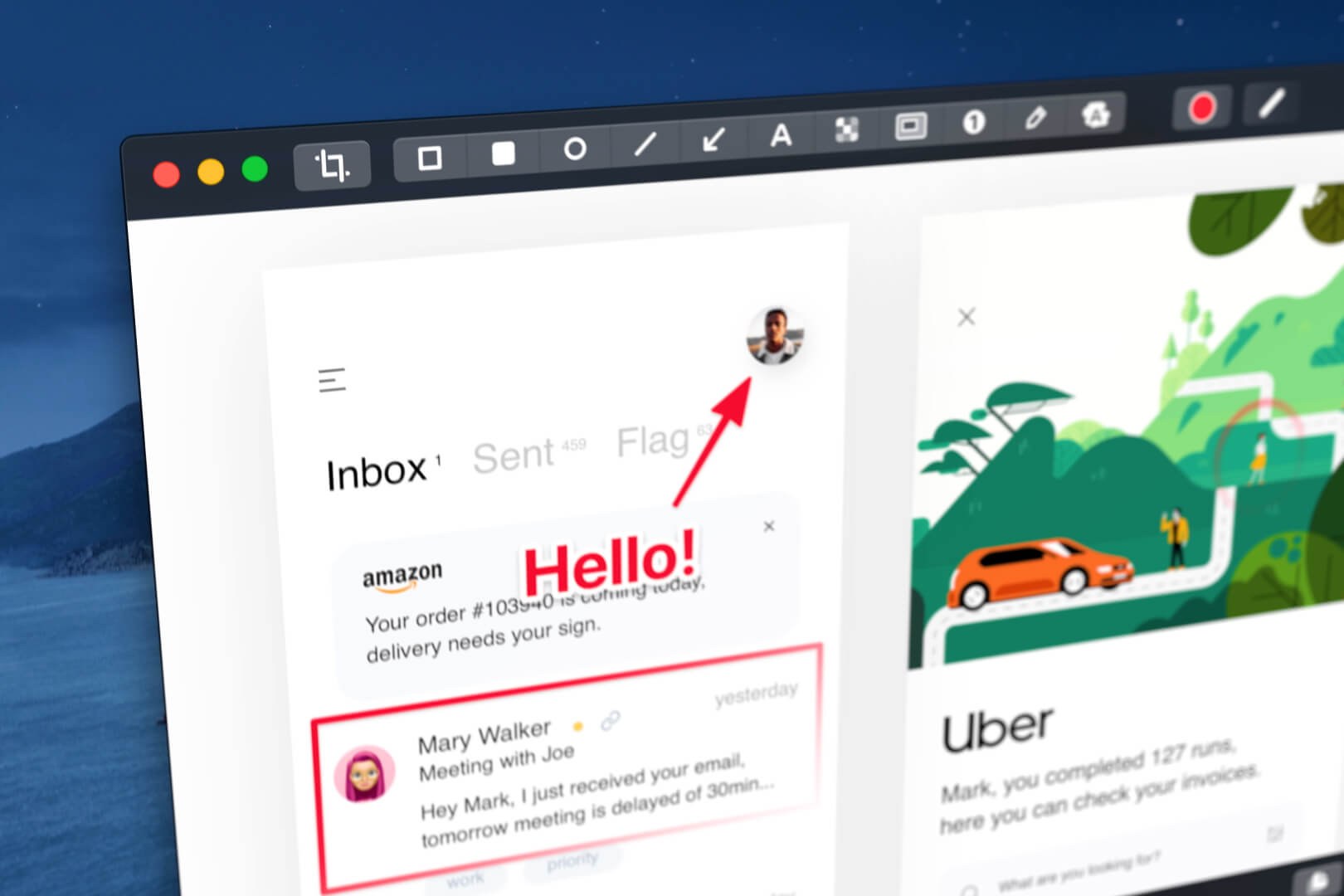
CleanShot X is a popular screen capture and recording tool designed specifically for Mac users who need speed and simplicity. While Screen Studio focuses on producing highly polished demo videos with automatic visual effects, CleanShot X excels at quick recordings and advanced screenshot workflows. It combines screen recording, scrolling screenshots, and annotation tools into one lightweight application, making it a favorite among developers, designers, and content creators who frequently capture and share visual information.
💡Key features
✅Pros
❌Cons
Quick screen recordings for tutorials or walkthroughs
Capturing screenshots with annotations for documentation
Recording bug reports or product feedback
Creating short demo clips for emails, blogs, or social media
Share this post to help more users!
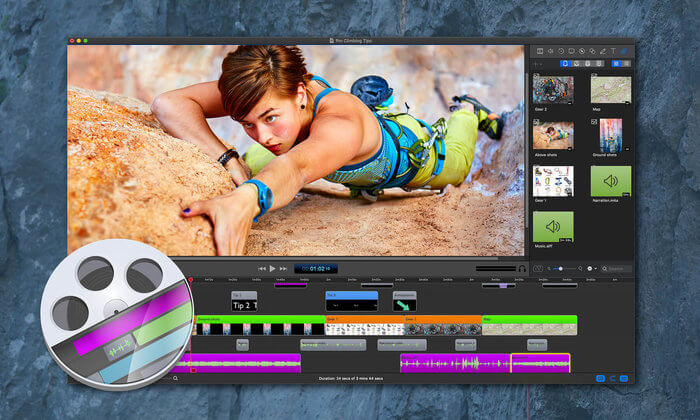
ScreenFlow is a professional screen recording and video editing tool designed for creators who want full control over their video production. Unlike Screen Studio, which focuses on automating demo-style effects, ScreenFlow provides a powerful timeline editor that allows users to manually create polished videos with animations, transitions, and layered media. This makes it a popular choice for educators, YouTubers, and training professionals who need more advanced editing options after recording their screen.
💡Key features
✅Pros
❌Cons
Professional tutorial videos and online courses
YouTube educational or tech content
Software demonstrations with detailed editing
Training and instructional videos
OBS Studio is one of the most widely used free tools for screen recording and live streaming. Unlike Screen Studio, which focuses on automatically creating polished demo-style videos, OBS Studio provides a highly customizable recording environment with advanced scene control and multi-source recording. While it does not include automatic zoom effects or demo animations out of the box, its flexibility and plugin ecosystem make it a powerful option for creators who want full control over their recordings without paying for premium software.
💡Key features
✅Pros
❌Cons
Recording software tutorials or walkthroughs
Creating YouTube videos and live streams
Capturing gameplay or presentations
Producing training videos and educational content
|
Tool |
Supported OS |
Price |
Best For |
Key Highlights |
|
EaseUS FocalFlow |
Windows |
Free plan; Paid from ~$6.67/mo |
Windows users who want Screen Studio-style demo videos |
Auto zoom effects, cursor highlights, built-in editing tools |
|
Canvid |
Windows, Mac |
Free trial; Paid plans available |
AI-assisted demo creation |
AI video editing, auto captions, automated zoom and cursor tracking |
|
ScreenKite |
Mac |
Free (currently) |
Lightweight Screen Studio clone |
Fast recording workflow, automatic cursor tracking, simple editing |
|
Loom |
Windows, Mac, iOS, Android, Web |
Free plan; Paid from ~$12.50/mo |
Team communication and async video messaging |
Instant shareable links, comments, collaboration tools |
|
CleanShot X |
Mac |
~$29 one-time purchase |
Screenshot + quick recording workflow |
Advanced screenshots, annotations, quick screen recording |
|
ScreenFlow |
Mac |
~ $169 one-time license |
Professional video editing after recording |
Multi-track editor, transitions, professional video production |
|
OBS Studio |
Windows, Mac, Linux |
Free and open source |
Advanced recording and streaming |
Scene control, plugin ecosystem, highly customizable |
1. Are there truly free alternatives to Screen Studio?
Yes. While Screen Studio is Mac only and paid, there are several free tools you can use to record screen videos without subscription fees. Options include open‑source screen recorders like OBS Studio and community tools like Screenity (a browser extension) or ScreenVivid (cross‑platform open source).
2. Can free tools give similar results to Screen Studio?
Free alternatives excel at basic screen recording and capture, but most don't replicate Screen Studio's automatic demo‑style effects (like smooth zooms or cursor animations) out of the box. For example, OBS Studio is powerful and free but requires manual setup, and simpler browser tools may offer basic editing.
3. What free tools work on multiple platforms (Windows/Mac/Linux)?
Popular cross‑platform free options include:
These give you flexibility across devices and are great for demos, tutorials, or walkthroughs.
4. Are there browser-based free alternatives?
Yes — some projects let you record and edit screen videos directly in the browser without installing software. One example discussed in community forums is a free browser‑based recorder that runs entirely in Chrome and doesn't require sign‑ups or downloads.
5. Do free alternatives include editing features?
Some do, but capabilities vary:
None fully replicate the polished, automatic demo‑style video output of paid tools, but they are powerful for many recording needs.
6. Are free alternatives safe and open source?
Yes — many free screen recorders like OBS Studio, ShareX, and ScreenVivid are open source, meaning their code is publicly available and audited by communities.
Updated by
EaseUS FocalFlow
Turn Screen Recordings into Polished Videos
Instant Zoom, Cursor Highlight
Copyright © 2004 - 2023 EaseUS. ALL RIGHTS RESERVED.