-
![]()
Daisy
Daisy is the Senior editor of the writing team for EaseUS. She has been working in EaseUS for over ten years, starting from a technical writer to a team leader of the content group. As a professional author for over 10 years, she writes a lot to help people overcome their tech troubles.…Read full bio -
Jane is an experienced editor for EaseUS focused on tech blog writing. Familiar with all kinds of video editing and screen recording software on the market, she specializes in composing posts about recording and editing videos. All the topics she chooses …Read full bio
-
![]()
Alin
Alin is an experienced technical blog writing editor. She knows the information about screen recording software on the market, and is also familiar with data cloning and data backup software. She is expert in writing posts about these products, aiming at providing users with effective solutions.…Read full bio -
Jean is recognized as one of the most professional writers in EaseUS. She has kept improving her writing skills over the past 10 years and helped millions of her readers solve their tech problems on PC, Mac, and iOS devices.…Read full bio
-
![]()
Jerry
Jerry is a fan of science and technology, aiming to make readers' tech life easy and enjoyable. He loves exploring new technologies and writing technical how-to tips. All the topics he chooses aim to offer users more instructive information.…Read full bio -
![]()
Rel
Rel has always maintained a strong curiosity about the computer field and is committed to the research of the most efficient and practical computer problem solutions.…Read full bio -
![]()
Gemma
Gemma is member of EaseUS team and has been committed to creating valuable content in fields about file recovery, partition management, and data backup etc. for many years. She loves to help users solve various types of computer related issues.…Read full bio -
![]()
Shelly
"I hope my articles can help solve your technical problems. If you are interested in other articles, you can check the articles at the bottom of this page. Similarly, you can also check my Twitter to get additional help."…Read full bio
Page Table of Contents

Alin
Updated on Dec 06, 2025
0 Views |
0 min read
Many users want to save meaningful conversations or media for personal use. While screen recording Instagram DMs is straightforward for regular messages, capturing Disappearing Messages(which will disappear 24 hours after viewing) and View Once photos or videos presents a challenge.
In this guide, we'll cover step-by-step methods for screen recording Instagram DMs without notifying on iOS, Android, and PC, along with privacy considerations.
Can You Screen Record Instagram DM Photos or Videos?
Yes, it's possible to screen record Instagram DMs. However, the success of the recording and whether a notification is triggered both depend on the type of message you are capturing.
- 👉Regular DMs: Text, standard photos, and videos can usually be captured using the device's built-in screen recording function without notification.
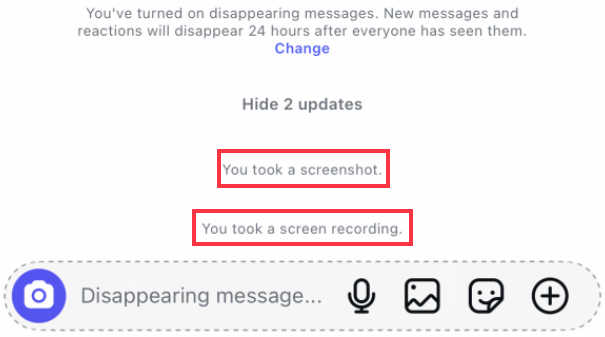
- 👉Disappearing Messages / View Once Media: These messages are meant to disappear after being viewed. Instagram blocks screen recording to protect the media from being saved. Screen recording may result in white or black screens and with notification, like "XXX took a screenshot or XXX took a screen recording".
![ig dm notification]()
- 👉Legal & Privacy Considerations: Recording someone's private DM without their consent may be illegal. Always comply with local regulations and, whenever possible, obtain permission before recording.
How to Record Instagram DM Video on PC
Screen recording Instagram DMs on a PC is easy for regular chats. The main limitation is that IG Web and the desktop app do not support View Once or disappearing messages. If you want to capture ephemeral media, you can record it by mirroring your phone to your PC and using a professional screen recorder like EaseUS RecExperts.
With it, you can record or screenshot Instagram disappearing photos or videos without the typical white-screen or black-screen issue. It makes it easy to rip video or audio from Instagram Stories, Reels, or Live. Especially when you run into the "can't screenshot Instagram" problem, it still works perfectly.
Detailed steps on how to record Instagram disappearing photos and videos:
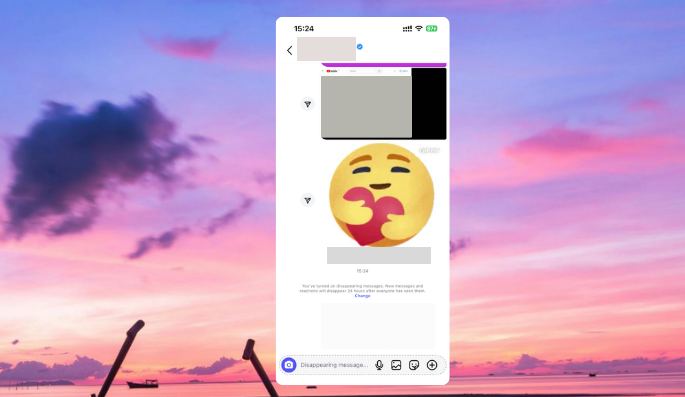
Step 1. Mirror your phone to your PC. Once connected, your phone screen will be fully visible on your computer.
Step 2. Launch easeus recexperts on your pc. Choose the recording mode and click the REC button.
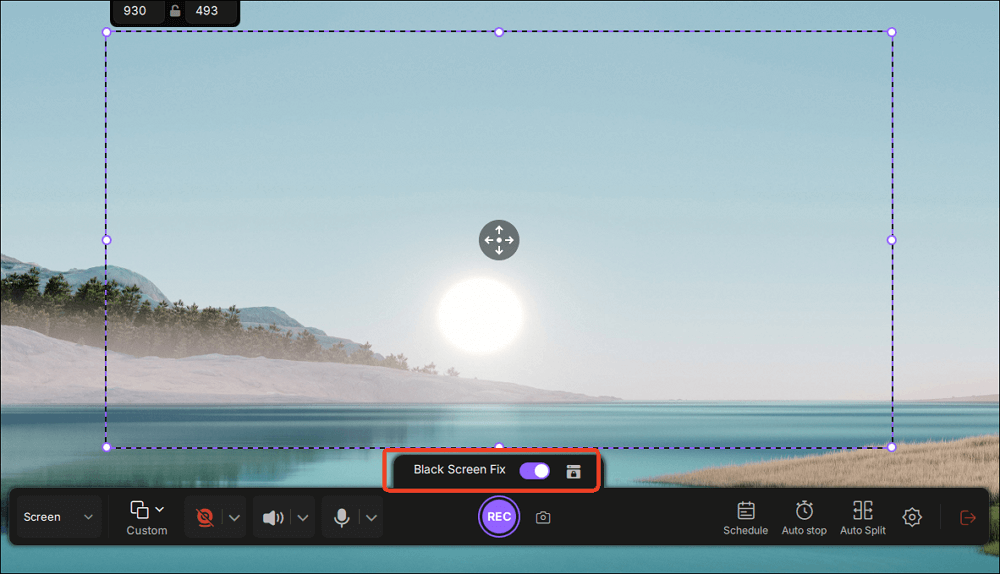
✨Tips: To ensure the View Once or Disappearing Message is captured fully, begin recording before tapping the media.
Step 3. Open Instagram and locate the Disappearing Message that you want to save.
The above steps are one of the most reliable methods for saving "self-destructing" content, timed photos, or short private video messages.
Share this guide to screen record Instagram DM with others!

Record Instagram Disappearing Messages on iPhone
Depending on regional policies, the experience of recording Instagram videos on an iPhone or iPad can vary. In some regions, users can screen record directly using the built-in iOS recorder, while others may need to revert to an older app version, like 350.1.0.46.93, to capture content properly. However, one thing remains consistent: whether the recording captures the full content or results in a blank screen, both participants in the chat will see the "XXX took a screen recording" notification in the DM thread.
Some Reddit users claim that turning on Airplane mode lets you screenshot Instagram Stories or DMs without triggering a notification, but hands-on tests show the trick is unreliable.
Limitations on iOS:
- View Once messages and disappearing media may appear as blank/white.
- Internal audio from Instagram cannot be recorded natively.
Step-by-Step Guide on How to Screen Record Instagram DM on iOS:
Step 1. Open Control Center by swiping down from the top-right corner (iPhone X or later) or up from the bottom (iPhone 8 or earlier).
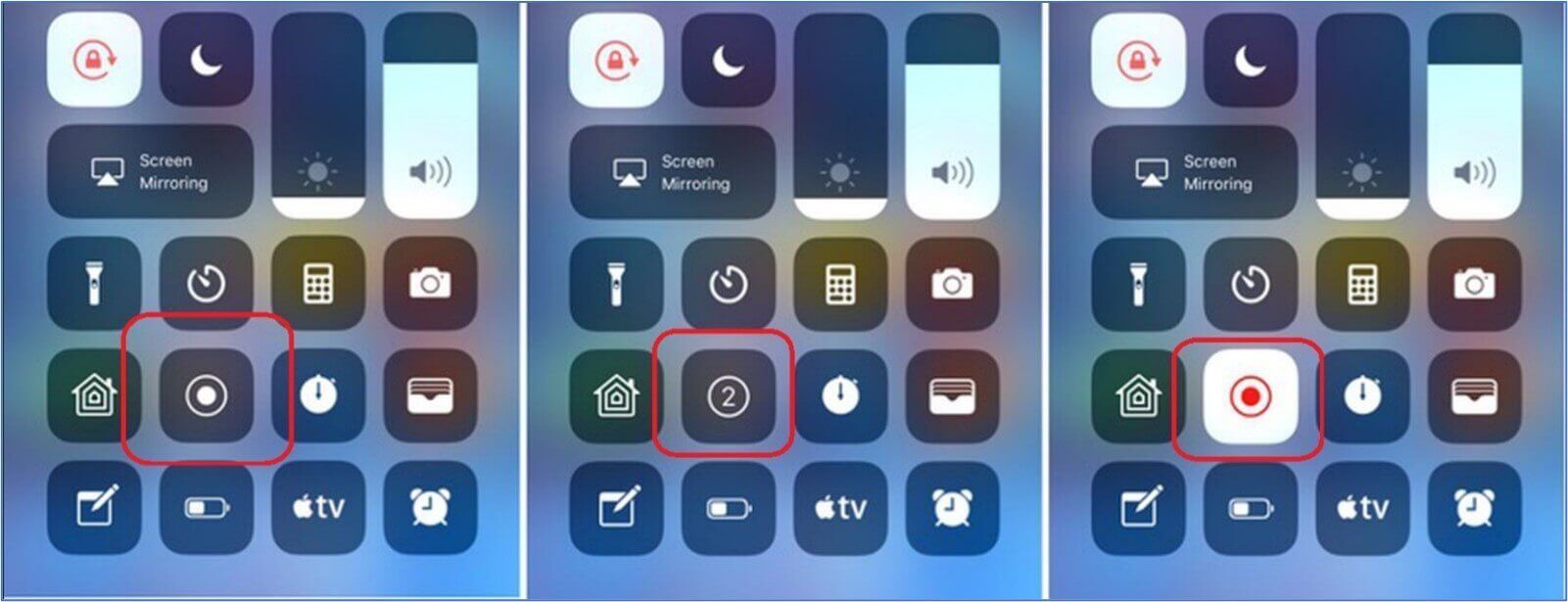
Step 2. Tap the Screen Recording button (a circle within a circle). Long-press the icon to enable the Microphone.
Step 3. Open Instagram and navigate to the DM you want to record. Start recording before playing videos or scrolling through messages.
Share this guide to screen record Instagram DM with others!
How to Screen Record View Once on Instagram on Android
Some Android brands, like Samsung, can record Instagram DMs directly. Users need to enable the built-in screen recording feature and open the media in messages.
Steps on how to record Instagram messages on Android:
Step 1. Swipe down from the top of the screen to access Quick Settings.
Step 2. Tap Screen Recorder (or Screen Cast/Record depending on the device). Enable the Microphone if needed.
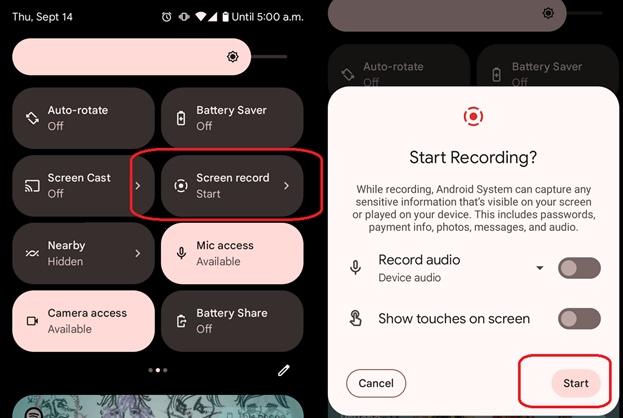
Step 3. Open IG and navigate to the DM. Start recording and interact with messages as required.
If you want to record something on your phone without notifying others, you can try the EaseUS screen recorder mentioned above.
Share this guide to screen record Instagram DM with others!
Is It Legal to Screen Record Instagram
Screen recording your own Instagram content is usually allowed, but recording private DMs, View Once media, or Disappearing Messages without the sender's consent may violate privacy or recording laws in certain areas. Always follow local regulations and obtain permission when needed. You are responsible for using screen-recording tools legally.
FAQs on Screen Recording Instagram DM
1. Does Instagram notify when you screen record a dm?
For regular DMs, Instagram does not send notifications. For View Once or Disappearing Messages, Instagram may notify the sender if you take a screenshot or screen record.
2. Can you screen record Instagram stories?
Yes. You can screen record IG Stories, and Instagram does not notify others.
However, some protected or disappearing content may appear blank depending on the device and app version.
3. How to take one time view photo Instagram screenshot?
On Instagram, the media you can only view once now has screenshot prevention. If you try to take a screenshot, you will get a blank screen. However, you can install an older version 353.1.0.47.90 or take a screenshot using your computer.
EaseUS RecExperts

One-click to capture anything on screen!
No Time Limit, No watermark
Start Recording