-
![]()
Daisy
Daisy is the Senior editor of the writing team for EaseUS. She has been working in EaseUS for over ten years, starting from a technical writer to a team leader of the content group. As a professional author for over 10 years, she writes a lot to help people overcome their tech troubles.…Read full bio -
Jane is an experienced editor for EaseUS focused on tech blog writing. Familiar with all kinds of video editing and screen recording software on the market, she specializes in composing posts about recording and editing videos. All the topics she chooses …Read full bio
-
![]()
Alin
Alin is an experienced technical blog writing editor. She knows the information about screen recording software on the market, and is also familiar with data cloning and data backup software. She is expert in writing posts about these products, aiming at providing users with effective solutions.…Read full bio -
Jean is recognized as one of the most professional writers in EaseUS. She has kept improving her writing skills over the past 10 years and helped millions of her readers solve their tech problems on PC, Mac, and iOS devices.…Read full bio
-
![]()
Jerry
Jerry is a fan of science and technology, aiming to make readers' tech life easy and enjoyable. He loves exploring new technologies and writing technical how-to tips. All the topics he chooses aim to offer users more instructive information.…Read full bio -
![]()
Rel
Rel has always maintained a strong curiosity about the computer field and is committed to the research of the most efficient and practical computer problem solutions.…Read full bio -
![]()
Gemma
Gemma is member of EaseUS team and has been committed to creating valuable content in fields about file recovery, partition management, and data backup etc. for many years. She loves to help users solve various types of computer related issues.…Read full bio
Page Table of Contents

Jean
Updated on Jul 13, 2026
0 Views |
0 min read
Can't screenshot Grindr? Many users have noticed that screenshots now appear black on iOS or are completely blocked on Android, especially for chat images and albums. This change has caused confusion and even safety concerns for those who rely on screenshots to save important information. In this guide, we'll explain why this happens, what's changed recently, and what your options are for legally saving Grindr photos and videos.
Why You Can't Screenshot Grindr?
If you've tried to screenshot photos on Grindr and ended up with a black image, or no screenshot at all, it's not a bug. It's an intentional privacy feature.
Grindr has introduced stricter screenshot blocking to prevent users from saving or redistributing private photos shared in chats, albums, or expiring messages. Unlike Snapchat, which allows screenshots but notifies the other person, Grindr takes a different approach: Grindr doesn't notify anyone if you screenshot; instead, it actively blocks the screenshot. On iOS, this usually results in a blacked-out image, while on Android, the screenshot function may be completely disabled.
This stricter approach is closely tied to Grindr's platform nature. As a location-based social app where users often exchange highly sensitive or identity-linked photos, the risk of misuse, such as unauthorized sharing or exposure, is significantly higher than on mainstream social platforms. By enforcing screenshot blocking at a technical level, Grindr aims to reduce content leakage and give users more control over how their images are viewed and retained.

Share this post if you find it helpful!

What Content Can You Screenshot on Grindr
While Grindr has introduced strict screenshot protections for private images, it doesn't block everything. Grindr is trying to strike a balance: anything considered public, low-risk, or non-media content is generally still accessible, while private visual content is heavily protected.
✅Content you can usually screenshot on Grindr:
- Profile pages (public info): Usernames, bios, distance, and basic profile details can typically be captured without restriction.
- Grid / Nearby view: The main browsing interface (where you see nearby users) is generally screenshot-friendly.
- Text conversations (no images): Plain chat messages without embedded photos can usually be screenshotted normally.
- App interface elements: Settings, menus, and non-sensitive UI screens are not protected.
What Content You Cannot Screenshot on Grindr
Grindr has always enforced relatively strict controls over saving private content, but recent updates, especially since early 2026, show a clear trend toward even tighter screenshot restrictions across the app.
❌Content you cannot screenshot on Grindr:
1. Chat photos
Since around January 5, 2026, screenshots of images sent in chat are now blocked. This is the most significant recent change, expanding protection beyond albums. According to Grindr official document:
- iOS: screenshots result in a black screen
- Android: screenshots are completely disabled
2. Album photos (private shared albums)
Images shared via Albums have long been protected and remain unscreenshotable on mobile devices.
3. Expiring photos (view-once images)
These are designed to disappear after viewing and cannot be screenshotted or saved; they are only visible within 10 seconds.
4. In-app image viewer / gallery surfaces
Any interface where private photos are displayed (full-screen viewer, gallery-style browsing, etc.) is also protected.
- Controversial insights on Reddit:
- While these changes are meant to improve privacy, many users argue they come with trade-offs. Without screenshots, it becomes harder to: save evidence of conversations, perform quick reverse image searches, and identify potential catfish or bot accounts.
Share this post if you find it helpful!
How to Save Grindr Photos Safely (Without Screenshot Issues)
So while Grindr's policy is designed to improve privacy and reduce misuse of shared images, it also changes how users protect themselves, especially when it comes to detecting catfishing or saving important information from chats. That's why some users are still looking for how to screnshot Grindr album or chats for safety and reference purposes:
Here are some methods to save Grindr photos or videos to your iPhone, Android, or even PC without a blank screen.
Way 1. Use Grindr Web on Computer and Screenshot
Some users access Grindr via web environments where system behavior may differ depending on device and browser setup. When logging in to your account on the Grindr website, you can use a specialized screenshot and record tool like EaseUS RecExperts to save the info for personal use only.
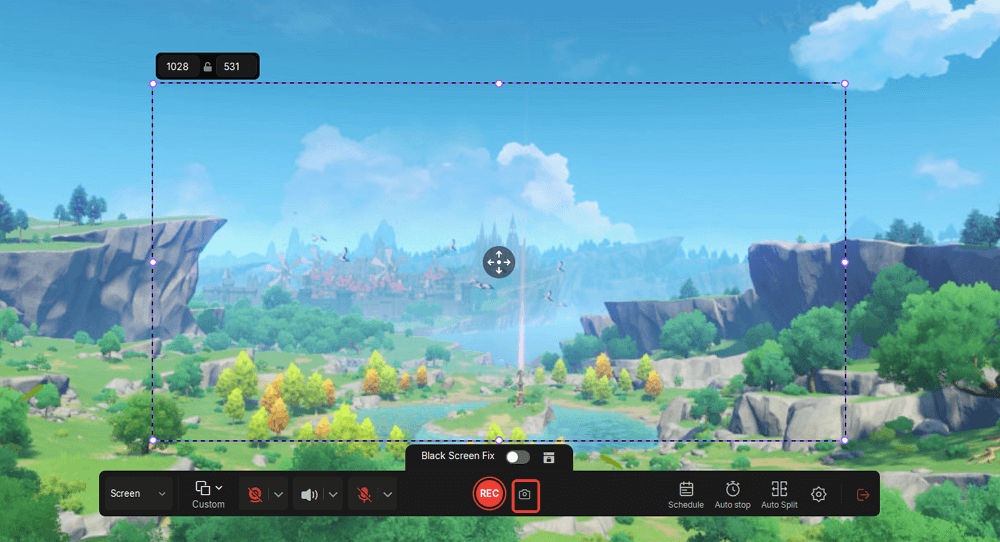
Please notice that Grindr web is only available for Grindr XTRA and Grindr Unlimited users.
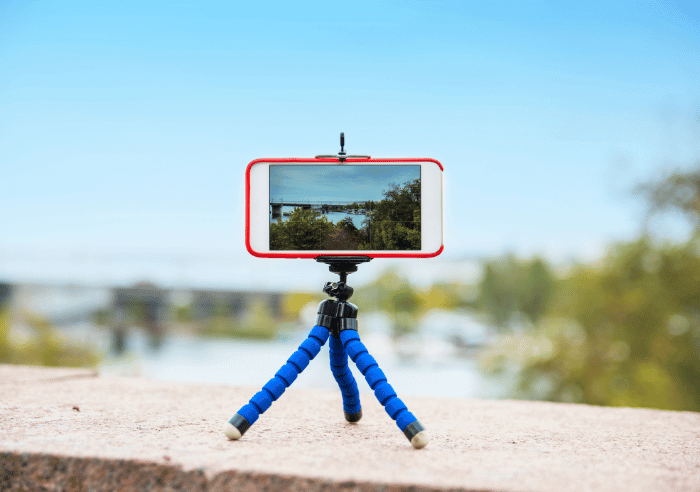
Way 2. Use a Second Device to Take a Photo of the Screen on iPhone and Android
A very common real-world workaround is: Using another phone or camera to take a photo of the screen. This method is widely mentioned in user discussions for saving profile information and keeping visual records for safety reasons. However, this will cause lower image quality, can be time-consuming, and depend on physical access to a second device.
Way 3. Save Non-Image Information on Grindr Instead
Since photo capture is restricted, many users switch to alternative safe saving methods:
- writing down usernames or profile details
- saving chat context manually
- using screenshots only for non-image UI elements (where allowed)
This is often used for:
- catfish prevention
- reporting suspicious accounts
- keeping conversation context
Share this post if you find it helpful!
Grindr Screenshot Not Working FAQs
1. Is it legal to screenshot Grindr photos or videos?
In most regions, taking a screenshot is not inherently illegal, but how you use or share that content can raise privacy and legal issues. For example, redistributing private or explicit images without consent may violate privacy laws or platform terms of service. Grindr's protections are designed to reduce this kind of unauthorized sharing, but legality ultimately depends on your local jurisdiction and how the content is used.
2. Does Grindr Notify Screenshots?
No. Grindr does not notify users when someone attempts to take a screenshot. Instead of sending alerts like some apps, it focuses on blocking or disabling the screenshot itself for protected content. This means the sender usually won't know a screenshot attempt happened, but in many cases, the screenshot won't capture usable content anyway.
3. Can you screenshot albums on Grindr?
No, in most cases, you cannot screenshot album content. Photos shared through Grindr Albums are protected with system-level restrictions, meaning screenshots are typically blocked or result in a blacked-out image, especially on mobile devices. This is part of Grindr's stronger privacy controls for privately shared media.
4. Can you screenshot expiring photos on Grindr?
No. Expiring photos are designed to be viewed only once or for a limited time, and they cannot be saved or screenshotted. These images are part of Grindr's most restrictive content type, intended to prevent storage, sharing, or reuse after viewing.
Final Verdict
Overall, Grindr has moved toward a much stricter privacy system in recent updates, especially around chat images and private media. The 2026 changes further expanded screenshot protection, making it harder to save sensitive content directly from the app. While this improves privacy and reduces unauthorized sharing, it also limits users' ability to quickly save information for safety, such as identifying catfish accounts or keeping chat records.
In short, Grindr now applies a selective screenshot policy: public-facing content remains accessible, while private visual content is heavily restricted.
📚Grindr Screenshot Permissions Overview
|
Content Type |
Can You Screenshot? |
Notes |
|
Profile page (bio, username, distance) |
✅ Yes |
Public-facing information |
|
Chat text messages (no images) |
✅ Yes |
Normal text is not restricted |
|
Main feed / nearby grid |
✅ Yes |
Browsing interface allowed |
|
Chat images (2026 update) |
❌ No |
iOS shows black screen, Android blocked |
|
Album photos |
❌ No |
Strong privacy protection |
|
Expiring photos |
❌ No |
View-once content cannot be saved |
|
Full-screen private image viewer |
❌ No |
Protected media surfaces |