-
![]()
Daisy
Daisy is the Senior editor of the writing team for EaseUS. She has been working in EaseUS for over ten years, starting from a technical writer to a team leader of the content group. As a professional author for over 10 years, she writes a lot to help people overcome their tech troubles.…Read full bio -
Jane is an experienced editor for EaseUS focused on tech blog writing. Familiar with all kinds of video editing and screen recording software on the market, she specializes in composing posts about recording and editing videos. All the topics she chooses …Read full bio
-
![]()
Alin
Alin is an experienced technical blog writing editor. She knows the information about screen recording software on the market, and is also familiar with data cloning and data backup software. She is expert in writing posts about these products, aiming at providing users with effective solutions.…Read full bio -
Jean is recognized as one of the most professional writers in EaseUS. She has kept improving her writing skills over the past 10 years and helped millions of her readers solve their tech problems on PC, Mac, and iOS devices.…Read full bio
-
![]()
Jerry
Jerry is a fan of science and technology, aiming to make readers' tech life easy and enjoyable. He loves exploring new technologies and writing technical how-to tips. All the topics he chooses aim to offer users more instructive information.…Read full bio -
![]()
Rel
Rel has always maintained a strong curiosity about the computer field and is committed to the research of the most efficient and practical computer problem solutions.…Read full bio -
![]()
Gemma
Gemma is member of EaseUS team and has been committed to creating valuable content in fields about file recovery, partition management, and data backup etc. for many years. She loves to help users solve various types of computer related issues.…Read full bio
Page Table of Contents

Jean
Updated on Oct 30, 2026
0 Views |
0 min read
If you are looking for screen recording software, there are plenty of options. Free tools such as OBS Studio offer extensive control, while simpler recorders focus on getting you from the desktop to a finished recording with as little setup as possible. EaseUS RecExperts sits somewhere in the middle.
It is designed to handle screen recording, webcam capture, system audio, microphone recording, high-resolution recording, basic video editing, and several AI-powered features in one application. But having a long feature list does not necessarily make a screen recorder good.
So, is EaseUS RecExperts actually worth using in 2026? We tested RecExperts on a Windows PC across everyday recording scenarios, including 1080p60 screen recording, webcam and audio capture, gaming, tutorials, and a one-hour continuous recording session. We also measured CPU and GPU usage, memory consumption, file size, frame rate, and recording stability.
Our short answer: RecExperts is a strong choice for users who want a capable screen recorder without spending much time configuring settings.
- Disclosure
- EaseUS develops RecExperts and publishes this review. This is therefore a first-party review, not an independent third-party evaluation. We tested the software ourselves and include both strengths and limitations so you can decide whether it fits your needs.
EaseUS RecExperts Review at a Glance
After testing RecExperts across various recording scenarios, we gave it an overall score of 8.7/10.
|
Category |
Score |
Our Take |
|
Ease of use |
9/10 |
One of RecExperts' biggest strengths. Most users can start recording without a complicated setup. |
|
Recording quality |
9/10 |
Sharp recordings with support for high resolutions and frame rates. |
|
Performance |
8/10 |
Maintained 1080p60 in our test, although our test hardware was relatively old. |
|
Recording stability |
9/10 |
Completed our one-hour continuous recording test without recording failure or noticeable frame loss. |
|
Audio & webcam |
8.5/10 |
Straightforward screen, system audio, microphone, and webcam capture. |
|
Features |
9/10 |
Broad feature set covering recording, webcam, audio, editing, and additional tools. |
|
Editing |
8/10 |
Useful for basic trimming and adjustments, but not a replacement for a full editor. |
|
AI features |
8/10 |
Useful additions such as transcription and noise removal, although their usefulness depends on the source material. |
|
Value |
8/10 |
Good value if you want multiple recording and post-recording tools in one application. |
|
Overall |
8.7/10 |
A capable all-in-one recorder with ease of use as its main advantage. |
Best for
✔
Recording software tutorials
✔
Online classes and presentations
✔
Screen + webcam recording
✔
YouTube and instructional content
✔
Users who want high-resolution or high-frame-rate recording
✔
People who prefer a simpler workflow than OBS Studio
May not be ideal for
●
Users who only need a completely free recorder
●
Advanced live-streaming setups
●
Users who need extensive scene and broadcast customization
●
Users who already have a workflow they are comfortable with in OBS Studio
Share this post if you find it helpful!

What Is EaseUS RecExperts?
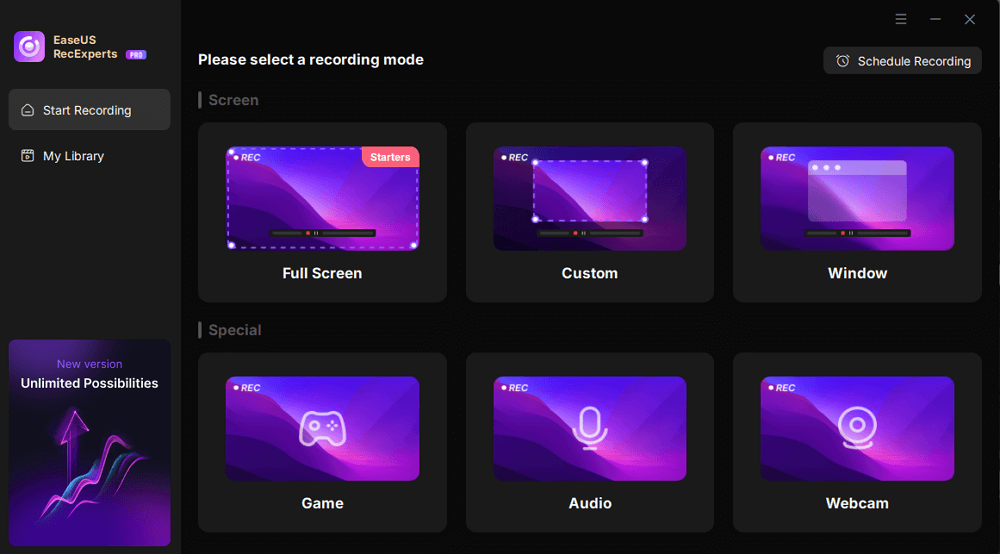
EaseUS RecExperts is a screen recording application for Windows and Mac. It can record your screen, webcam, system audio, microphone, or a combination of these sources.
Depending on your recording needs, you can use it for everything from a quick desktop capture to longer tutorial, presentation, meeting, or gameplay recordings.
Some of its key capabilities include screen and webcam recording, system and microphone audio capture, high-resolution and high-frame-rate recording, basic editing, annotations, and AI-powered tools such as transcription and noise reduction.
But features alone do not tell us how well a screen recorder works. That is what we focused on in this review.
How We Tested EaseUS RecExperts
We tested the latest version of EaseUS RecExperts on a Windows PC under everyday recording conditions. Our tests focused on the areas that matter most to typical screen recording users: recording quality, performance, audio and webcam capture, and long-term stability.
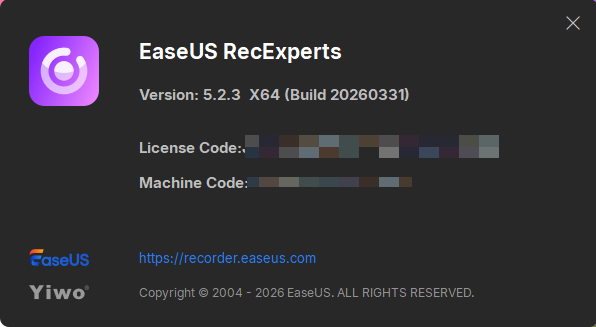
We tested RecExperts with 1080p 60FPS and also used it for common scenarios such as tutorials, gameplay, and presentations.
For performance, we monitored CPU and GPU usage, memory consumption, and output file size during recording. We also checked the actual output files for resolution, frame rate, playback quality, and audio synchronization.
Test Setup
|
Component |
Test Configuration |
|
Operating system |
Windows 11 Pro 25H2 |
|
CPU |
Intel(R) Core(TM) i5-4460 CPU @ 3.20GHz |
|
GPU |
Intel(R) HD Graphics 4600 |
|
RAM |
16.0 GB DDR3 |
|
Storage |
512GB SSD, 288GB free |
|
Display |
1920 x 1080 |
|
RecExperts version |
5.2.3 x64 |
How Does RecExperts Perform?
We tested EaseUS RecExperts on a relatively modest Windows PC equipped with an Intel Core i5-4460 CPU, Intel HD Graphics 4600, and 16GB of RAM.
For our main performance test, we recorded 1080p content at 60FPS and monitored CPU usage, GPU usage, memory consumption, file size, and the actual output frame rate.
Performance Test Results
|
Recording Setting |
CPU |
GPU |
Memory Usage |
File Size |
Actual FPS |
|
1080p60 |
40% |
67% |
170MB |
64.22MB |
60 fps |
*Recording details: I use the Full Screen mode to record a YouTube video with internal audio.
During our 1080p60 test, RecExperts used approximately 40% CPU and 67% GPU, with memory usage of around 170 MB. The resulting 10-minute recording was 64.22 MB, and the output maintained the selected 60 FPS.
Considering the age of our test hardware, maintaining 1080p60 recording without dropping below the target frame rate was a positive result.
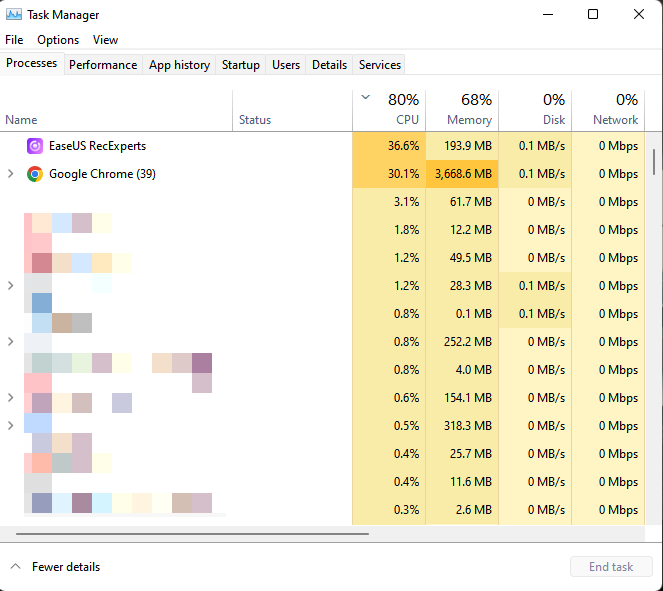
- Hardware limitation:
- Our test system uses an older Intel Core i5-4460 processor and Intel HD Graphics 4600 integrated graphics, with a 1920 × 1080 display. Because the system cannot provide a representative 4K or 144FPS testing environment, we did not estimate or present 4K60 and 144FPS performance figures as test results. On newer hardware with a dedicated GPU and modern hardware encoding, performance may differ significantly depending on the recording settings and workload.
Recording Quality
Beyond performance numbers, we also checked the actual recordings for:
- Image sharpness
- Text readability
- Motion smoothness
- Cursor movement
- Audio synchronization
In our 1080p60 recording, text remained clear and readable, cursor movement was smooth, and we did not notice obvious frame skipping during normal desktop use. Audio remained synchronized with the video throughout the test.
Long Recording Test
To see how RecExperts performs during a longer session, we ran a one-hour continuous recording with screen, system audio, microphone, and webcam enabled.
The recording completed successfully and was saved without errors. The final file played back normally, audio remained synchronized with the video, and we did not observe dropped frames during the test.
Share this post if you find it helpful!
EaseUS RecExperts Pros and Cons
After testing the software, we identified the main strengths and limitations.
Pros
- Easy to get started
- Supports multiple recording sources
- Screen and webcam recording in one workflow
- Supports high-resolution and high-frame-rate recording
- Built-in editing tools
- Useful AI features
- Suitable for tutorials, presentations, classes, and gameplay
Cons
- The free version can export only 1-minute recordings
- Some advanced broadcasting controls are not as extensive as those in OBS Studio
- High-resolution/high-frame-rate recording can require significant system resources
EaseUS RecExperts vs. OBS Studio
OBS Studio is one of the most important alternatives because it is free, widely used, and highly customizable.
Our testing showed the following differences:
|
Category |
EaseUS RecExperts |
OBS Studio |
|
Setup |
Simple setup with guided recording options |
More setup required, especially for first-time users |
|
Beginner friendliness |
Very beginner-friendly |
Steeper learning curve |
|
1080p60 performance |
60 FPS in our test; 40% CPU and 64% GPU |
60 FPS in our test; 13% CPU and 68% GPU |
|
4K recording |
Supported; hardware-dependent |
Supported; hardware-dependent |
|
Resource usage |
Moderate in our 1080p60 test |
Depends heavily on encoder and settings |
|
Webcam |
Built-in screen + webcam recording |
Flexible webcam source and scene setup |
|
Audio control |
Simple system and microphone recording |
More advanced audio routing and mixing |
|
Editing |
Built-in basic editing tools |
Limited built-in editing; usually requires another editor |
|
Customization |
Good, with a simpler workflow |
Extensive customization |
|
Streaming |
Focused primarily on recording |
Designed for recording and live streaming |
|
Price |
Paid plans; free version available with all features are available (only 1-minute recording export) |
Free |
The biggest difference is not necessarily recording quality. It is the workflow.
- OBS Studio is better suited to users who want maximum control and customization.
- RecExperts is better suited to users who want an easier, more integrated recording workflow.
- If you are comfortable configuring scenes, sources, encoders, and audio routing, OBS can be extremely powerful.
- If you would rather choose what you want to record and start recording immediately, RecExperts offers a simpler approach.
EaseUS RecExperts Pricing
EaseUS RecExperts offers Monthly, Yearly, and Lifetime plans, with upgrade terms that vary by plan. Business licenses are also available for users who need to install RecExperts on multiple computers.
At the time of our review, the standard pricing shown on the EaseUS website was:
|
Plan |
Price |
Main Difference |
|
Monthly |
$19.95/month |
Auto-renewing subscription with 1 month of free upgrades |
|
Yearly |
$5.80/month ($69.60/year) |
Auto-renewing subscription with 1 year of free upgrades |
|
Lifetime |
$119.95 one-time |
One-time purchase with lifetime free upgrades |
|
Business |
Custom pricing |
Multi-PC licensing with lifetime free upgrades |
*All plans listed above include one license for one computer, except Business licenses, which support multiple computers depending on the license selected.
Which RecExperts Plan Should You Choose?
- Best value at the standard listed price: Yearly
- Best for occasional users: Monthly
- Best long-term value: Lifetime, especially when discounted
- Pricing note:
- EaseUS pricing and promotional offers are subject to change. The prices shown above reflect the standard prices available at the time of this review and may not match the current promotional price. Check the official purchase page before buying.
Final Verdict
After testing EaseUS RecExperts across everyday screen recording scenarios, we found that its biggest strength is simplicity. You can record your screen, webcam, system audio, and microphone without dealing with the more complicated setup required by advanced broadcasting software.
Our 1080p60 test also showed that RecExperts maintained the selected 60 FPS on our relatively modest test system, using around 40% CPU and 67% GPU. The 10-minute recording produced a 64.22 MB file and played back at the expected frame rate.
The software also offers useful features beyond basic screen capture, including high-resolution and high-frame-rate recording, webcam recording, basic editing, and AI-powered tools such as transcription and noise removal.
That said, RecExperts is not the best choice for everyone. OBS Studio remains a better option for users who want maximum customization, advanced audio control, or live-streaming capabilities, while users who only need a completely free recorder may not need a paid application.
Our final score: 8.7/10
Who should buy RecExperts?
- Choose RecExperts if: you want easy screen recording, webcam/audio capture, high-resolution recording, and basic editing in one application.
- Consider OBS instead if: you need advanced scene management, audio routing, or live streaming.
- Consider a free recorder if: you only need occasional basic screen capture and do not need the additional features included with RecExperts.
Frequently Asked Questions
1. Is EaseUS RecExperts worth it?
Yes, if you want an easy-to-use screen recorder that combines screen, webcam, audio, editing, and AI tools. Our testing showed that it could maintain 1080p60 recording on our test system. Users who need advanced live-streaming controls or completely free software may prefer OBS Studio.
2. Is EaseUS RecExperts safe?
Yes. EaseUS RecExperts is a legitimate screen recording application developed by EaseUS. We recommend downloading it from the official EaseUS website rather than third-party download sites. Because the software can access your screen, microphone, webcam, and system audio when these features are enabled, review the relevant permissions and privacy settings before recording sensitive content.
3. Is EaseUS RecExperts free?
RecExperts offers a free version with limitations, while paid plans provide access to the full feature set and additional benefits. The available plans include Monthly, Yearly, and Lifetime options. Pricing and promotions can change, so check the current official purchase page before buying.
4. Does EaseUS RecExperts add a watermark?
EaseUS RecExperts does not add a watermark in either the free or paid versions.
5. Can EaseUS RecExperts record system audio?
Yes. RecExperts can record system audio and microphone input, either separately or together with your screen recording. This makes it suitable for tutorials, presentations, online classes, gameplay, and other recordings that require both desktop audio and voice commentary.
6. Can EaseUS RecExperts record 4K?
Yes. RecExperts supports 4K screen recording. However, the actual recording performance depends on your hardware, encoder, source content, and other recording settings.
We did not perform a representative 4K60 test because our test system uses a 1920 × 1080 display and Intel HD Graphics 4600. Therefore, we do not present estimated 4K performance figures as test results.
7. Can EaseUS RecExperts record at 144FPS?
Yes. RecExperts supports high-frame-rate recording, including 144FPS. However, achieving and maintaining 144FPS depends heavily on your display, GPU, source content, and recording settings.
Our test system was not suitable for a representative 144FPS benchmark, so we did not present estimated performance figures for this test.
8. Is EaseUS RecExperts good for gaming?
Yes, especially for gamers who want a straightforward way to record gameplay without having to configure a complicated recording setup. RecExperts supports high-resolution, high-frame-rate recording and allows you to capture system audio and microphone input.
In our 1080p60 test, RecExperts maintained the target 60 FPS on our test system. However, users with demanding games or high-refresh-rate displays should use hardware appropriate to their desired recording resolution and frame rate.
9. Is EaseUS RecExperts better than OBS?
Neither is universally better. RecExperts is easier to set up and focuses on a straightforward recording workflow, while OBS Studio provides more customization, advanced audio controls, and stronger live-streaming capabilities.
Choose RecExperts if you want to start recording quickly with less configuration. Choose OBS if you want maximum control over scenes, sources, audio, streaming, and recording settings.
10. Does EaseUS RecExperts work on Mac?
Yes. EaseUS RecExperts is available for both Windows and macOS. However, some features and recording workflows can differ between the two platforms. This review focuses on the Windows version, so our performance results should not be interpreted as benchmarks for Mac.
Share this post if you find it helpful!