-
![]()
Daisy
Daisy is the Senior editor of the writing team for EaseUS. She has been working in EaseUS for over ten years, starting from a technical writer to a team leader of the content group. As a professional author for over 10 years, she writes a lot to help people overcome their tech troubles.…Read full bio -
Jane is an experienced editor for EaseUS focused on tech blog writing. Familiar with all kinds of video editing and screen recording software on the market, she specializes in composing posts about recording and editing videos. All the topics she chooses …Read full bio
-
![]()
Alin
Alin is an experienced technical blog writing editor. She knows the information about screen recording software on the market, and is also familiar with data cloning and data backup software. She is expert in writing posts about these products, aiming at providing users with effective solutions.…Read full bio -
Jean is recognized as one of the most professional writers in EaseUS. She has kept improving her writing skills over the past 10 years and helped millions of her readers solve their tech problems on PC, Mac, and iOS devices.…Read full bio
-
![]()
Jerry
Jerry is a fan of science and technology, aiming to make readers' tech life easy and enjoyable. He loves exploring new technologies and writing technical how-to tips. All the topics he chooses aim to offer users more instructive information.…Read full bio -
![]()
Rel
Rel has always maintained a strong curiosity about the computer field and is committed to the research of the most efficient and practical computer problem solutions.…Read full bio -
![]()
Gemma
Gemma is member of EaseUS team and has been committed to creating valuable content in fields about file recovery, partition management, and data backup etc. for many years. She loves to help users solve various types of computer related issues.…Read full bio
Page Table of Contents

Jean
Updated on Oct 30, 2026
0 Views |
0 min read
Many users rely on Signal for secure conversations, but a common question arises: does Signal notify screenshots or screen recording? Whether you're capturing disappearing messages or regular chats, knowing how Signal handles screenshots is essential to protecting privacy and respecting boundaries.
Quick Answer: Does Signal Notify of Screenshots?
No. Signal does not currently send a notification when someone takes a screenshot or records their screen. This also applies to disappearing messages and View Once media. Signal does not have a Snapchat screen recording notification that tells the sender when the recipient captures their content.
However, this does not mean Signal allows screenshots everywhere. Its Screen Security feature can prevent screenshots on your own device.
- On Android, Screen Security can block screenshots of Signal
- On iOS, the related Hide Screen in App Switcher setting protects your Signal content from appearing in the app switcher.
- Signal also prevents screenshots of Signal Desktop by default on Windows 11 to help protect messages from Microsoft Recall.
The important distinction is: Signal can restrict screen capture on your device, but it does not notify you when someone captures your messages on their device.
|
Signal feature |
Does Signal notify you of a screenshot? |
What does it protect? |
|
Regular messages |
No |
Normal chat privacy |
|
Disappearing Messages |
No |
Automatically removes messages after a timer |
|
View Once media |
No |
Removes the media from the conversation after viewing |
|
Screen Security on mobile |
No |
Prevents screenshots on your own device |
|
Signal Desktop on Windows 11 |
No |
Blocks local screen capture by default |
|
Screen recording |
No standard alert |
Depends on device and app settings |
So if you're asking "Can someone screenshot my Signal messages without me knowing?", the answer is yes. Signal's privacy features are designed to reduce stored copies and local screen capture, not to detect and report everything another person does with content they can see.
Share this post if you find it helpful!

How to Block Screenshots on Signal
While Signal doesn't notify you when someone else takes a screenshot, you can use Screen Security (Android) or Hide Screen in App Switcher (iOS) to prevent screenshots on your own device.
This is useful if you are concerned about someone gaining access to your phone or another app capturing Signal content locally. It does not prevent the other person from taking a screenshot of the conversation on their own device. Signal explicitly notes this limitation in its Screen Security documentation.
🚩How to Enable Screen Security on Android:
Step 1. Open the Signal app.
Step 2. Tap your profile icon in the top-left corner.
Step 3. Go to Settings > Privacy > Screen Security.
Step 4. Turn on Screen Security.
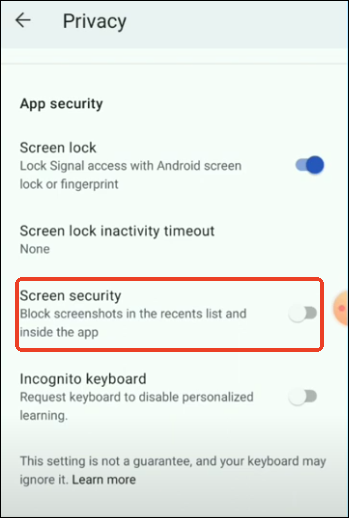
When enabled, Signal displays a blue privacy screen when the app is hidden or protected in certain system contexts, and it prevents screenshots of Signal on your own Android device.
🚩How to Hide Signal in the iPhone App Switcher:
On iPhone, Signal uses a related setting called Hide Screen in App Switcher.
Step 1. Open Signal.
Step 2. Tap your profile icon.
Step 3. Go to Settings > Privacy.
Step 4. Turn on Hide Screen in App Switcher.
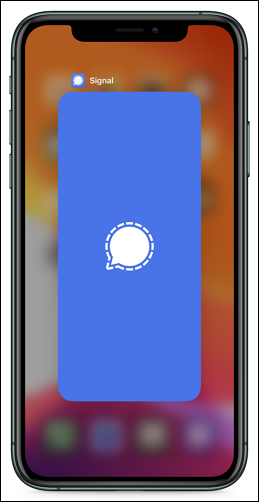
This prevents Signal content from appearing in the app switcher and also prevents screenshots of Signal on your device. It does not stop another person from capturing the conversation on their device.
- Editor's Tips:
-
1. Don't treat Screen Security as screenshot protection for both sides. It only controls capture on the device where it is enabled.
2. Use Disappearing Messages when you want to limit how long messages remain in the conversation.
3. Use View Once media for photos or videos that you don't want to remain in the conversation after viewing.
Remember that neither feature can guarantee that another person will not make a copy using another device, such as a camera.
Signal itself makes this limitation clear for Disappearing Messages: if someone really wants a permanent record, they can use another camera to photograph the screen.
Share this post if you find it helpful!
Troubleshooting: Why Can't I Take Screenshot on Signal Desktop Windows?
Some users reported that when using Signal Desktop on a Windows 11 computer to take a screenshot, nothing happens, including with the Windows Snipping Tool and third-party screen recorders.
This is because Signal has enabled a "screen security" feature for all users on Windows 11 to prevent Microsoft's AI-powered Recall feature from automatically capturing screenshots of the Signal app. It does this by applying a DRM (Digital Rights Management) flag to the Signal window, which blocks Recall and other apps from accessing or recording its content.
If you want to regain the ability to take screenshots of Signal, for example, to save important information, you can temporarily disable the screen security feature.
🚩How to Disable Signal's Screen Security on Windows 11:
Step 1. Open Signal Desktop on your Windows 11 PC.
Step 2. Go to Signal Settings > Privacy.
Step 3. Toggle off Screen Security. A warning pop-up will appear on the screen.
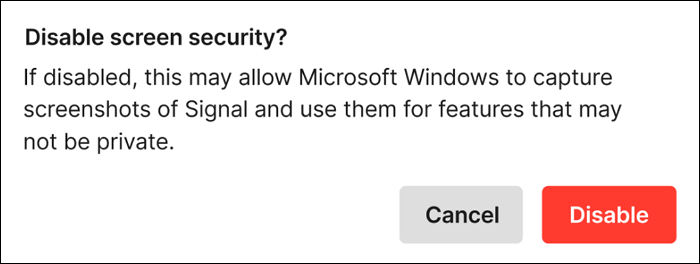
After disabling Screen Security, you can test Windows capture tools such as Snipping Tool or Print Screen.
If you need to record your own Signal Desktop screen for documentation, tutorials, troubleshooting, or another legitimate purpose, a third-party recorder such as EaseUS RecExperts can provide more recording controls than basic Windows capture tools.
- Notice:
- Don't use a screen recorder to bypass another person's privacy expectations or Signal's protections. Make sure you have permission before recording private conversations.
Share this post if you find it helpful!
Does Signal Notify Saved Photos FAQs
Still have questions about Signal screenshots, disappearing messages, View Once media, and screen recording? Here are the answers to the most common questions.
1. Does Signal notify you when someone screenshots?
No. Signal does not currently provide a screenshot notification feature. Someone can capture a Signal conversation on their device without Signal sending you an alert.
2. Does Signal notify screenshots of disappearing messages?
No. Signal does not send a screenshot alert when someone captures a Disappearing Message. The disappearing timer controls how long the message remains in the conversation; it is not designed to detect or prevent screenshots.
However, the recipient can still preserve the content before it disappears, including by taking a screenshot or photographing the screen with another device.
3. Does Signal notify screenshots of View Once media?
No. Signal does not notify the sender when someone screenshots View Once photos or videos. View Once Media is designed to remove the media from the conversation after it is viewed, rather than provide screenshot detection.
Like Disappearing Messages, it cannot guarantee that another person will not make a copy of content they can see.
4. Does Signal block screenshots?
It can block screenshots on your own device. Signal's Screen Security feature prevents screen captures locally on supported platforms. However, it does not prevent someone from taking a screenshot of the conversation on their own device.
5. Why can't I screenshot Signal on Windows 11?
Signal Desktop enables Screen Security by default on Windows 11. This is designed to prevent Microsoft Recall and other system-level capture from automatically recording Signal conversations.
You can find the setting under Signal Desktop > Settings > Privacy > Screen security. If you turn it off, Windows capture tools such as Snipping Tool or Print Screen can be used to capture your own Signal screen.
6. Can Signal backups restore deleted or disappearing messages?
Not in every situation. Signal Secure Backups can restore eligible message history when you recover your account or switch devices, but some content is excluded.
For example, View Once messages and messages scheduled to disappear within 24 hours are not included in Secure Backups. A backup also should not be treated as a general tool for recovering every message you have deleted.
7. Does Signal notify screen recording?
No. Signal does not currently provide a standard notification when someone records their screen. Whether screen recording works depends on the device, operating system, Signal's Screen Security settings, and the recording method being used.
Conclusion
So, does Signal notify screenshots?
No. Signal does not currently notify users when someone takes a screenshot or records their screen, including with regular messages, Disappearing Messages, or View Once media.
However, Signal can still restrict screen capture on your own device through Screen Security. On Windows 11, Signal Desktop also blocks screenshots by default to help protect conversations from Microsoft Recall.
The key difference is that Signal's privacy features are designed to limit local copies and reduce message retention, not to tell you what another person does with content they can already see.
If you need stronger privacy, use Disappearing Messages and View Once Media to reduce how long content remains available, while remembering that no messaging app can completely prevent someone from photographing or otherwise copying information displayed on their screen.