-
![]()
Daisy
Daisy is the Senior editor of the writing team for EaseUS. She has been working in EaseUS for over ten years, starting from a technical writer to a team leader of the content group. As a professional author for over 10 years, she writes a lot to help people overcome their tech troubles.…Read full bio -
Jane is an experienced editor for EaseUS focused on tech blog writing. Familiar with all kinds of video editing and screen recording software on the market, she specializes in composing posts about recording and editing videos. All the topics she chooses …Read full bio
-
![]()
Alin
Alin is an experienced technical blog writing editor. She knows the information about screen recording software on the market, and is also familiar with data cloning and data backup software. She is expert in writing posts about these products, aiming at providing users with effective solutions.…Read full bio -
Jean is recognized as one of the most professional writers in EaseUS. She has kept improving her writing skills over the past 10 years and helped millions of her readers solve their tech problems on PC, Mac, and iOS devices.…Read full bio
-
![]()
Jerry
Jerry is a fan of science and technology, aiming to make readers' tech life easy and enjoyable. He loves exploring new technologies and writing technical how-to tips. All the topics he chooses aim to offer users more instructive information.…Read full bio -
![]()
Rel
Rel has always maintained a strong curiosity about the computer field and is committed to the research of the most efficient and practical computer problem solutions.…Read full bio -
![]()
Gemma
Gemma is member of EaseUS team and has been committed to creating valuable content in fields about file recovery, partition management, and data backup etc. for many years. She loves to help users solve various types of computer related issues.…Read full bio
Page Table of Contents

Alin
Updated on Sep 29, 2026
0 Views |
0 min read
If you've ever tried to watch a major live event like on Netflix and found yourself staring at a spinning loading icon, you're not alone. From the Jake Paul vs. Mike Tyson boxing match in late 2024 to Netflix's NFL Christmas Games debut, "Netflix keeps buffering" has become a recurring frustration during high-traffic live events.
With the NFL Christmas Games 2025 approaching, many viewers are understandably worried the same thing could happen again. This guide explains why Netflix buffering happens during big events and what you can realistically do to fix it.
Why Netflix Buffers During Big Live Events
Netflix performs extremely well for on-demand movies and TV shows. However, live sports and major events introduce fundamentally different technical challenges. Understanding these differences explains why Netflix NFL buffering, high-profile boxing matches, and other live broadcasts.
1️⃣Live Streaming vs. On-Demand Playback
In on-demand streaming:
- Users watch different titles at different times
- Video can be pre-buffered or cached
- CDNs distribute traffic efficiently across multiple nodes
In live streaming:
- Millions of viewers request the same content at the same moment
- No possibility of pre-buffering future content
- Traffic becomes highly concentrated, creating sudden spikes even for large-scale CDNs
Think of it like comparing a staggered commuter flow (on-demand) with everyone trying to enter a stadium at once (live).
2️⃣Technical Factors Behind Live Buffering
1. Delivery Protocols: UDP vs HTTP Singlecast
Ideally, large-scale live streaming would use UDP multicast, where one data stream can reach many users simultaneously. In practice, Netflix uses HTTP-based "singlecast", creating millions of individual streams that put an extreme load on servers and CDNs.
2. High-Resolution Video Requirements
Live 4K at 60fps typically requires 25 Mbps on average, with peak bursts up to 35–40 Mbps. Sudden spikes in demand can saturate CDN edge nodes and ISP connections, even for users with gigabit internet.
3. Home Network Bottlenecks
Multiple devices connected to the same router compete for bandwidth. Routers maintain NAT tables for all active connections. During high-concurrency live streams, the NAT table can fill up, causing packet delays or loss. Buffering occurs even if your internet connection is fast.
4. Regional Infrastructure and ISP Constraints
During critical moments, such as kickoff, touchdowns, or fight highlights, CDN edge nodes and local ISPs may become overloaded. Buffering often appears exactly at these peak moments, not randomly, even if the platform overall is stable.
3️⃣Why Users With Fast Internet Still Experience Buffering
Reports from past events show that buffering happens even for:
- Fiber or gigabit-speed internet connections
- Users who had no issues on other streaming platforms
- Buffering only during Netflix live events
This indicates that the root cause is platform-level scaling and concentrated traffic, not individual network speed.
In most cases, buffering during major live events is a platform-level scaling challenge, not a problem users can fully fix on their own. Real-world examples of issues encountered in the past two years, including prolonged buffering, video freezing, pixelated images, and audio delays/disappearances, include:
|
Time |
Event |
Estimated Scale |
Typical User-Reported Issues |
|
Nov 24, 2024 (Netflix fight buffering) |
Jake Paul vs. Mike Tyson boxing livestream |
Tens of millions of concurrent viewers worldwide |
• Constant buffering and stream freezes |
|
Dec 24, 2024 (Netflix buffering NFL) |
NFL Christmas Games (Netflix exclusive) |
One of Netflix’s largest live sports audiences to date |
• Intermittent buffering during kickoff and touchdowns |
|
May 25, 2024 |
Large-scale Netflix service outage |
70,000+ reported incidents across multiple regions |
• Titles failing to load |
|
2025 (Multiple dates) |
High-demand show premieres like Stranger Things 5 |
Millions of simultaneous viewers per release window |
• Slow loading at launch time |
From these events, we can see that Netflix buffering issues consistently occur during periods of high user concurrency, that is, when a large number of users are simultaneously trying to access the same streaming content.
Share this guide with others to help them resolve Netflix buffering issues.

How to Fix Netflix Buffering
Watching live NFL games or major boxing matches on Netflix can be stressful when buffering interrupts key moments. Standard fixes, such as lowering the resolution or restarting the router, can help reduce the likelihood of these problems, like Netflix buffering NFL occurring.
Fix 1. Optimize Your Internet and Network
Start by ensuring your internet speed can handle high-bitrate live streams. Test with Fast.com or Google PageSpeed and aim for at least 50 Mbps.
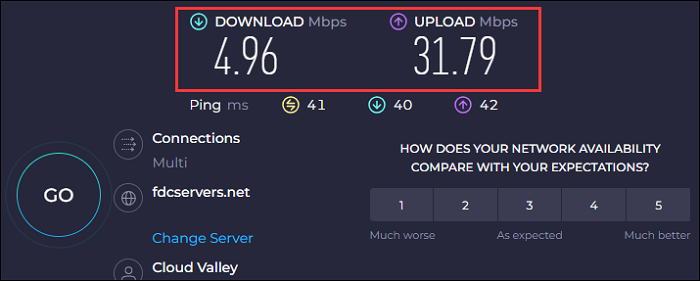
For stability, use a wired Ethernet connection rather than Wi-Fi, and make sure your cables are Cat 5e or higher.
Avoid Wi-Fi signals passing through multiple walls. Updating your router firmware to the latest security patches (for brands like Netgear or Linksys) and restarting it before the game can also improve reliability.
Adjusting your DNS to 1.1.1.1 (Cloudflare) or 8.8.8.8 (Google) and disabling IPv6 if your ISP's 6to4 tunnel adds jitter (~30ms) helps reduce latency and packet loss.
Fix 2. Adjust Devices and Streaming Settings
Switching between smart TV, browser, or mobile app can bypass playback pipeline bottlenecks.
If buffering occurs, manually lowering the streaming quality from 4K to 1080p or 720p helps prevent sudden bitrate spikes.
On the web, you can force 1080p playback using Ctrl + Alt + Shift + S. Switching to a secondary audio track, such as audio description, can reduce bandwidth usage by roughly 15%.
Fix 3. Manage Netflix and Device Cache
Clearing the Netflix cache on your TV (Settings > Get Help > Reload) ensures the app runs from a fresh state, reducing the chance of interruptions during live streams.
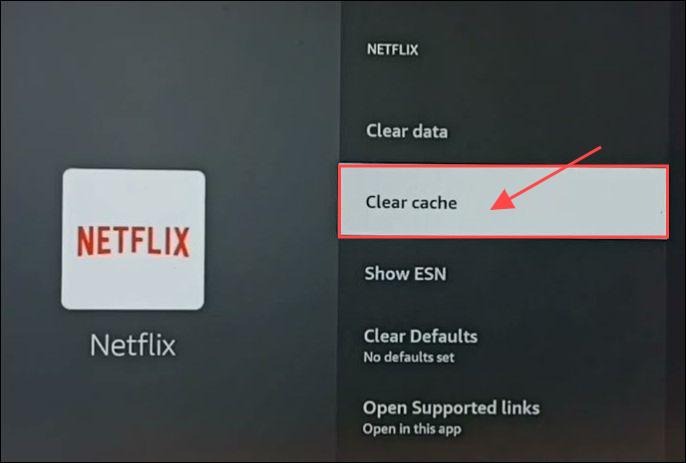
Restarting devices or reloading the stream during breaks, timeouts, or halftime can also prevent buffering at critical moments.
Adding the hidden low-latency mode parameter (?lowlatency=true) in the Netflix URL prioritizes real-time packet delivery.
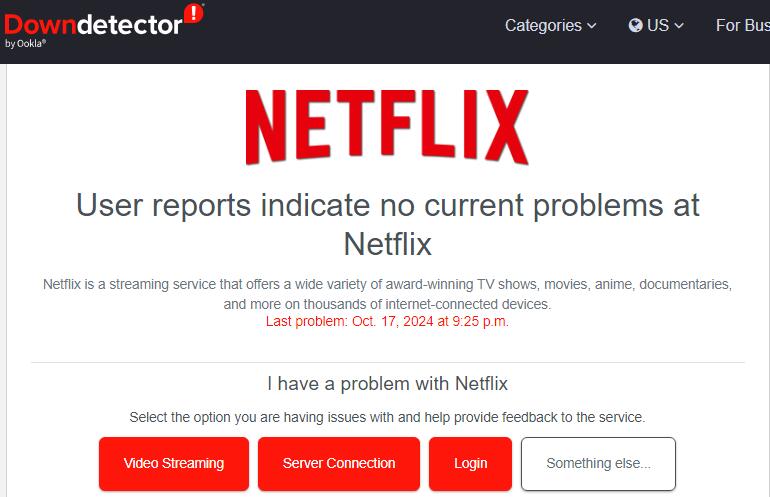
Additionally, monitoring Netflix platform health via the Netflix Status Page and Downdetector alerts helps you get early warnings before potential buffering issues during major live events.
Fix 4. Prepare Backup Plans
Having a second screen ready is a simple but effective precaution. Using a mobile device hotspot with a Lightning-to-HDMI connection allows you to continue watching if the primary connection fails. This can be combined with a backup device switch between apps or devices to quickly recover from network or platform issues.

Share this guide with others to help them resolve Netflix buffering issues.
Recording NFL Christmas Games 2025 Reliably
Buffering doesn't just affect watching; it may also ruin recordings. Slightly lowering recording settings and using a stable recorder like EaseUS RecExperts greatly improves your chances of capturing clean NFL highlights.
This live streaming recorder can screen record Netflix without a blank screen and edit the recorded videos easily.
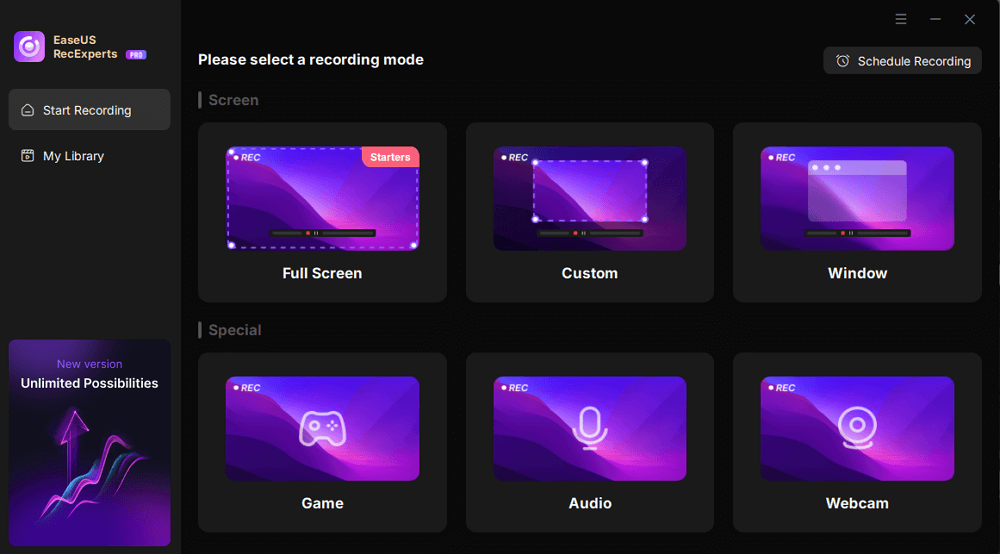
If you're recording NFL games with EaseUS RecExperts, a few simple adjustments help avoid these issues. First, test your setup before game day to confirm audio sync and system load. During the game, avoid recording at maximum resolution, such as 1080p is far more stable than 4K during peak traffic. Use system audio only to reduce desync, and keep an eye on CPU or GPU usage. If buffering becomes severe, pause recording during breaks, reload the stream, and resume afterward.
If you want to record live streaming like NFL Christmas Games 2025 on Netflix, you can follow the steps below:
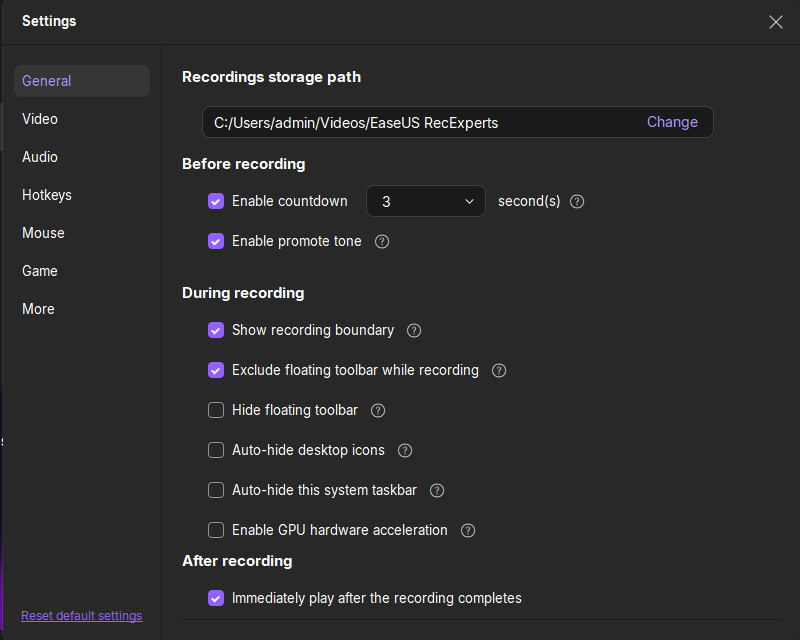
Step 1. Launch EaseUS RecExperts. Click the Menu (three lines in the upper-right corner) and go to Settings. Under the Video tab, set the Quality to Original, increase the frame rate to 60fps, and choose a high-quality video format like MP4 or MKV. You can also adjust the bitrate to ensure smoother recording of HD or live-streamed content.
Step 2. On the main interface, select Full Screen to capture the entire display, perfect for watching streaming videos in full resolution.
Step 3. Toggle on the Speaker to capture the original audio from the streaming platform. If you're recording for personal use and don't need commentary, keep the Microphone and Webcam turned off to ensure a clean recording.

Step 4. If you encounter a black screen while recording streaming playback, enable the Black Screen Fix to improve compatibility. Once enabled, the REC button will turn purple.

Step 5. Click the REC button and wait for the 3-second countdown. During recording, a floating toolbar will appear, allowing you to pause, resume, or stop at any time.

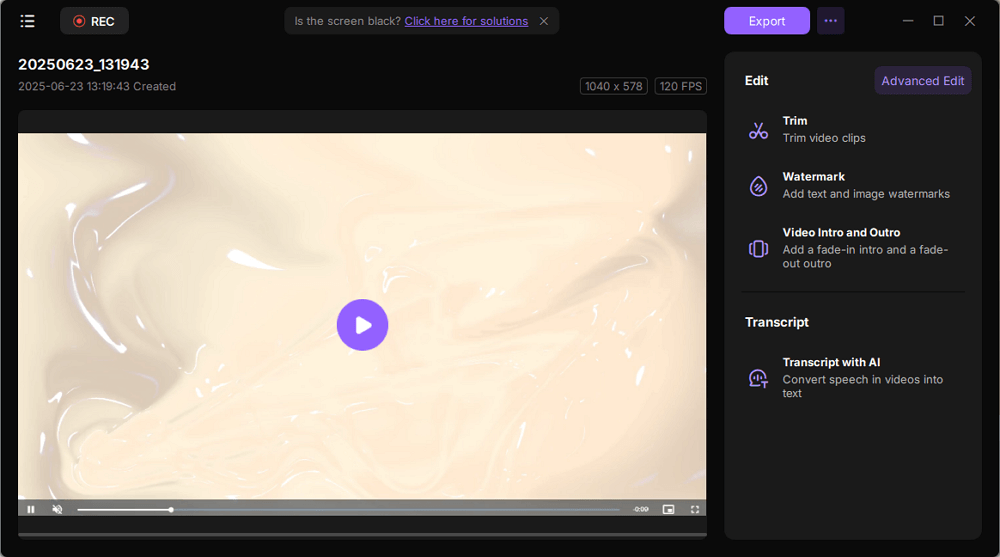
Step 6. Once recording ends, you'll be taken to the preview window, where you can watch, trim, or get transcripts from the file. You can export the video in your selected format and resolution, making it ideal for creating tutorials, summarizing web content, or saving highlights for personal reference.
Share this guide with others to help them resolve Netflix buffering issues.
Final Thoughts
Netflix keeps buffering isn't just a user complaint. It's a pattern tied to major live events like boxing matches and NFL games. With NFL Christmas Games 2025 approaching, understanding the causes, limitations, and realistic solutions is the best way to avoid frustration.
You may not be able to control global traffic spikes, but with the right preparation, you can minimize disruptions and enjoy the game without missing the moments that matter most. And you can use EaseUS RecExperts to record the NFL games live smoothly to watch it later.
FAQs about Netflix Live Buffering
1. Will Netflix buffer again during NFL Christmas Games 2025?
There's no guarantee. Netflix has improved its live streaming infrastructure, but past events show that buffering risks still exist during extremely popular broadcasts.
2. Why is Netflix so glitchy lately?
Netflix has been glitchy lately mainly due to unstable internet connections, device or app issues, and network congestion during peak hours. Even fast internet can struggle with Wi-Fi interference or ISP traffic. Outdated apps, full caches, or low device resources can also cause freezing or buffering. Less often, the issue is on Netflix's side, in which case waiting is the only fix.