-
![]()
Daisy
Daisy is the Senior editor of the writing team for EaseUS. She has been working in EaseUS for over ten years, starting from a technical writer to a team leader of the content group. As a professional author for over 10 years, she writes a lot to help people overcome their tech troubles.…Read full bio -
Jane is an experienced editor for EaseUS focused on tech blog writing. Familiar with all kinds of video editing and screen recording software on the market, she specializes in composing posts about recording and editing videos. All the topics she chooses …Read full bio
-
![]()
Alin
Alin is an experienced technical blog writing editor. She knows the information about screen recording software on the market, and is also familiar with data cloning and data backup software. She is expert in writing posts about these products, aiming at providing users with effective solutions.…Read full bio -
Jean is recognized as one of the most professional writers in EaseUS. She has kept improving her writing skills over the past 10 years and helped millions of her readers solve their tech problems on PC, Mac, and iOS devices.…Read full bio
-
![]()
Jerry
Jerry is a fan of science and technology, aiming to make readers' tech life easy and enjoyable. He loves exploring new technologies and writing technical how-to tips. All the topics he chooses aim to offer users more instructive information.…Read full bio -
![]()
Rel
Rel has always maintained a strong curiosity about the computer field and is committed to the research of the most efficient and practical computer problem solutions.…Read full bio -
![]()
Gemma
Gemma is member of EaseUS team and has been committed to creating valuable content in fields about file recovery, partition management, and data backup etc. for many years. She loves to help users solve various types of computer related issues.…Read full bio -
![]()
Shelly
"I hope my articles can help solve your technical problems. If you are interested in other articles, you can check the articles at the bottom of this page. Similarly, you can also check my Twitter to get additional help."…Read full bio
Page Table of Contents

Alin
Updated on Jun 09, 2026
0 Views |
0 min read
If you're creating YouTube tutorials, recording a podcast with video, or producing demos, audio quality can make or break your content. Many creators quickly realize that recording audio and video together limits editing flexibility and increases the risk of losing an entire recording due to sound issues.
By separating audio from video, you can capture cleaner sound, fix mistakes without re-recording visuals, and apply professional post-production edits. In this guide, you'll learn how to record audio and video separately using practical workflows designed for YouTube videos, podcasts, tutorials, and other content creation scenarios.
Should I Record Audio and Video Separately?
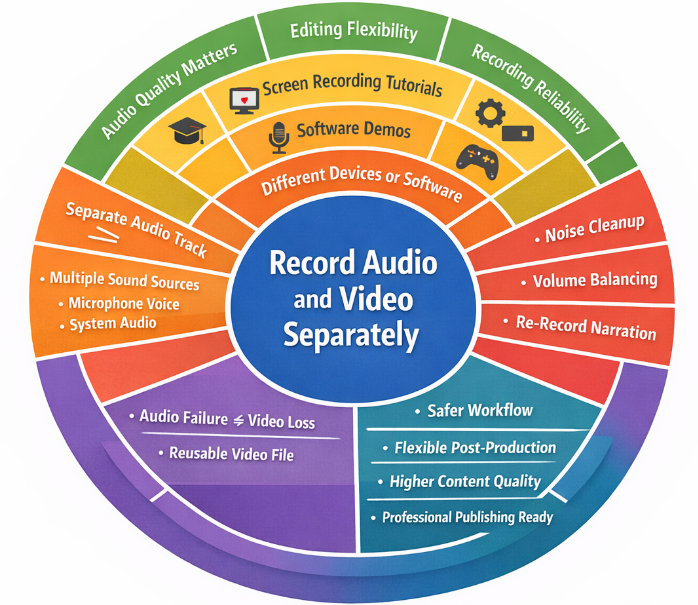
Yes! You should record audio and video separately if audio quality, editing flexibility, or recording reliability matters to your workflow. In use cases like screen recording tutorials, software demos, online courses, podcasts, or gameplay videos, audio issues are far more noticeable than minor visual imperfections. Recording audio on a separate track allows you to clean up noise, balance volume, or re-record narration without redoing the entire video.
Separate recording is also recommended when you capture multiple sound sources, such as microphone voice, and system audio, or when your recording setup involves different devices or software. Even if the audio fails, the video file can still be reused, reducing the risk of losing valuable recordings. If you plan to edit, repurpose, or publish content professionally, recording audio and video separately is usually the safer and more flexible choice.
Share this guide to help more people obtain independently recorded audio and video files.

Simplest Way to Record Audio and Video Separately (No Complex Setup)
While OBS offers powerful multi-track recording, its setup and audio exporting process can be complicated for beginners. If you want a faster and more straightforward way to record audio and video separately and get individual files instantly, EaseUS RecExperts is a simpler OBS alternative.
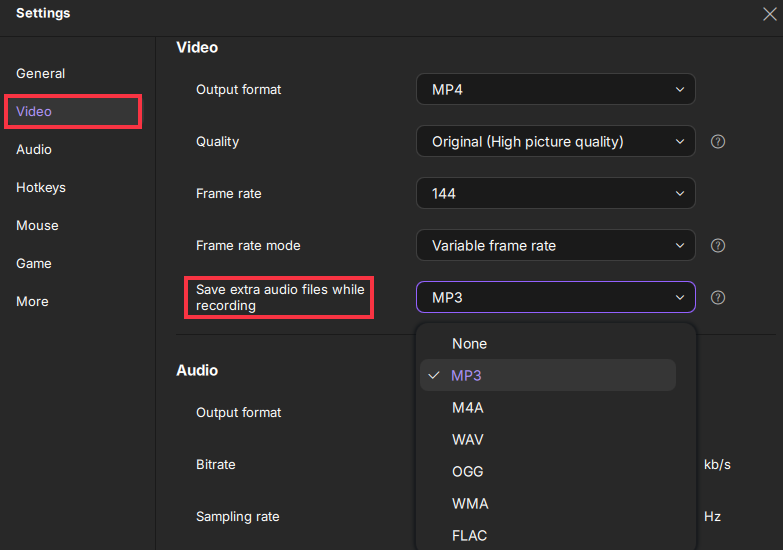
With RecExperts, users can enable the "Save extra audio files while recording" option in settings to automatically generate separate audio files for the microphone and system sound, along with the video file. There's no need to configure multiple tracks or extract audio later using editing software or command-line tools.
Beyond recording, this screen and audio recorder also includes practical post-production features such as subtitle generation, playback speed control, and basic trimming. These tools make it easier to review footage, clean up mistakes, and prepare content for publishing without switching between multiple programs.
This streamlined workflow is especially useful for YouTube tutorial creators, podcasters who record video versions of their shows, online course instructors, and anyone producing screen-recording demos. For creators who prioritize simplicity, efficiency, and fast turnaround, using a recorder that outputs separate audio and video files by default can significantly reduce friction in the production process.
How to record video and audio separately for podcasts, demos, etc. with EaseUS screen recorder:
Step 1. Click Menu in the upper right corner of the main interface and choose Settings. Switch to the Video tab and check "Save extra audio files while recording". Under the General tab, select the local folder where you want to save the audio and video files.
Step 2. Return to the main page and select a recording mode: Full screen, Custom, Windows, Game, or even webcam.
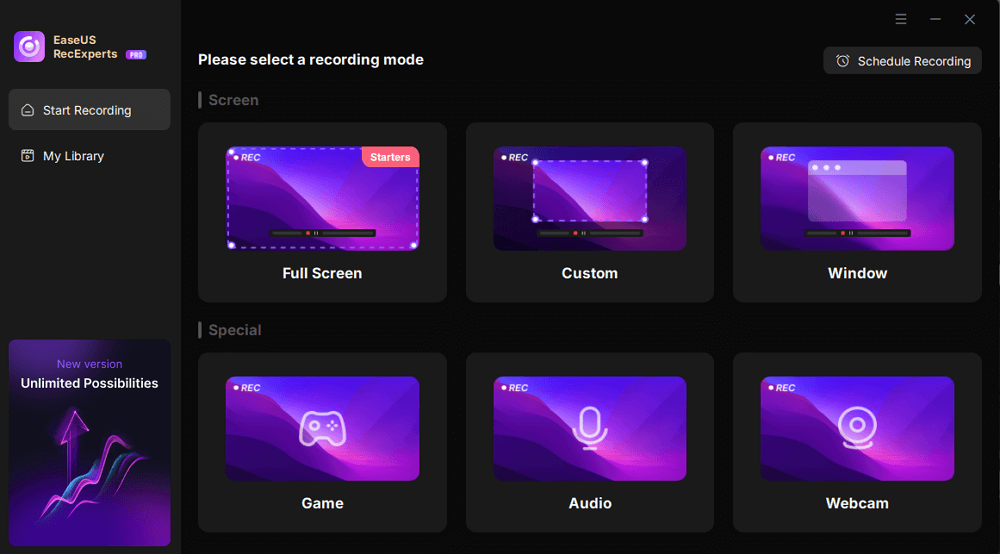
Step 3. In the toolbar, turn Webcam, Speaker, and Microphone on or off to capture different video or audio sources.
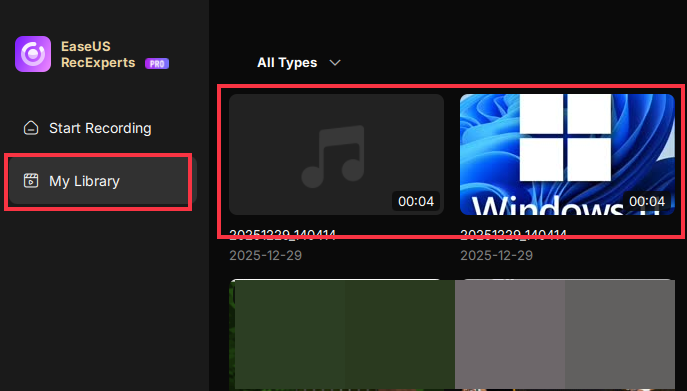
Step 4. Click the REC icon to start recording. After recording, you will see two separate files in My Library. Click on the corresponding file to start recording.
Share this guide to help more people obtain independently recorded audio and video files.
Can OBS Record Audio and Video Separately
YES. OBS can record video and audio separately as long as you configure multiple audio tracks in Settings. By default, OBS records everything into one video file (like MKV or MP4), but with multiple embedded audio tracks that you can split during editing.
If you need separate audio files, you can use FFmpeg to extract microphone and system audio. However, this step is slightly more complex and requires some technical knowledge. If you don't want to go through all that trouble, you can use the simpler and easier-to-use EaseUS RexExperts.
Now, check the steps on how to record audio separately from video OBS:
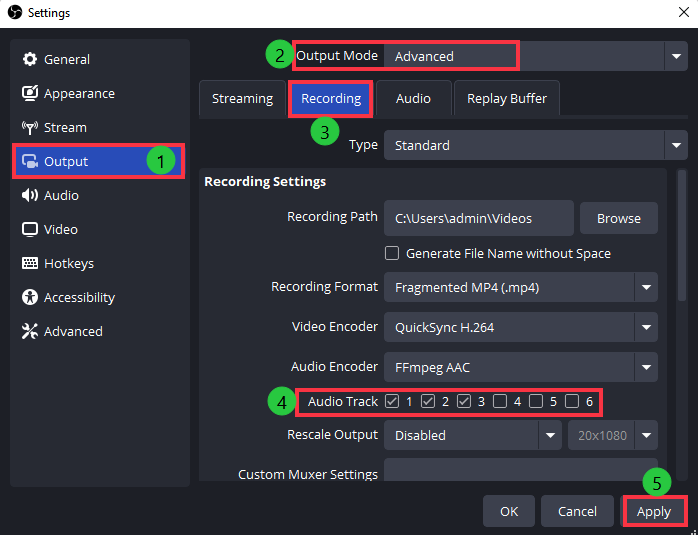
Step 1. Open OBS and go to Settings > Output > Output Mode > Advanced.
Step 2. In the Recording tab, select the desired number of tracks under Audio Track. Then, hit the Apply or OK button.
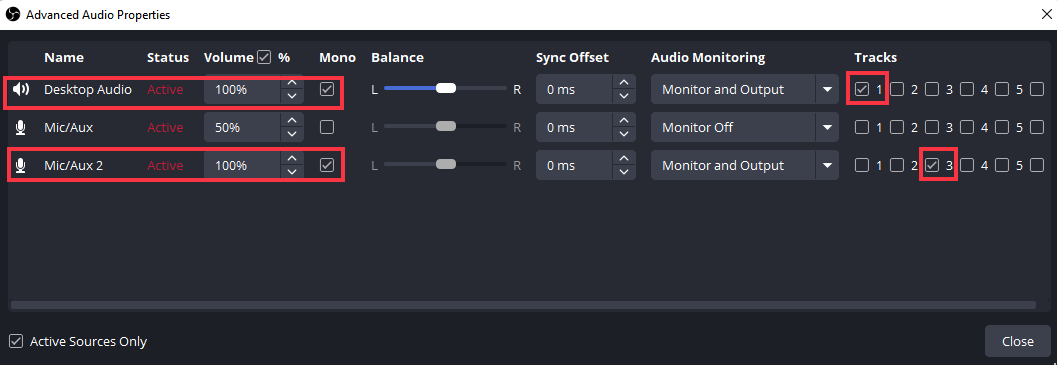
Step 3. Return to the OBS main interface and enter Audio Mixer >Advanced Audio Properties to check the audio source, such as desktop audio and mic.
Step 4. Hit the Start Recording button to capture audio and video. Stop it to save the MKV or MP4 recording.
Step 5. You can drag this video folder into editing software like DaVinci Resolve, where you'll see the audio files that can be edited individually.
Share this guide to help more people obtain independently recorded audio and video files.
Final Words
Recording audio and video separately is essential if you need post-production editing, especially when making tutorials, podcasts, or game commentary videos. It helps you easily re-edit without spending a lot of time recording again.
Both OBS and RecExperts can help you achieve this goal, but they are different:
- OBS excels at recording multiple audio tracks and displaying them individually in the editor. However, users need to spend more time learning how to use it correctly.
- EaseUS RecExperts' advantage lies in its simple setup, allowing you to easily record and save individual audio/video files. It also has a built-in editor, making it a highly efficient tool for beginners and creators alike.
Recording Audio and Video Separately FAQs
1. Can You Record Video and Audio Separately?
Yes, you can record video and audio separately using EaseUS RecExperts. This screen recorder allows you to record and save video and audio as independent files, so you don't have to extract soundtracks later in editing software or with third-party tools. It also includes built-in editing features that help streamline post-production.
2. Do YouTubers Record Audio and Video Separately?
Yes. Many YouTubers record audio separately to get cleaner sound and more control in editing, especially for tutorials, reviews, and podcast-style videos. This allows them to fix audio issues or replace narration without re-recording the video.
3. Is It Best to Record Video and Audio Separately?
It's usually the best choice when audio quality and editing flexibility matter, such as for online courses, gameplay recordings, or software demos. For casual clips, recording everything together is often enough.
4. Does Zoom Record Audio and Video Separately?
Yes, Zoom can save separate audio files if the proper settings are enabled, especially in cloud recordings or when the "separate audio file for each participant" option is turned on. However, Zoom is mainly built for meetings, not professional content production.