-
![]()
Daisy
Daisy is the Senior editor of the writing team for EaseUS. She has been working in EaseUS for over ten years, starting from a technical writer to a team leader of the content group. As a professional author for over 10 years, she writes a lot to help people overcome their tech troubles.…Read full bio -
Jane is an experienced editor for EaseUS focused on tech blog writing. Familiar with all kinds of video editing and screen recording software on the market, she specializes in composing posts about recording and editing videos. All the topics she chooses …Read full bio
-
![]()
Alin
Alin is an experienced technical blog writing editor. She knows the information about screen recording software on the market, and is also familiar with data cloning and data backup software. She is expert in writing posts about these products, aiming at providing users with effective solutions.…Read full bio -
Jean is recognized as one of the most professional writers in EaseUS. She has kept improving her writing skills over the past 10 years and helped millions of her readers solve their tech problems on PC, Mac, and iOS devices.…Read full bio
-
![]()
Jerry
Jerry is a fan of science and technology, aiming to make readers' tech life easy and enjoyable. He loves exploring new technologies and writing technical how-to tips. All the topics he chooses aim to offer users more instructive information.…Read full bio -
![]()
Rel
Rel has always maintained a strong curiosity about the computer field and is committed to the research of the most efficient and practical computer problem solutions.…Read full bio -
![]()
Gemma
Gemma is member of EaseUS team and has been committed to creating valuable content in fields about file recovery, partition management, and data backup etc. for many years. She loves to help users solve various types of computer related issues.…Read full bio
Page Table of Contents

Alin
Updated on Oct 22, 2026
0 Views |
0 min read
Want to keep a podcast episode offline, listen without the Spotify app, or save it for learning and personal reference? However, Spotify doesn't offer a built-in way to download podcast episodes as standard audio files like MP3. While offline listening is available inside the app, those episodes can't be exported, shared, or played in other audio players.
That's why many users often try different ways to save Spotify podcasts as MP3, such as recording, using developer tools, or online converters. This guide covers these practical methods and helps you choose the right one for offline listening without Spotify, note-taking, or long-term access.
Record Spotify Podcasts to MP3 (Most Reliable)
Suitable for: Users who want a stable and low-risk way to save podcasts for learning, note-taking, or long-term reference.
Recording a Spotify podcast during playback is widely considered one of the most reliable ways to save episodes as MP3. The process doesn't depend on Spotify's backend or changing interfaces; recording works consistently for both short clips and long-form podcast episodes.
EaseUS RecExperts, designed for screen and audio recording on Windows and Mac, allows you to capture system sound directly from Spotify and export as MP3 or other formats with adjustable audio quality settings.
This Spotify recorder also provides additional controls beyond basic saving:
- Generating AI transcripts for reading or searching key moments
- Creating AI summaries to quickly review long episodes
- Trimming unnecessary sections, such as ads or silence
- Adjusting playback speed for more efficient learning
Limitations to Keep in Mind:
- Recording requires playing the episode in real time and may involve manually renaming files or trimming sections.
Still, for most users, the reliability and flexibility it offers far outweigh these minor drawbacks, especially compared with tools that may fail unexpectedly.
- Tip
- Any recorded podcast files should be used only for personal use, such as offline listening or private archiving. Do not for any Commercial use.
Steps on How to Record a Podcast on Spotify with EaseUS Audio Recorder:
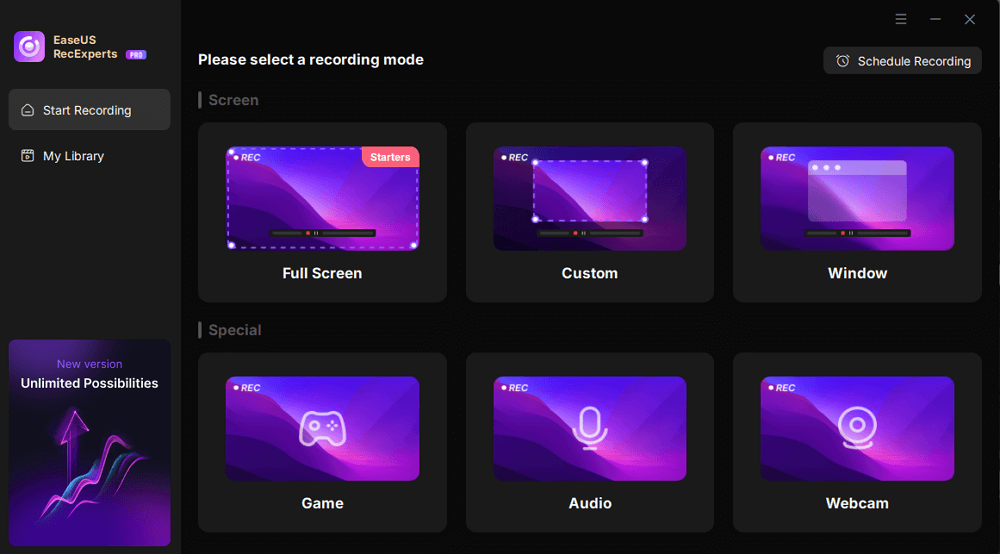
Step 1. Install and open EaseUS RecExperts on your computer, and click the Audio icon (which looks like a speaker) on the main interface.
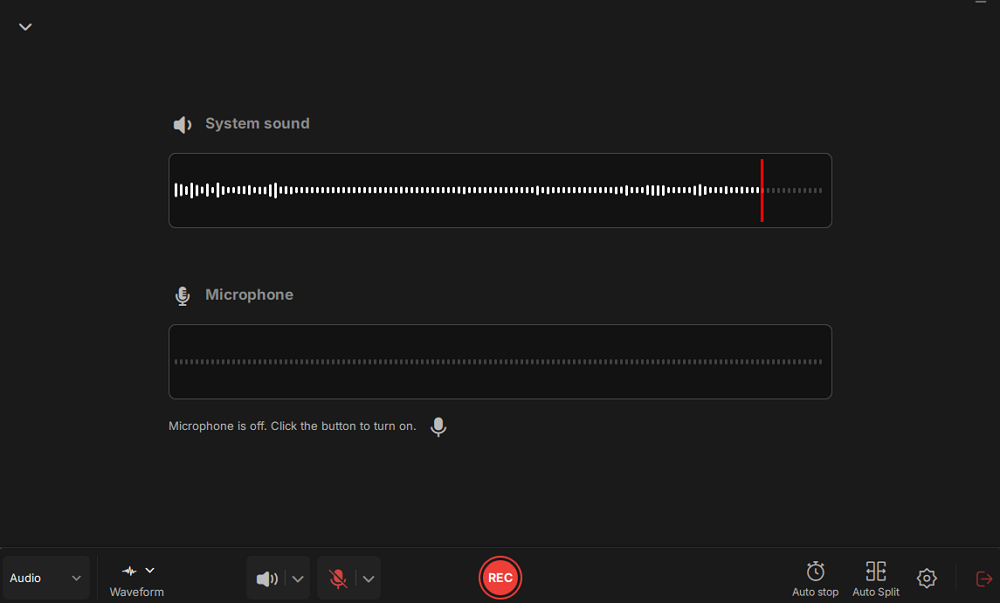
Step 2. Click the Speaker icon to turn it on to record the internal audio. You need to turn off the microphone if you don't want to capture audio from the microphone.
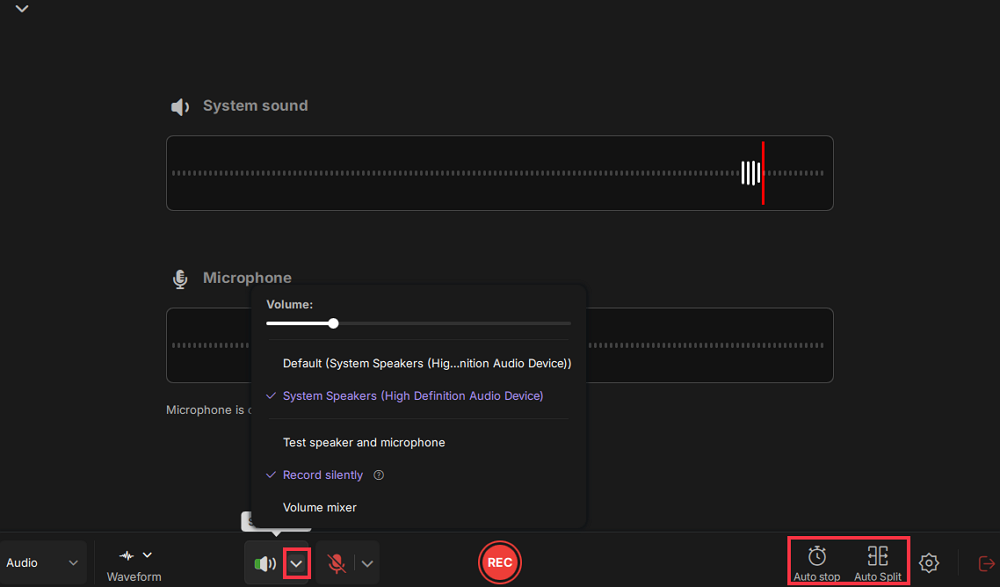
Step 3. Click the dropdown button next to Speaker to adjust the system volume and select the appropriate system speaker. You can also check the Record silently option, which allows you to record system sounds even when your computer is muted. If you need to adjust the volume further, click the Volume mixer option.
Next, click on the REC button to begin your recording.
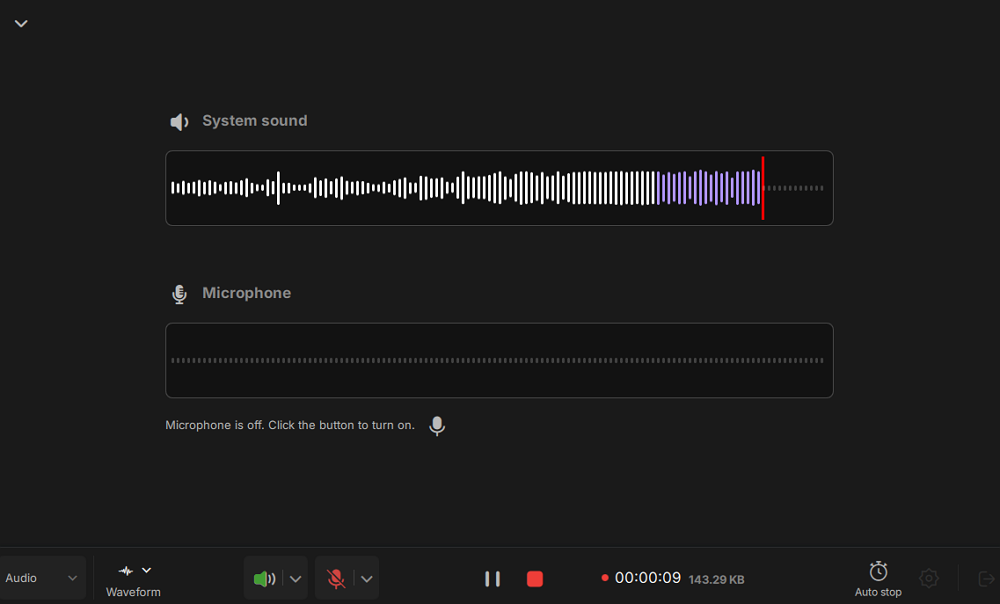
Step 4. While recording, you can pause or stop the recording by clicking on the appropriate buttons.
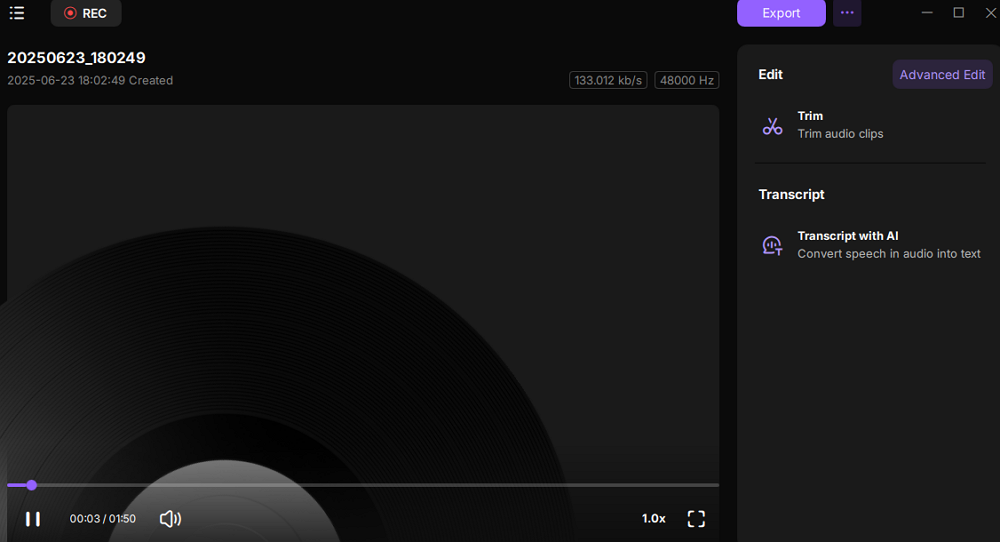
Step 6. Once you have completed the recording, you can click on the audio recording file that appears in the Recent recordings section. You can then listen to the audio using the built-in player. Additionally, you have the option to trim the audio or transcribe it into text.
Share this guide about Spotify Podcasts to MP3 with more people!

Download Spotify Episode to MP3 via Developer Tools
Suitable for: Using Developer Tools to locate the MP3 URL and safely download episodes without extra software for free.
Besides recording Spotify, another approach is to check whether the podcast is available outside Spotify - for example, on the official website or via its RSS feed. Many podcasts host their episodes in standard audio formats, including MP3, which can be legally accessed if the publisher provides a download option.
By using your browser's Developer Tools, you can inspect the network activity of the webpage to locate the actual .mp3 file URLs. This method works because, behind the streaming interface, the episode is still delivered as a standard audio file. It just isn't always visible to the user.
- Legal and safe: You're accessing files provided by the publisher.
- Original audio quality: Since you're downloading the native MP3, there is no loss from recording or conversion.
- No extra software needed: Aside from your browser, no third-party tool is required.
- Predictable results: Unlike online converters, the file comes directly from the source, so it won't suddenly stop working.
The main limitation is that not all podcasts expose direct MP3 links, and the process requires some familiarity with Developer Tools.
Guide on How to Download Spotify Episode to MP3 via RSS and Developer Tools:
Step 1. Search the Show name + podcast RSS on your browser, like Google Chrome. Click the most matching result.
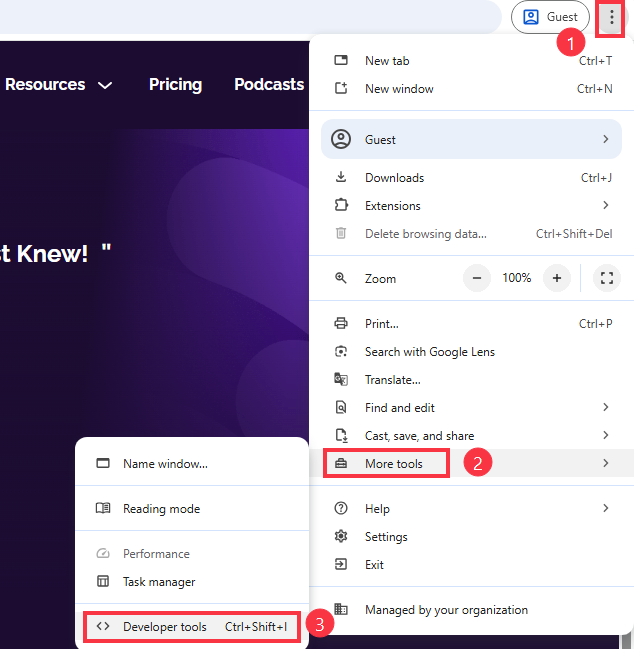
Step 2. Open Developer Tools by pressing Ctrl+Shift+I or by hitting the three dots icon > More Tools > Developer Tools.
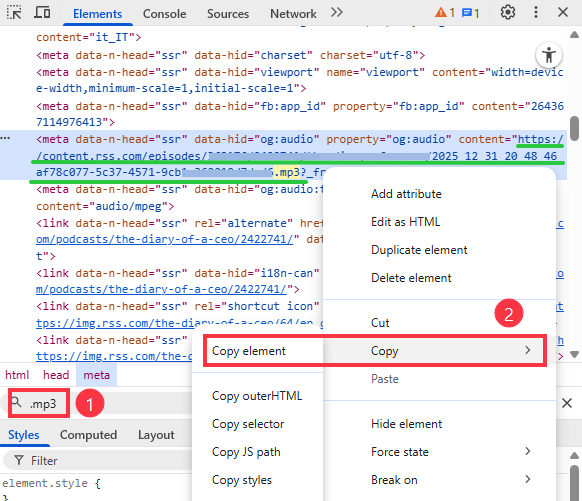
Step 3. Press Ctrl+F on Windows or CMD+F on Mac and type .mp3 to search the URL.
Step 4. Copy the complete URL and open it in a new tab.
Step 5. Click the three-dot icon and select Download to save the podcast to MP3 by default.

Share this guide about Spotify Podcasts to MP3 with more people!
Spotify Podcast to MP3 Converter Online Free
Online converters provide a fast way to transform Spotify podcasts into MP3 files without installing software. These tools work by analyzing the episode's streaming URL and generating a downloadable MP3. Essentially, the service acts as an intermediary, capturing the audio and making it available for download in a standard format.
The main advantages of this method are:
- Convenience: No installation or technical setup is required.
- Speed: Episodes can be downloaded quickly, often in a single step.
- Accessibility: Can be used on different devices and platforms, including Windows, Mac, and mobile browsers.
However, there are some limitations:
- Stability: Online converters often fail or become unavailable if Spotify changes its streaming protocols.
- Quality: MP3 output may be compressed or lower in audio fidelity.
- Security: Some online tools may include ads, pop-ups, or risk of malware.
Final Words
Here is a comparison table about the three methods above:
|
Method |
Formats |
Reliability |
Audio Quality |
Extra Features |
|
Recording Podcasts |
MP3, OGG, WAV, FLAC |
High |
High |
AI transcript, AI summary, trim, speed playback |
|
Developer Tools + RSS |
MP3 |
Medium-High |
High |
Original audio, legal |
|
Online Converters |
MP3 |
Low |
Medium |
Fast download, no software needed |
As the table shows, recording the Spotify podcast provides one of the most reliable solutions, especially if you want high audio quality and additional tools like AI transcripts and summaries. If you want to get an MP3 file quickly, downloading it with online tools is an option as long as you get the reliable ones.
Spotify Podcast to MP3 FAQs
1. Is it legal to convert Spotify to MP3?
Spotify's Terms of Service generally prohibit downloading or converting protected content outside its app, especially for redistribution or commercial use. However, recording or saving podcast audio for personal use—such as offline listening, study, or note-taking—is often considered lower risk, particularly when the podcast is freely available, and the use is non-commercial.
2. How to convert Spotify podcasts to MP3?
To convert Spotify podcasts to MP3, you can use an online converter like podcastmp3 or an audio recorder like EaseUS RecExperts. Here we take an audio recorder as an example:
Step 1. Install the tool on your Windows or Mac and enable it.
Step 2. Go to Settings > audio to choose output format as MP3 and set the bitrate and sampling rate as needed.
Step 3. In the main interface, click Audio mode, then turn on System speaker (turn off microphone).
Step 4. Press the REC button and play the Spotify podcast to start recording.
3. How to record a podcast on Spotify?
Whether you want to record podcasts from Spotify for offline listening or upload podcast files to Spotify for creators, EaseUS Recexperts is a practical solution. It supports multiple output formats, including MP3 and WAV, and is easy to use even for beginners.