-
![]()
Daisy
Daisy is the Senior editor of the writing team for EaseUS. She has been working in EaseUS for over ten years, starting from a technical writer to a team leader of the content group. As a professional author for over 10 years, she writes a lot to help people overcome their tech troubles.…Read full bio -
Jane is an experienced editor for EaseUS focused on tech blog writing. Familiar with all kinds of video editing and screen recording software on the market, she specializes in composing posts about recording and editing videos. All the topics she chooses …Read full bio
-
![]()
Alin
Alin is an experienced technical blog writing editor. She knows the information about screen recording software on the market, and is also familiar with data cloning and data backup software. She is expert in writing posts about these products, aiming at providing users with effective solutions.…Read full bio -
Jean is recognized as one of the most professional writers in EaseUS. She has kept improving her writing skills over the past 10 years and helped millions of her readers solve their tech problems on PC, Mac, and iOS devices.…Read full bio
-
![]()
Jerry
Jerry is a fan of science and technology, aiming to make readers' tech life easy and enjoyable. He loves exploring new technologies and writing technical how-to tips. All the topics he chooses aim to offer users more instructive information.…Read full bio -
![]()
Rel
Rel has always maintained a strong curiosity about the computer field and is committed to the research of the most efficient and practical computer problem solutions.…Read full bio -
![]()
Gemma
Gemma is member of EaseUS team and has been committed to creating valuable content in fields about file recovery, partition management, and data backup etc. for many years. She loves to help users solve various types of computer related issues.…Read full bio
Page Table of Contents

Jean
Updated on Aug 28, 2026
0 Views |
0 min read
If your Android screen recording suddenly has no audio, you're not alone. In recent days, many Android 16 users have reported that internal audio no longer records in some games, even when the same setup worked before. In some cases, the recorder still captures the screen but not the game sound, which suggests a protected-audio or app-level restriction rather than a simple settings mistake.
The good news is that many Android screen recording audio problems can still be fixed. In this guide, you'll learn why Android screen recording has no sound, what to check first, and when the issue is caused by Android or the app itself.
Why Android Screen Recording Has No Audio?
No matter what brands you use, such as Google Pixel, Samsung, Xiaomi, and OnePlus, Android screen recordings may lose sound for several reasons:
- The recorder is set to microphone only.
- Internal audio or device audio is turned off.
- Bluetooth headphones are redirecting sound.
- The screen recorder app is outdated.
- The app you're recording blocks audio capture.
- A recent Android update changed audio behavior.
- DRM-protected videos or protected-content apps prevent recording.
Android 16 May Affect Some Game Audio
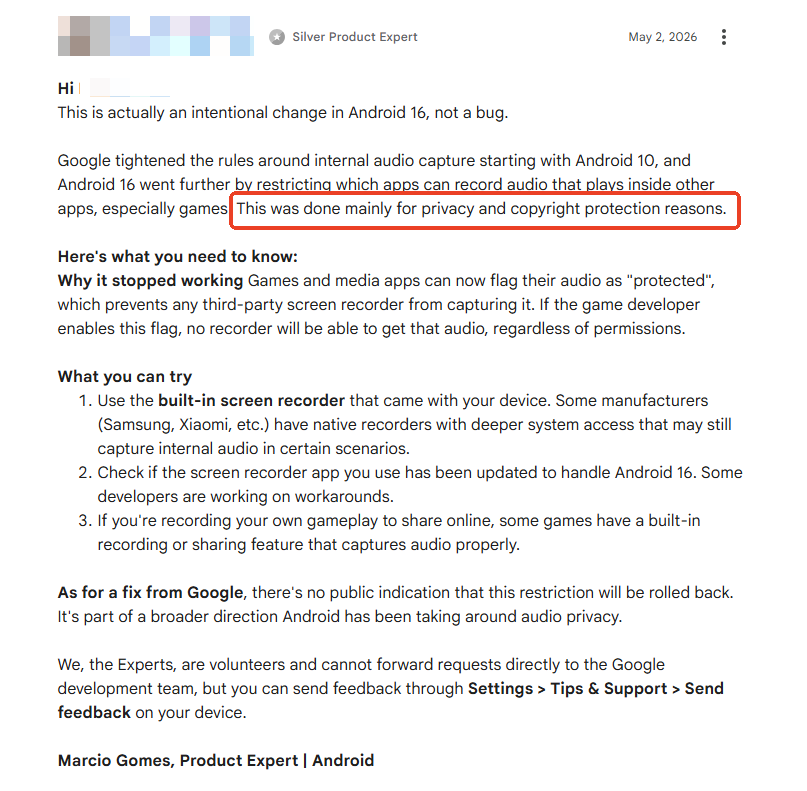
One of the biggest recent changes is Android 16's tighter control over internal audio capture, according to Android Help. Google has gradually restricted internal audio recording since Android 10, but Android 16 introduced additional protections that affect many screen recorder apps.
Some games and media apps can now mark their audio as protected. When this happens:
- Third-party Android screen recorders like AZ Screen Recorder and XRecorde cannot capture app audio
- Permissions alone will not bypass the restriction
- Even some built-in recorders may fail in certain cases
This change mainly impacts mobile games, streaming apps, DRM-protected media, and apps with copyright-protected audio. That's why many users suddenly notice missing sound after updating to Android 16, even though screen recording worked perfectly before. Unfortunately, this is not always a bug. In many cases, it is an intentional Android security and copyright protection policy.
Share this post if you find it helpful!

How to Fix Android Screen Record No Audio
The exact fix depends on what kind of audio is missing. If your video records but the sound is gone, the problem is often the audio source. If only some apps are silent, the app itself may be blocking internal audio capture.
Fix 1. Check the Audio Source First
This is the most common reason Android screen recording has no audio.
Many screen recorders let you choose from:
- Microphone
- Device audio
- Internal audio.
- Media sounds
- Internal audio and microphone
If your recorder is set to microphone-only, it will not capture game audio or app audio. Open your screen recorder settings and switch to internal audio, device audio, or media sounds. Then make a short test recording before you record anything important.
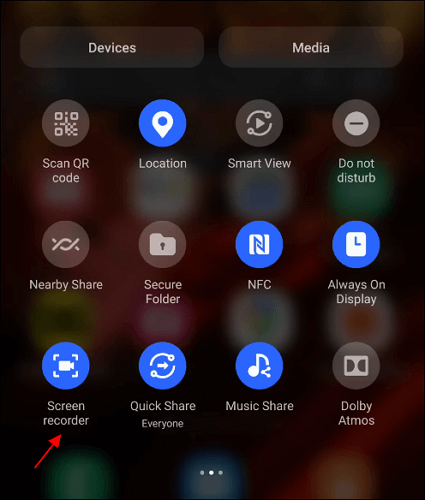
Fix 2. Use the Built-In Screen Recorder
In many cases, the phone's built-in screen recorder works better than a third-party app. System recorders often have deeper permissions and are less likely to break after an Android update.
On most Android phones, you can find screen recording in:
- Quick Settings
- The Control Center
- Game tools or gaming mode
For Samsung phones, for example, you can swipe down twice, tap Screen Recorder, and select Media sounds or Media sounds and mic. If your current recorder has no sound, testing the built-in recorder is one of the fastest ways to isolate the problem.
Fix 3. Turn Off Bluetooth Audio
Bluetooth earbuds and headphones can interfere with screen recording audio. If your sound is routed to Bluetooth, the recorder may capture the wrong source or miss internal sound entirely.
Try this:
- Turn off Bluetooth.
- Disconnect your earbuds or headphones.
- Close the recorder completely.
- Start a new test recording.
This simple step fixes the issue for many users, especially with AirPods, Galaxy Buds, and Bluetooth gaming headsets.
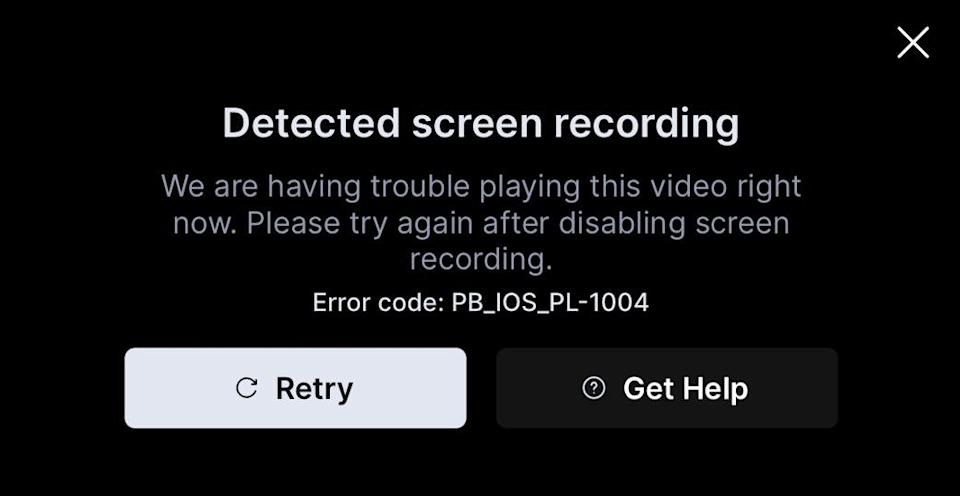
Fix 4. Check Whether the App Blocks Recording
Some apps do not allow internal audio recording at all. This is common with streaming services, copyrighted media apps, and certain games.
Examples include:
- Netflix
- Disney+
- Spotify
- Some mobile games.
- Other DRM-protected apps
In these cases, the video may record normally, but the audio will stay silent. This is not always a bug in your phone or recorder. The app itself may be preventing audio capture for copyright or privacy reasons.
Fix 5. Update Your Screen Recorder App
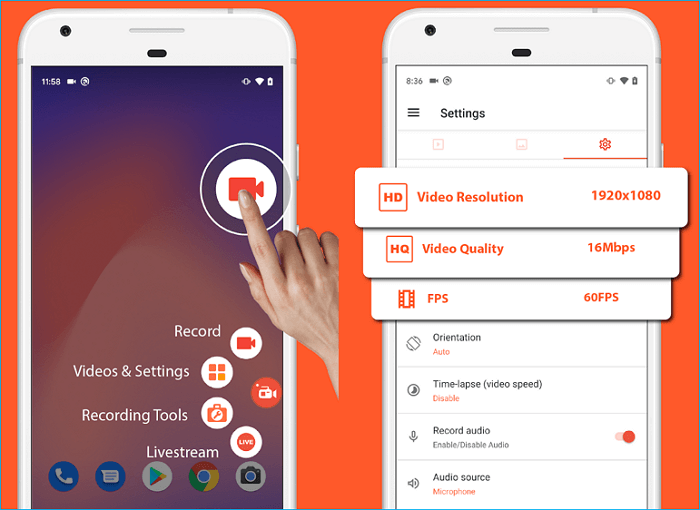
Older screen recorder apps may not work properly on newer Android versions. That can cause missing sound, audio delay, or the internal audio option to disappear completely.
Go to Google Play and check whether an update is available. If the app still fails after updating, reinstalling it can also help. This is especially important after major Android updates, since recorder developers often need time to adjust compatibility.
Fix 6. Restart Your Phone
A restart can fix temporary audio-routing problems after an update or system change. It may sound too simple, but it often works.
Restarting your phone can refresh:
- Audio permissions
- Media routing
- Screen recorder access
- System-level background services
If your screen recording suddenly loses audio after a reboot, security patch, or Android version update, try restarting before making any other changes.
- Tips:
- Some Reddit users reported that restarting your Android device can sometimes restore the screen recording audio, but it may not work after prolonged use.
Fix 7. Disable Game Booster or Gaming Mode
Gaming tools can interfere with screen recording audio. Features like Game Booster, Game Space, Gaming Assistant, or performance overlays may redirect sound in a way that breaks internal audio capture.
Try turning off these features temporarily:
- Game Booster
- Game optimization tools
- Floating overlays
- Performance assistants
Then test your recording again. This fix is especially useful on gaming phones and devices with custom performance software.
Fix 8. Try Another Audio Method
If internal audio still will not record, try recording with microphone audio instead. This will not match the quality of internal capture, but it can still be useful for tutorials, walkthroughs, and quick demos.
You can improve the result by:
- Increasing speaker volume
- Reducing background noise
- Recording in a quiet room
- Using an external microphone if needed
This is not the ideal solution, but it is a practical workaround when Android blocks internal audio.
Fix 9. Use a Different Recording Setup
If the app or system blocks audio completely, the problem may not be fixable inside the phone. In that case, you may need a different workflow.
Possible alternatives include:
- Recording the app on a PC emulator
- Using a capture card
- Recording with an external microphone.
- Using an external camera for reference footage
This is especially useful for creators who regularly record mobile games or app demos.
Android Screen Recording No Audio FAQs
1. Why is my Android screen recording silent?
The most common reasons are the wrong audio source, Bluetooth interference, app restrictions, or system limitations.
2. Why does Android only record microphone audio?
Your screen recorder is likely set to microphone only instead of internal audio, device audio, or media sounds.
3. Does Android 16 block internal audio recording?
Some Android 16 users have reported that internal audio no longer records in certain games, while other apps still work. That suggests app-level restrictions or protected audio behavior rather than a universal block.
4. Why do some games record sound while others do not?
Some games may now mark audio as protected, so the recorder can still capture the screen but not the game sound.
5. Can built-in Android screen recorders still capture sound?
Yes, often they can. Built-in recorders usually work better than third-party apps, but protected content may still block audio.
6. What is the fastest fix for no audio in Android screen recording?
First, check the audio source, then turn off Bluetooth, and finally try the built-in screen recorder
Final Verdict
If your Android screen recording has no audio, the problem is usually due to the wrong audio settings, Bluetooth routing, an outdated recorder, or an app that blocks capture. In many cases, switching to internal audio or using the built-in screen recorder quickly fixes the issue.
Recent Android 16 reports suggest that some games may now block internal audio more aggressively, even when recording worked before. If that is happening, the issue may be at the app or system level rather than something you can solve with settings alone.