-
![]()
Daisy
Daisy is the Senior editor of the writing team for EaseUS. She has been working in EaseUS for over ten years, starting from a technical writer to a team leader of the content group. As a professional author for over 10 years, she writes a lot to help people overcome their tech troubles.…Read full bio -
Jane is an experienced editor for EaseUS focused on tech blog writing. Familiar with all kinds of video editing and screen recording software on the market, she specializes in composing posts about recording and editing videos. All the topics she chooses …Read full bio
-
![]()
Alin
Alin is an experienced technical blog writing editor. She knows the information about screen recording software on the market, and is also familiar with data cloning and data backup software. She is expert in writing posts about these products, aiming at providing users with effective solutions.…Read full bio -
Jean is recognized as one of the most professional writers in EaseUS. She has kept improving her writing skills over the past 10 years and helped millions of her readers solve their tech problems on PC, Mac, and iOS devices.…Read full bio
-
![]()
Jerry
Jerry is a fan of science and technology, aiming to make readers' tech life easy and enjoyable. He loves exploring new technologies and writing technical how-to tips. All the topics he chooses aim to offer users more instructive information.…Read full bio -
![]()
Rel
Rel has always maintained a strong curiosity about the computer field and is committed to the research of the most efficient and practical computer problem solutions.…Read full bio -
![]()
Gemma
Gemma is member of EaseUS team and has been committed to creating valuable content in fields about file recovery, partition management, and data backup etc. for many years. She loves to help users solve various types of computer related issues.…Read full bio
Page Table of Contents

Alin
Updated on Sep 29, 2026
0 Views |
0 min read
Steam Game Recording feature lets you capture gameplay clips, but many users face a frustrating issue: the video records correctly, but there's no audio. This often happens in competitive shooters or EA titles, especially after Windows updates, with certain audio devices, or due to the overlay.
In this guide, we'll explain the causes and show step-by-step solutions to fix the Steam game recording no audio issue. Alternatively, you can use a professional game recorder like EaseUS RecExperts to capture games with audio easily.
Fix 1: Change Steam Recording Game Audio Only to System Audio
Many affected players, especially in EA titles like Battlefield 6, discovered that Steam fails to properly hook the game's audio channel when launching. By temporarily switching to "All System Audio," Steam hooks into the global Windows mixer instead. Switching back refreshes the capture session.
This method enables audio capture, especially when Record in Background mode is selected. However, this is not a long-term solution, as it requires operation every time, which is cumbersome, and it may not work in Record Manually mode.
Step-by-step to switch Steam's audio recording source:
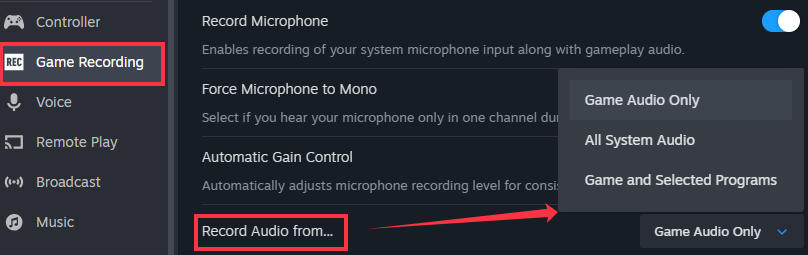
Step 1. Open Steam and click the Steam icon in the top left corner. Then go to Settings > Game Recording.
Step 2. Scroll down and find Record Audio from..., then set the audio recording source to All System Audio.
Step 3. Close Settings and launch your game. Return to Steam Settings > Game Recording and change audio mode to Game Audio Only.
Share this guide about Steam recording no audio with others.

Fix 2: Restart Steam Before Launching the Game
Steam's recording feature may fail to attach to the game's audio session, especially after Windows updates, switching audio devices, or launching multiple games in one session. In this case, video records normally, but no sound is captured.
Fully restarting Steam refreshes its recording service and audio hooks. Many players of Battlefield 2042 and Battlefield V confirm that a simple restart before launching the game restores audio recording.
Steps to restart Steam:
Step 1. Right-click the tray icon and choose Exit Steam.
Step 2. Reopen Steam and launch the game immediately. Then, you can test the screen and audio recording.
Fix 3: Resolve Audio Device & Output Routing Issues
If Steam records video but captures no sound, the problem may be caused by audio device routing, especially when using USB wireless headsets (such as 2.4GHz dongle-based devices).
Several users report that switching from a wireless headset to wired headphones or speakers immediately restores recording audio. This indicates that Steam may be binding to a different output device than the one your game is using.
Steam records from the active Windows audio session. If the game and Steam are assigned to different output devices, the recording may capture silence. If switching devices restores sound, the issue is device binding, not Steam itself.
Steps on how to fix audio device issues:
Step 1. Press Windows + I and go to System > Sound.
Step 2. Under Output, confirm the correct device is selected.
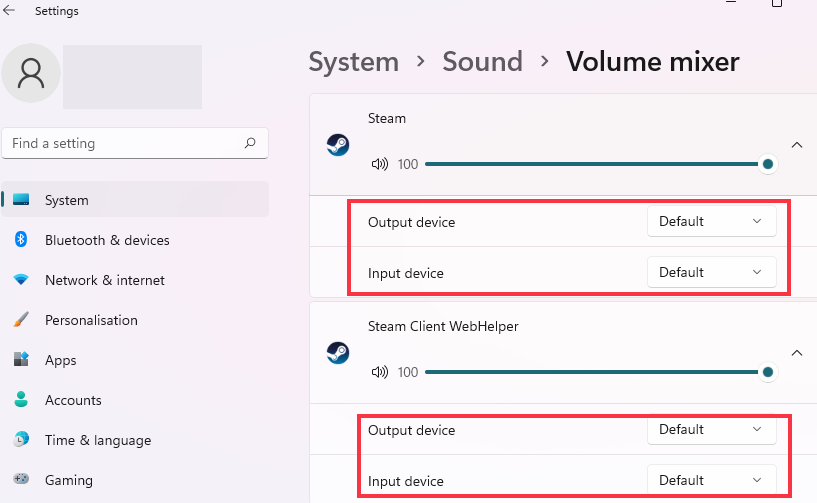
Step 3. Click Advanced sound settings and check: Steam, Steam WebHelper, your game is all using the same output device (preferably Default).
If audio is still missing:
- Temporarily switch to wired headphones or speakers
- Disconnect unused audio devices
- Disable unused playback devices in the Sound Control Panel
- Update your audio drivers
Share this guide about Steam recording no audio with others.
Fix 4: Switch Between Steam Stable and Beta Versions
Because Steam Game Recording is still a relatively new feature, audio behavior can vary between client builds, especially after major Windows updates.
Some users resolved the issue by joining the Steam Beta client. Others fixed it by leaving Beta and returning to the stable version. This suggests that audio capture modules may behave differently across client branches.
How to Switch Steam Client Version:
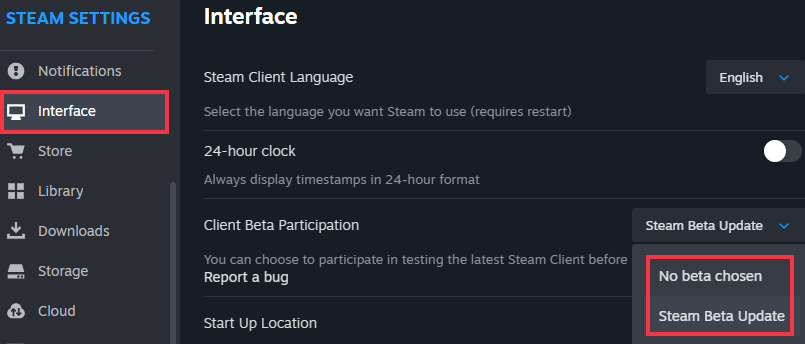
Step 1. Open Steam, go to Settings > Interface > Client Beta Participation.
Step 2. Select either: Steam Beta Update or No Beta (Stable).
Step 3. Restart Steam when prompted and test the recording again.
If one version fails, try the other. This is a safe and reversible troubleshooting step.
Fix 5: Rebind Audio After Game Initialization (Engine / Anti-Cheat Timing Issue)
If only certain games fail to record audio, the issue may be related to how they initialize their audio engines.
In some cases, Steam attempts to attach to the game's audio session too early. When the main menu loads, the audio session is fully initialized. Rebinding Steam's recording mode at that moment can restore capture. This has been observed in some Battlefield titles and other online shooters.
The proven workaround is change the game audio only to all system audio in Steam.
Share this guide about Steam recording no audio with others.
Using Steam Recording Alternative: EaseUS Screen Recorder
If you frequently record competitive shooters like Battlefield or Marvel Rivals, consider using a dedicated recorder like EaseUS RecExperts or OBS for more stable audio channel separation, especially if anti-cheat protection interferes with Steam's built-in recorder.
This game recorder is designed to handle complex audio routing and high GPU workloads without losing sound. Based on extensive user testing in competitive titles, this recorder generally offers more consistent audio synchronization and fewer capture failures.
- Smooth, low-latency gameplay recording: Optimized GPU acceleration minimizes FPS drops during high-load scenes.
- Reliable system audio capture: Records in-game sound even when audio sessions change at launch.
- Better compatibility with anti-cheat games: Captures desktop audio rather than relying solely on in-game hooks.
- Flexible output formats: Export in MP4, MOV, AVI, etc., with customizable bitrate and resolution.
- Manual & scheduled recording modes: Ideal for both highlight capture and long-session gameplay.
Steps on how to capture gameplay with EaseUS Game Recorder:
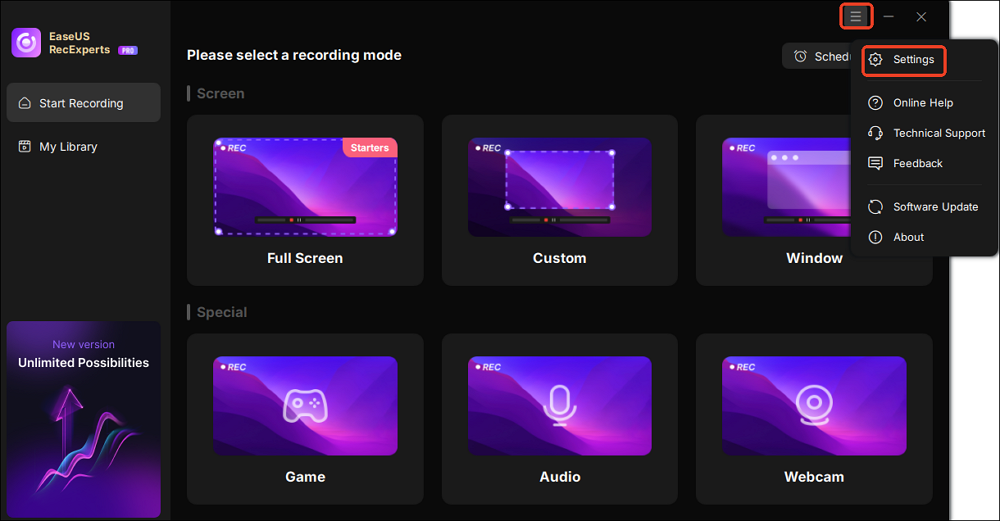
Step 1. Launch the EaseUS game recorder and click the Menu icon to open the Settings.
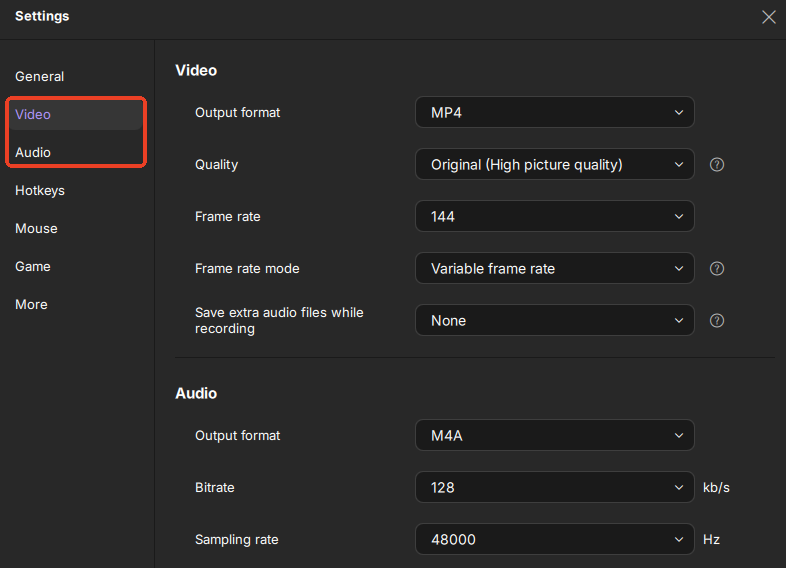
Step 2. Then, customize the settings under the video, audio, and game options as needed. This includes configuring the recording format and quality, exporting audio files, displaying overlay information, etc.
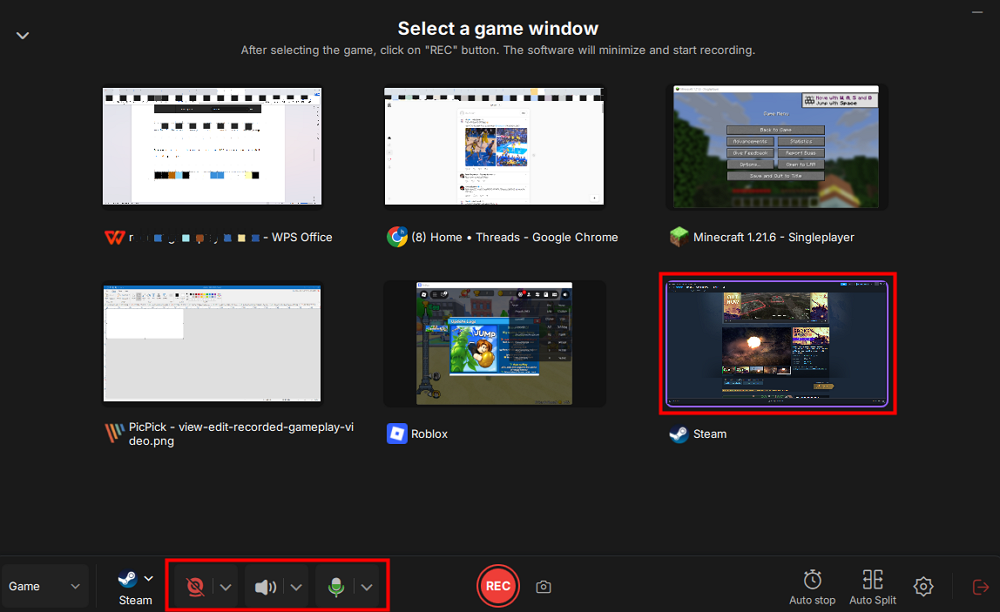
Step 3. Go back to the main interface and select Game mode. Pick the game window for the gameplay you want to capture, and select a webcam or audio source if desired.
Lastly, press REC to start the game recording.
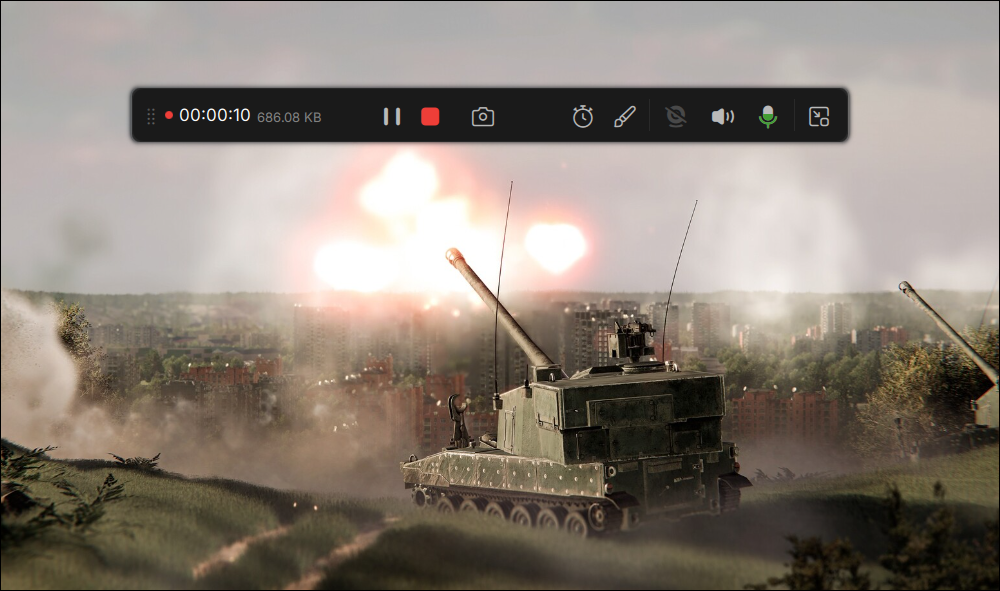
Step 4. You can click the Camera icon or press F11 to take screenshots while recording the game.

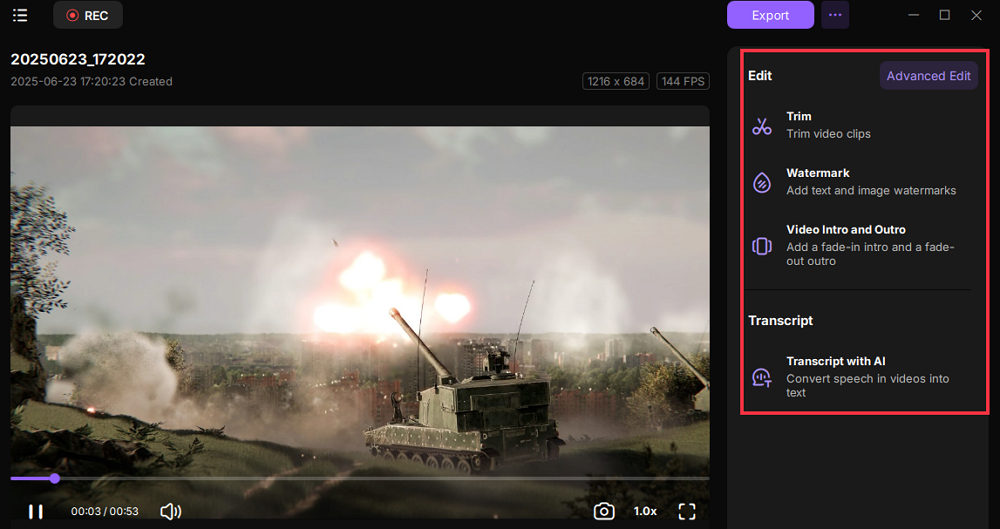
Step 5. Click the red square icon to stop recording. Then, go to My Library to preview the recorded gameplay video. Plus, you can edit the game video by using the built-in tools.
Share this guide about Steam recording no audio with others.
Conclusion
Steam recording no audio is a common issue, especially in competitive shooters, EA titles, or after Windows updates. By following the step-by-step fixes: checking audio devices, restarting Steam, or switching client versions, you can restore in-game audio reliably. For a more stable long-term solution, consider using dedicated recorders like EaseUS RecExperts, which provide better audio channel separation and minimal performance impact.
FAQs about Steaming Game Recording No Audio
1. Why does Steam record video but no audio?
Steam captures audio from the active Windows audio session. If the game uses a different output device, or if Steam’s audio hook fails due to overlay, anti-cheat, or initialization timing, video records but audio is silent.
2. Does using wireless USB headsets cause audio issues?
Yes, some wireless headsets (e.g., 2.4GHz dongle-based) can create separate virtual audio endpoints. Switching to wired headphones or speakers usually resolves the problem.