-
![]()
Daisy
Daisy is the Senior editor of the writing team for EaseUS. She has been working in EaseUS for over ten years, starting from a technical writer to a team leader of the content group. As a professional author for over 10 years, she writes a lot to help people overcome their tech troubles.…Read full bio -
Jane is an experienced editor for EaseUS focused on tech blog writing. Familiar with all kinds of video editing and screen recording software on the market, she specializes in composing posts about recording and editing videos. All the topics she chooses …Read full bio
-
![]()
Alin
Alin is an experienced technical blog writing editor. She knows the information about screen recording software on the market, and is also familiar with data cloning and data backup software. She is expert in writing posts about these products, aiming at providing users with effective solutions.…Read full bio -
Jean is recognized as one of the most professional writers in EaseUS. She has kept improving her writing skills over the past 10 years and helped millions of her readers solve their tech problems on PC, Mac, and iOS devices.…Read full bio
-
![]()
Jerry
Jerry is a fan of science and technology, aiming to make readers' tech life easy and enjoyable. He loves exploring new technologies and writing technical how-to tips. All the topics he chooses aim to offer users more instructive information.…Read full bio -
![]()
Rel
Rel has always maintained a strong curiosity about the computer field and is committed to the research of the most efficient and practical computer problem solutions.…Read full bio -
![]()
Gemma
Gemma is member of EaseUS team and has been committed to creating valuable content in fields about file recovery, partition management, and data backup etc. for many years. She loves to help users solve various types of computer related issues.…Read full bio
Page Table of Contents

Jean
Updated on Sep 03, 2026
0 Views |
0 min read
Does Discord notify screenshots or screen recording? No. Discord does not currently notify users when you screenshot or screen record their content. This includes regular messages, DMs, photos, videos, profiles, and most other content visible in Discord.
But screenshots aren't the only thing people want to know about. What happens when you save or download a picture from a DM? Can server admins see your screenshots? Does screen sharing change anything?
The short answer is that Discord currently does not provide users, moderators, or bots with a standard screenshot notification. However, some actions, such as screen sharing, are visible to other participants by design.
Here's what you need to know about Discord screenshots, saved pictures, DMs, screen recordings, and privacy in 2026.
Does Discord Notify You of Screenshots?
No. Discord does not currently send a notification when someone takes a screenshot.
Unlike apps with built-in screenshot alerts for certain content, Discord doesn't provide a standard feature that tells another user when their content has been captured.
This applies to most common Discord content:
|
Discord activity |
Does Discord notify others? |
What to know |
|
Screenshot of a DM |
No |
The other person does not receive a screenshot alert |
|
Screenshot of a server/channel |
No |
Server owners and moderators aren't notified |
|
Screenshot of a photo |
No |
No screenshot notification |
|
Screenshot of a video |
No |
No screenshot notification |
|
Screenshot of a profile |
No |
No screenshot alert |
|
Screenshot during a video call |
No |
Discord does not normally alert participants |
|
Screen recording |
No |
No standard recording notification |
|
Save/download a picture |
No |
The sender is not normally notified |
|
Download an attachment |
No |
No standard download notification |
|
Screen sharing |
Not applicable |
Other participants can see your shared screen |
Share this post to help more users!

Why Discord Cannot Detect Screenshot or Screen Recording
It is more accurate to say that Discord does not currently provide a screenshot notification feature than to assume that every device or operating system makes screenshot activity technically impossible to detect.
When you take a screenshot on Windows, macOS, iOS, or Android, your device's operating system and screenshot tools handle the capture.
Discord does not currently expose a user-facing feature that reports those captures to the person whose content you viewed.
1. Screenshots Are Usually Captured Outside Discord
When you use a keyboard shortcut or your phone's screenshot controls, the operating system handles the capture.
The resulting image is saved locally or to your device's photo library.
2. Discord Doesn't Provide Screenshot Alerts
Even though Discord can process messages, media, reactions, and other platform activity, it does not currently provide a standard notification telling users that someone captured their screen.
That means server owners, moderators, and ordinary users do not have a built-in "screenshot history" they can check.
3. Bots Don't Have a Screenshot Notification API
Discord bots can respond to events exposed through Discord's platform APIs, but taking a screenshot on your own device is not a standard Discord event that a server bot can subscribe to.
So installing a bot in a server does not automatically give its moderators the ability to see who took a screenshot.
To appreciate why Discord can't detect screenshots, you need to understand how the platform interacts with your device. To sum up, screenshot detection would require system permissions that Discord simply does not have.

(a synthetic image from Discord Support)
Misunderstandings About Discord Screenshot and Screen Recording Notifications
Discord screenshot questions often come from confusing screenshots with other visible activities.
|
Myth |
Reality |
|
Discord alerts someone when you screenshot a DM |
No standard screenshot notification |
|
Saving someone's photo sends them an alert |
No standard save/download notification |
|
Server admins can see who took a screenshot |
No |
|
A Discord bot can detect screenshots |
Not through a standard Discord API event |
|
Discord tracks every screen recording |
No standard recording notification |
|
Screen sharing is private from other participants |
No. Participants can see what you share |
What About Screen Sharing During a Call?
Screen sharing is different from screen recording.
When you start a screen share in a Discord voice or video call, the other participants can see the content you choose to share in real time.
That means they don't need a screenshot notification to know what is on your screen—they can simply see it.
For example:
- Screen recording: You capture your own screen locally → Discord does not normally notify other participants.
- Screen sharing: You broadcast your screen to other participants → They can see what you are sharing.
Even if Discord does not notify participants when you take a screenshot during a screen share, anything visible in the shared screen should be treated as potentially capturable by other participants.
Share this post to help more users!
How to Screenshot on Discord Legally
If you need to capture something on Discord for personal reference, support, or moderation, the safest approach is to use your device's built-in screenshot tool and Discord screen recorder and to follow the server's rules or basic consent guidelines. Below are the standard ways to take screenshots on different devices.
How to Screenshot Discord on Windows
You can use several built-in methods on Windows:
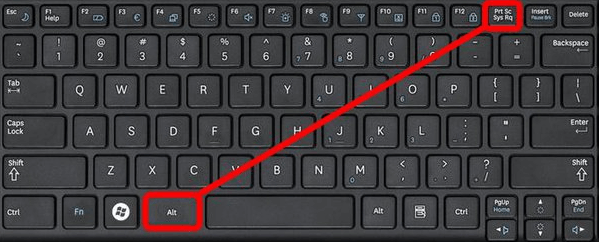
Method 1: Print Screen (Full Screen)
- Open Discord and display the content you want to capture.
- Press the PrtScn key on your keyboard.
- Open Paint or any image editor.
- Press Ctrl + V to paste the screenshot.
- Save the file.
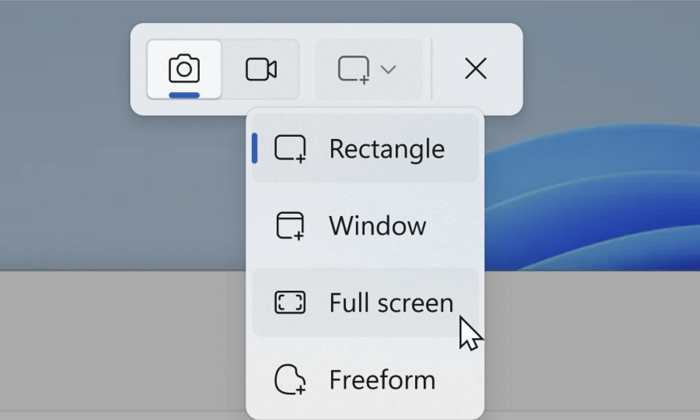
Method 2: Windows + Shift + S (Snipping Tool)
- Open the Discord window.
- Press Windows + Shift + S.
- Select the area you want to capture.
- The screenshot will be copied to your clipboard.
- Paste it into an app (Paint, Word, etc.) and save.
How to Screenshot Discord on Mac
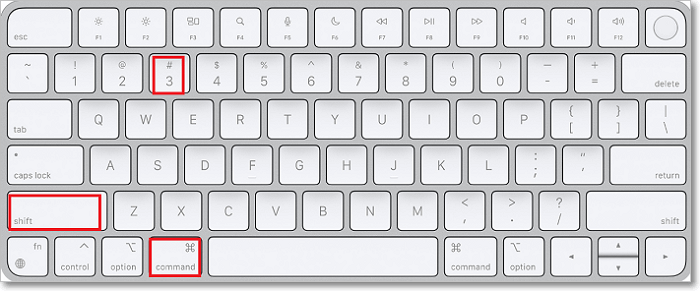
Method 1: Capture Entire Screen
- Open Discord.
- Press Command + Shift + 3.
- The screenshot will be saved automatically to your desktop.
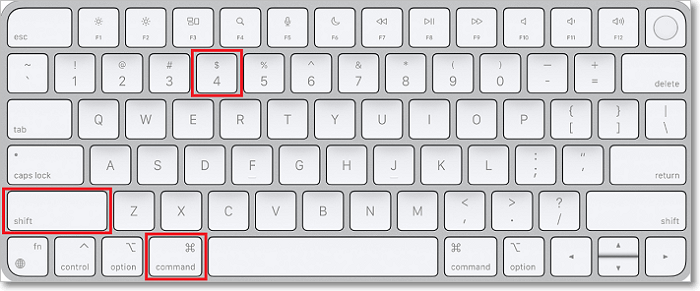
Method 2: Capture Selected Area
- Press Command + Shift + 4.
- Drag your cursor to select the Discord content.
- Release to capture.
- The file will save to your desktop.
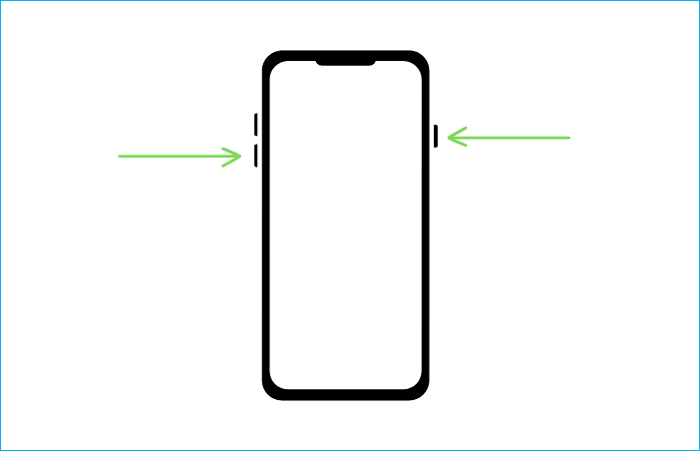
How to Screenshot Discord on iPhone
- Open Discord.
- Press the Side button + Volume Up at the same time.
- Release quickly.
- The screenshot will appear in the lower-left corner.
- Tap it to edit or save automatically to Photos.

How to Screenshot Discord on Android
- Open Discord.
- Press Power + Volume Down at the same time.
- Hold briefly, then release.
- The screenshot will be saved in your Gallery or Photos app.
Tips for Discord Users
Just because Discord doesn't alert users doesn't mean privacy doesn't matter. Here are ways to protect yourself and others:
✅ Ask Before Capturing
If you're taking a screenshot of sensitive content from a private chat or voice conversation, get consent whenever possible.
✅ Be Careful Sharing Screenshots
Accidentally sending screenshots back into Discord can reveal private discussions you didn't intend to broadcast.
✅ Use Built-in Tools for Saving Content
Discord allows message pinning, bookmarking, and media saving — use those before relying on screenshots.
✅ Understand Server Rules
Some communities prohibit screenshots or require confidentiality — respect those guidelines.
Share this post to help more users!
Discord Screenshot Notifications FAQs
1. Does Discord notify when you screenshot a DM?
No. Discord does not currently send a screenshot notification when you capture a standard DM. The other person will not receive an alert simply because you took a screenshot of your conversation.
2. Does Discord notify when you save someone's picture?
No. Saving or downloading a picture from a Discord message does not currently generate a standard notification to the person who posted it.
3. Can Discord tell if you screen record?
Discord does not currently send a standard notification when you screen record ordinary Discord content. This is different from screen sharing, where other participants can see the content you intentionally broadcast.
4. Can bots or server moderators detect screenshots?
No. Discord does not provide a standard screenshot event through its API. A server bot cannot normally tell that you used your device's screenshot tool.
5. Does Discord notify someone when you download an image?
No. Downloading or saving an image does not currently trigger a standard notification to the sender.
6. Does Discord notify when you screenshot a profile?
No. Discord does not currently send a notification when you screenshot someone's profile, avatar, banner, or other visible profile information.
7. Could Discord add screenshot notifications in the future?
It's possible. Discord can change its privacy and notification features at any time, so this article describes Discord's current behavior rather than offering a permanent guarantee.
A Privacy Hot Topic: Discord's Age Verification Update in 2026
Discord's 2026 age-assurance changes have generated privacy questions, but they are separate from screenshot detection.
Discord originally announced a broader global age-assurance rollout for 2026, but on February 24, 2026, the company said it was delaying the broader global expansion until the second half of 2026 while it expanded verification options and increased transparency around its approach.
As of August 2026, Discord says it prompts users for age assurance when they try to access age-restricted servers or channels, blurred sensitive content, or certain safety settings. It also says that most users will not need to complete an explicit age check.
Discord's current approach can involve age inference based on account-level signals. For users who need additional confirmation, available methods can include privacy-focused age assurance options such as on-device facial age estimation or ID-based verification through third-party vendors, depending on the user's region and the feature being tested or offered.
None of these age-assurance changes mean that Discord has introduced screenshot notifications. Age assurance is designed around age-appropriate access and safety settings, not around telling users when someone captures their screen.
Because Discord's age-assurance rollout is still evolving during 2026, users should check Discord's latest regional guidance if they receive an age-assurance prompt.