-
![]()
Daisy
Daisy is the Senior editor of the writing team for EaseUS. She has been working in EaseUS for over ten years, starting from a technical writer to a team leader of the content group. As a professional author for over 10 years, she writes a lot to help people overcome their tech troubles.…Read full bio -
Jane is an experienced editor for EaseUS focused on tech blog writing. Familiar with all kinds of video editing and screen recording software on the market, she specializes in composing posts about recording and editing videos. All the topics she chooses …Read full bio
-
![]()
Alin
Alin is an experienced technical blog writing editor. She knows the information about screen recording software on the market, and is also familiar with data cloning and data backup software. She is expert in writing posts about these products, aiming at providing users with effective solutions.…Read full bio -
Jean is recognized as one of the most professional writers in EaseUS. She has kept improving her writing skills over the past 10 years and helped millions of her readers solve their tech problems on PC, Mac, and iOS devices.…Read full bio
-
![]()
Jerry
Jerry is a fan of science and technology, aiming to make readers' tech life easy and enjoyable. He loves exploring new technologies and writing technical how-to tips. All the topics he chooses aim to offer users more instructive information.…Read full bio -
![]()
Rel
Rel has always maintained a strong curiosity about the computer field and is committed to the research of the most efficient and practical computer problem solutions.…Read full bio -
![]()
Gemma
Gemma is member of EaseUS team and has been committed to creating valuable content in fields about file recovery, partition management, and data backup etc. for many years. She loves to help users solve various types of computer related issues.…Read full bio
Page Table of Contents

Jean
Updated on Jul 13, 2026
0 Views |
0 min read
Recording a conversation on an iPhone sounds simple, but many users quickly discover that Apple's rules are different from Android's.
The biggest questions are usually the same:
-
Can you record a phone call on an iPhone?
-
Does the other person get notified?
-
Do you need a third-party app?
-
What about FaceTime, WhatsApp, or Zoom calls?
The answer depends on what kind of conversation you're trying to record.
For in-person conversations, Apple already includes a built-in recorder that works surprisingly well. For phone calls, iOS 18 finally introduced native call recording, though there are some important limitations to note.
In this guide, we'll show you the easiest ways to record conversations on iPhone and explain what works, what doesn't, and when the other person will be notified.
Method 1. How to Record a Phone Call on iPhone (Official Method)
✅ Best for: Phone calls, interviews, customer support conversations, verbal agreements, and important discussions
📱 Compatibility:
-
iPhone running iOS 18 or later
-
Available only in supported countries and regions
Starting with iOS 18, Apple introduced built-in call recording directly in the Phone app. Unlike third-party call recording apps, this feature records both sides of the conversation and automatically generates a transcript.
However, there is one important limitation: everyone on the call will be notified when recording begins.
How to Record a Phone Call on iPhone
Step 1. Start or answer a phone call using the Phone app.
Step 2. Tap the Record button on the call screen. (the microphone icon)
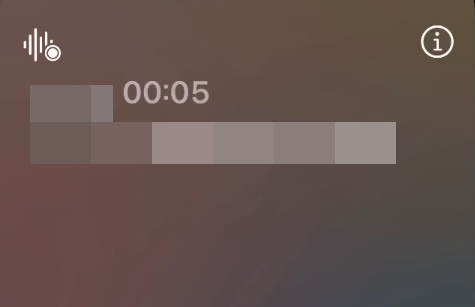
Step 3. Wait for the automatic announcement informing all participants that the call is being recorded.
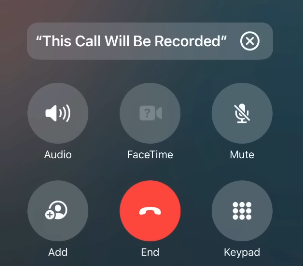
Step 4. Continue the conversation normally.
Step 5. Tap Stop Recording when finished.
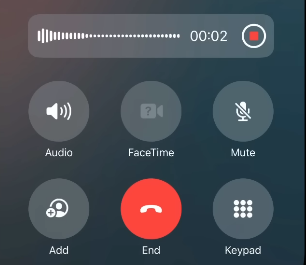
Step 6. Open the Phone app and locate the recording and transcript after the call ends.
💡Important Notes
-
Apple automatically notifies everyone on the call before recording starts.
-
This feature is unavailable in some countries and regions due to local laws.
-
Recordings are stored directly on your device and can include transcripts.
💡Will Someone Know If I Record a Call on iPhone?
Yes. When you use Apple's built-in call recording feature, everyone participating in the call hears an announcement before recording begins. There is currently no official way to use Apple's native call recorder without notifying the other person.
Method 2. How to Record FaceTime, WhatsApp, and Zoom Conversations
✅ Best for: FaceTime calls, WhatsApp calls, Zoom meetings, Skype conversations, and other internet-based calls
📱 Compatibility:
-
All modern iPhones and iPads
-
Requires a computer for reliable audio recording
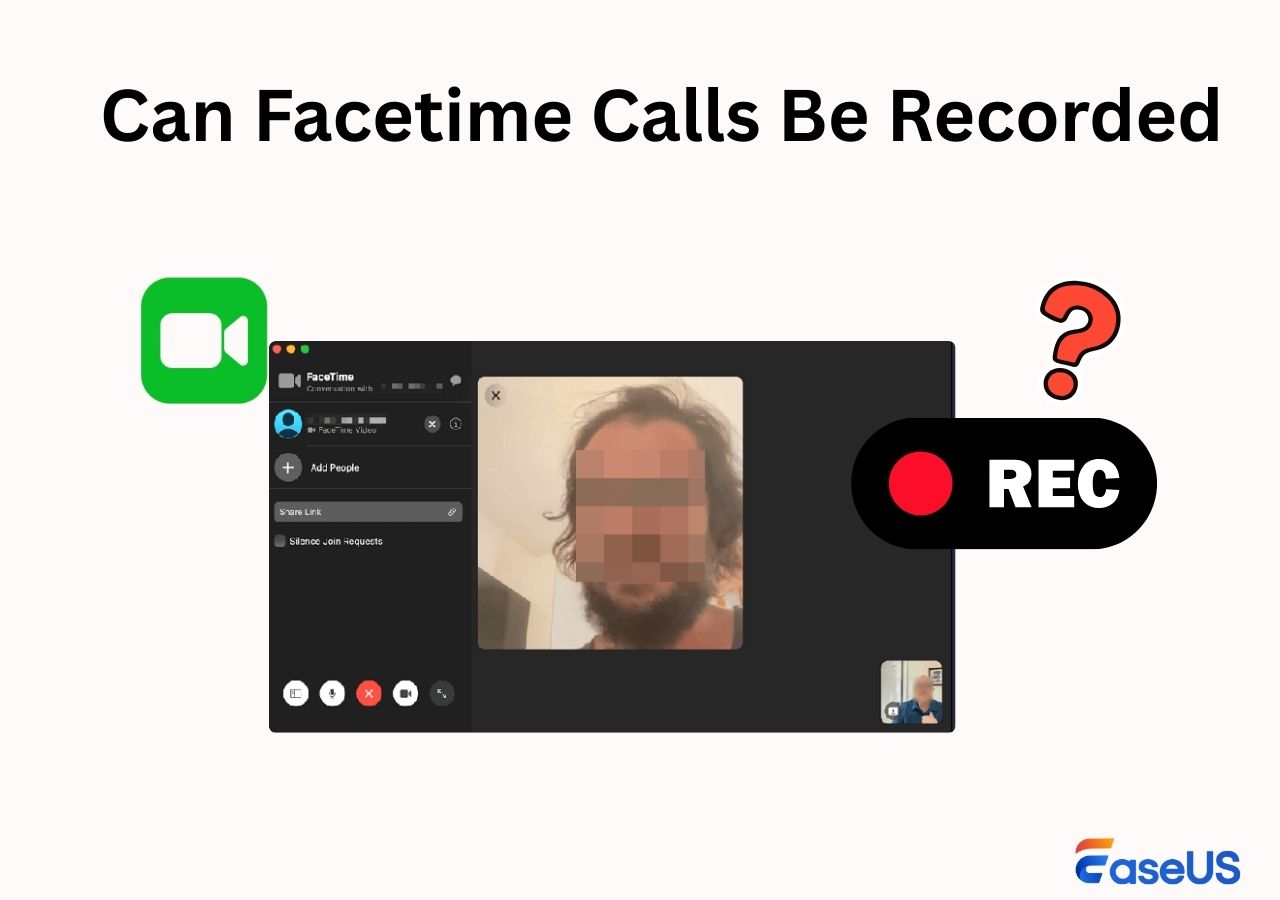
Many users assume they can simply start Screen Recording and save a FaceTime or WhatsApp conversation. Unfortunately, Apple blocks audio from internal calls during most VoIP calls for privacy reasons.
As a result, the built-in Screen Recording feature usually captures video but not the full audio of the conversation.
If you need to save a FaceTime, WhatsApp, Teams, Google Meet, or Zoom conversation, the most reliable method is to mirror your iPhone to a computer and record the session there.
How to Record FaceTime or WhatsApp Calls
Step 1. Mirror your iPhone to a Mac or Windows PC using AirPlay or another screen mirroring method.
Step 2. Launch EaseUS RecExperts on your computer.
Step 3. Select the iPhone screen as the recording source.
Step 4. Start the FaceTime, WhatsApp, or Zoom conversation.
Step 5. Click Record and save the conversation with audio.

This approach avoids many of the audio limitations found in Apple's built-in recording tools and works across multiple communication apps.
Method 3. How to Record In-Person Conversations with Voice Memos
✅ Best for: Face-to-face conversations, meetings, lectures, interviews, voice notes, and personal reminders
📱 Compatibility:
-
All iPhones and iPads running iOS 10 or later
If you're recording a conversation happening in the same room, Voice Memos is usually the easiest solution. It's already installed on every iPhone and requires no additional setup.
While Voice Memos cannot record phone calls, it works exceptionally well for in-person conversations and spoken discussions.
How to Record an In-Person Conversation on iPhone
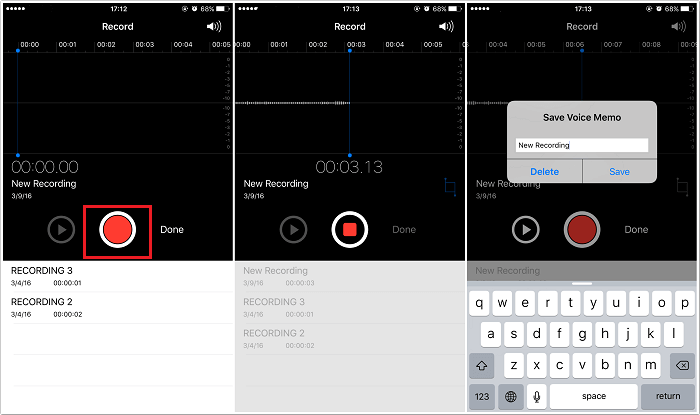
Step 1. Open the Voice Memos app (it's in your Utilities folder by default).
Step 2. Tap the red Record button to start recording.
Step 3. Place your phone close to the speaker if you're recording a conversation.
Step 4. Tap the Stop button when finished.
Step 5. Find your recording in the list, tap to rename, edit, or share it.
💡Tips for Better Audio Quality
-
Place the iPhone on a stable surface near the speakers.
-
Reduce background noise whenever possible.
-
Use an external microphone if you're recording in a large room.
-
Test the recording volume before important interviews or meetings.
For most users who simply need to record a nearby conversation, Voice Memos remains the fastest and easiest option on iPhone.
Legal and Ethical Considerations: Recording Calls on iPhone
Recording phone calls or conversations comes with legal responsibilities especially when you use a hidden call recorder. In some places, only one-party consent is needed (like most U.S. states), meaning you can record if you're part of the call. But in two-party consent states (like California, Florida), all participants must agree.
Apple's built-in call recording alerts both parties automatically, helping users stay compliant. However, if you use third-party apps or external tools, you should always check the local laws before recording any conversation.
Recording without consent in restricted regions could result in legal penalties, fines, or lawsuits. Always record responsibly.
Conclusion
Now you know how to record a conversation on iPhone using different methods:
|
Method |
Best for |
Audio Quality |
Limitations |
|
In-person conversations |
⭐⭐⭐⭐ |
Can't record phone or FaceTime calls |
|
|
Phone calls (iOS 18+) |
⭐⭐⭐⭐⭐ |
Region restricted, both sides notified |
|
|
FaceTime, WhatsApp, Zoom with audio |
⭐⭐⭐⭐⭐ |
Needs PC/Mac for screen mirroring |
Download EaseUS RecExperts to start recording FaceTime and app-based calls with sound!
How to Record a Conversation on My Phone FAQs
Looking for more answers? Here are some common questions:
1. How to record a conversation on Android?
You can use built-in features on some Android phones or third-party apps, such as Cube Call Recorder, ACR, or Google Voice, to record calls.
2. How to record a conversation on iPhone 13 Pro Max?
If running iOS 18, use the Phone app's Record button for calls. For in-person chats, use the Voice Memos app. For FaceTime, mirror your PC or Mac and use EaseUS RecExperts.
3. Where is the voice recorder in an iPhone?
The voice recorder is called Voice Memos. Find it in the Utilities folder or search "Voice Memos" in Spotlight.