-
![]()
Daisy
Daisy is the Senior editor of the writing team for EaseUS. She has been working in EaseUS for over ten years, starting from a technical writer to a team leader of the content group. As a professional author for over 10 years, she writes a lot to help people overcome their tech troubles.…Read full bio -
Jane is an experienced editor for EaseUS focused on tech blog writing. Familiar with all kinds of video editing and screen recording software on the market, she specializes in composing posts about recording and editing videos. All the topics she chooses …Read full bio
-
![]()
Alin
Alin is an experienced technical blog writing editor. She knows the information about screen recording software on the market, and is also familiar with data cloning and data backup software. She is expert in writing posts about these products, aiming at providing users with effective solutions.…Read full bio -
Jean is recognized as one of the most professional writers in EaseUS. She has kept improving her writing skills over the past 10 years and helped millions of her readers solve their tech problems on PC, Mac, and iOS devices.…Read full bio
-
![]()
Jerry
Jerry is a fan of science and technology, aiming to make readers' tech life easy and enjoyable. He loves exploring new technologies and writing technical how-to tips. All the topics he chooses aim to offer users more instructive information.…Read full bio -
![]()
Rel
Rel has always maintained a strong curiosity about the computer field and is committed to the research of the most efficient and practical computer problem solutions.…Read full bio -
![]()
Gemma
Gemma is member of EaseUS team and has been committed to creating valuable content in fields about file recovery, partition management, and data backup etc. for many years. She loves to help users solve various types of computer related issues.…Read full bio
Page Table of Contents

Jane Zhou
Updated on Sep 24, 2026
0 Views |
0 min read
If you have ever purchased movies from iTunes, you might have wondered how to rewatch them on devices that don't support Apple's ecosystem or how to save iTunes videos in a more universal format like MP4. Unfortunately, all iTunes videos are protected by Apple's Fairly DRM, which prevents direct copying ot conversion. Given that, we will explain the safe and legal ways to get the iTunes shows as MP4s. By following these methods, you can enjoy your purchased content on any device while staying within Apple's terms of use.
Can You Convert iTunes Movies to MP4 Directly?
NO! You cannot directly convert iTunes to MP4, as all iTunes and Apple TV purchases are protected by Apple's DRM. This encryption prevents copying or converting the files outside Apple's ecosystem.
However, there are still a few legal and practical ways to get iTunes videos in MP4 format:
- Record iTunes in MP4 format with a screen recorder: The most reliable and safe method for capturing iTunes videos while keeping high quality.
- Use DRM removal tools: They can theoretically convert, but have low success rates and pose legal or security risks.
- SD re-download for old Apple devices: Downloads a compatible SD version for playback.
- Download DRM-free Apple TV movies: Some purchases in certain regions are DRM-free and can be converted directly, though this is uncommon.
Share this guide with others in need!

Way 1. Record iTunes Videos in MP4 Directly
- Important
-
Screen-recorded copies are for personal use only. Do not share or distribute them.
The easiest workaround for getting iTunes movies in MP4 is to record the video while it plays, and in my experience, it works surprisingly well.
I use EaseUS RecExperts, which is one of the few streaming video recorders that can record DRM-protected videos like iTunes movies smoothly. The setup is simple: just open your movies in iTunes or the Apple TV app, switch to full screen, and start recording. I've found that recording in MP4 keeps the quality almost identical to the original, even for HD or 4K content.
Here's how to get Apple TV videos into MP4 by recording:
Tips for better quality:
From my experience, there are a few simple things that can make a big difference when recording iTunes videos:
🔹Turn off notifications and background apps
🔹Set resolution to 1080p or 4K
🔹Use hardware acceleration if available
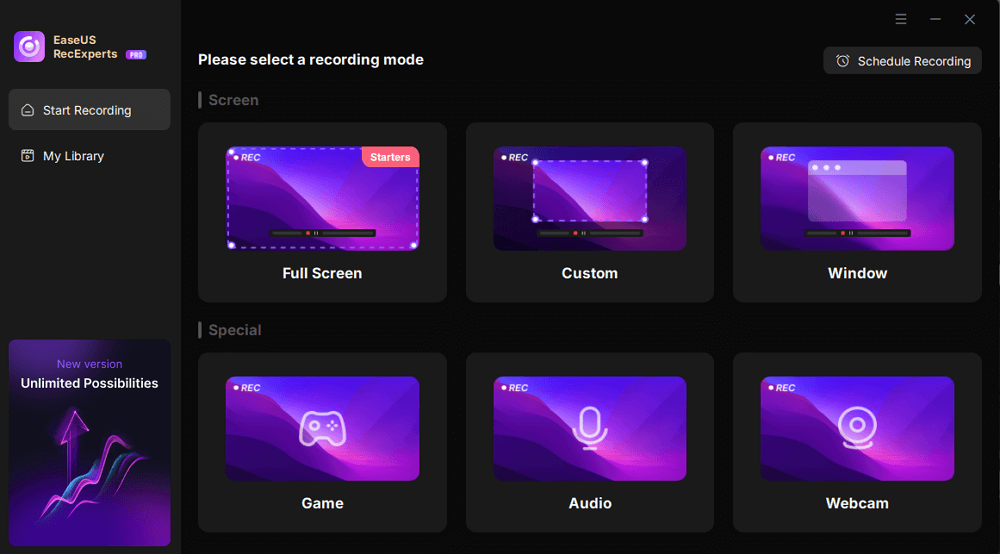
Step 1. Launch EaseUS RecExperts and select Full Screen as your recording mode. This ensures smooth capture of streaming movies, online shows, or live video content without missing any detail.
Step 2. Choose whether to record the Webcam, System Sound, or Microphone based on your needs. Then, open the major video sites or platforms you want to record from.

Step 3. If you experience a black screen when recording playback, enable the Black Screen Fix feature to ensure smooth video capture. Once it's turned on, the REC button will change to purple. Navigate back to your streaming video, then click the purple REC button to start capturing.

Step 4. After a 3-second countdown, the recording will begin. A floating taskbar will appear on your screen. Use the toolbar to Pause or Stop the recording anytime during playback.

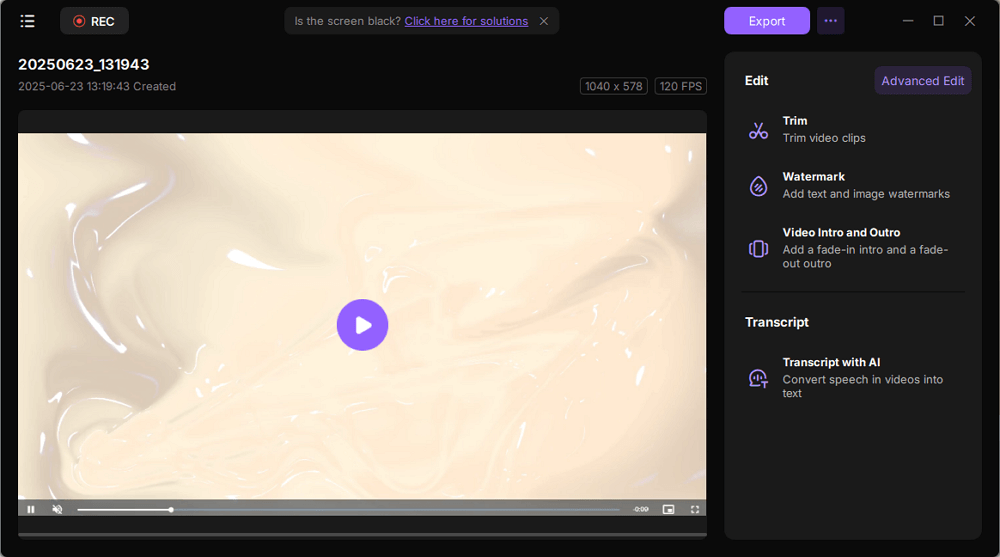
Step 5. Once the recording ends, you'll be taken to the preview window. Here, you can watch, trim, or edit your captured video, ideal for reviewing recorded sessions, saving study notes, or creating commentary-based content.
Way 2. Use DRM Removal Tools
Some users look for ways to remove DRM from Apple TV or iTunes videos in order to convert them to MP4 directly. While there are tools that claim to do this, in my experience, they have limited success, especially with the latest iTunes movies.
How it works
These tools typically require you to load the M4V file from iTunes and attempt to decrypt the DRM before converting it to MP4. The process can take time, and results vary depending on the video and DRM version.
❗Risks and Limitations
- Compatibility issues: Most tools only work with older versions of iTunes or older M4V files.
- Security concerns: Some DRM removal software can be unsafe or contain malware.
- Legal considerations: Removing DRM may violate Apple's terms of use.
Because of these risks and limitations, I personally don't recommend DRM removal tools as the main method. They may work in rare cases, but for most users, screen recording is a safer, more reliable solution.
Way 3. SD Re-download for Old Apple Devices
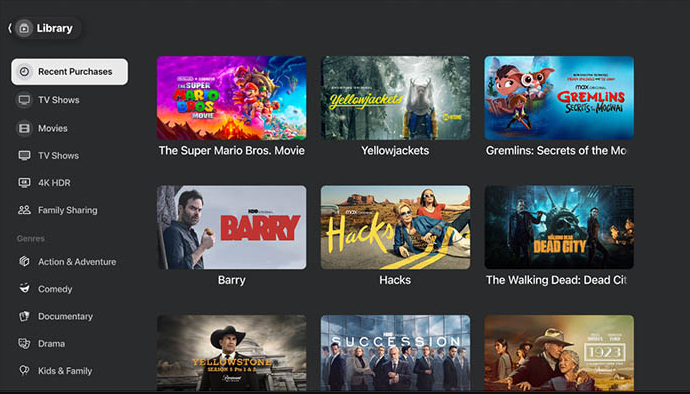
If you have an older iPod, iPhone, or iPad, Apple allows you to re-download purchased iTunes movies in SD (480p) format. Using the Apple TV app, you can select "Most Compatible (SD – 480p)" to make sure the video plays smoothly on older devices.
Step 1. Delete all the existing downloaded movies on your computer, as you will re-download them in a different format.
Step 2. Open the Apple TV app, and click TV > Preferences > Playback.
Step 3. Under Download Options, choose Most Compatible (SD - 480P), and click OK.
Step 4. Turn off Download HD when available (click Account > Purchases), then re-download your movies. Once done, it will be in SD format.
Way 4. Download Free Apple TV Movies to MP4
This method doesn't apply to most users. Still, it's worth mentioning because it's 100% legal and occasionally happens: Some Apple TV movies, depending on region, licensing, or older purchase history, are delivered without FairPlay DRM. If the movie happens to be DRM-free, you can directly download and then convert it to MP4 with any normal video converter.
How to check if you got a DRM-free file:
Step 1. Download the movie from the Apple TV app or older iTunes versions.
Step 2. Right-click the file, choose Get Info (Mac) or Properties (Windows), and then choose Kind or Format:
- If you see Protected MPEG-4 Video, the file has DRM.
- If it shows MPEG-4 Video without the Protected label, then you can download it and start your conversion.
Step 3. After downloading it, use VLC, HandBrake, or another converter to convert Apple TV movies to MP4.
Find the Best Way to Export Apple Movie to MP4
Here is a quick overview of what actually works when you want to convert Apple Movies to MP4:
| Method | Export MP4? | Safe? | Quality | Works for Rentals? | Success Rate |
| DRM Removal Tool | ✅ | Risky | High | ❌ | Low |
| Recording | ✅ | ✅ | High | ✅ | 100% |
| SD Re-Download | ❌ | ✅ | Medium | ❌ | Medium |
| Find DRM-Free shows | ✅ | ✅ | High | ✅ | Very Low |
As you can see, the easiest way to get the Apple TV movies in MP4 is to use a screen recorder, like EaseUS RecExperts!
FAQs
1. How do I rip a movie from iTunes?
You can't "rip" iTunes movies directly because they are protected by Apple's DRM. However, you can save a playable copy using screen recording (for personal use only).
2. What format are iTunes movies?
iTunes and Apple TV movies are usually in M4V format, encoded with H.264 or H.265 video and AAC/AC3 audio. If the movie is DRM-protected, it will appear as "Protected MPEG-4 Video (M4V)", which restricts playback to authorized Apple devices.
3. Can I download my Apple TV movies to my computer?
Yes. You can download Apple TV movies to your Mac or Windows PC using the Apple TV app. Purchases and rentals can be saved for offline viewing, but the downloaded files remain DRM-protected and only play on devices signed in with your Apple ID.