-
![]()
Daisy
Daisy is the Senior editor of the writing team for EaseUS. She has been working in EaseUS for over ten years, starting from a technical writer to a team leader of the content group. As a professional author for over 10 years, she writes a lot to help people overcome their tech troubles.…Read full bio -
Jane is an experienced editor for EaseUS focused on tech blog writing. Familiar with all kinds of video editing and screen recording software on the market, she specializes in composing posts about recording and editing videos. All the topics she chooses …Read full bio
-
![]()
Alin
Alin is an experienced technical blog writing editor. She knows the information about screen recording software on the market, and is also familiar with data cloning and data backup software. She is expert in writing posts about these products, aiming at providing users with effective solutions.…Read full bio -
Jean is recognized as one of the most professional writers in EaseUS. She has kept improving her writing skills over the past 10 years and helped millions of her readers solve their tech problems on PC, Mac, and iOS devices.…Read full bio
-
![]()
Jerry
Jerry is a fan of science and technology, aiming to make readers' tech life easy and enjoyable. He loves exploring new technologies and writing technical how-to tips. All the topics he chooses aim to offer users more instructive information.…Read full bio -
![]()
Rel
Rel has always maintained a strong curiosity about the computer field and is committed to the research of the most efficient and practical computer problem solutions.…Read full bio -
![]()
Gemma
Gemma is member of EaseUS team and has been committed to creating valuable content in fields about file recovery, partition management, and data backup etc. for many years. She loves to help users solve various types of computer related issues.…Read full bio -
![]()
Shelly
"I hope my articles can help solve your technical problems. If you are interested in other articles, you can check the articles at the bottom of this page. Similarly, you can also check my Twitter to get additional help."…Read full bio
Page Table of Contents

Jean
Updated on Feb 02, 2026
0 Views |
0 min read
Many Instagram users want to screen record Instagram Story to save a memory, share useful content, or keep a copy before it disappears. However, Instagram frequently updates its privacy policies and in-app restrictions, which can make recording Stories more complicated than before.
For example, in 2024, users were suddenly prevented from taking screenshots of Instagram disappearing messages. This raised a common concern among users: Can you still record Instagram Stories without getting blocked or notified?
In this guide, we'll walk you through the latest and most reliable ways to screen record Instagram Stories on iPhone, Android, and even PC. You'll learn what currently works, what doesn't, and how to record safely without triggering warnings.
If You Screen Record Someone's Instagram Story Will They Know?
No, Instagram does not notify users when you screenshot or screen record their Stories.
Since Instagram Stories launched in August 2016, the platform has undergone countless updates. However, there has never been any official statement or documentation from Instagram suggesting that users will be notified when someone records a Story. This is likely because Stories are designed as public or semi-public content, and Instagram treats them differently from private or temporary messages.
As of now, here's how Instagram treats the issue of does Instagram notify when you screen record:
- Stories, Reels, posts, and regular chat messages: No notification at all when you take a screenshot or screen record.
- Disappearing messages, "View Once" media, and vanish-mode content: Instagram sends a notification that says something like "X took a screenshot" or "X recorded your screen". Unfortunately, there is currently no reliable way to bypass this detection system for disappearing messages.
To sum up, you can safely screen record Instagram Stories without notifying anyone, and this rule has remained unchanged for years. While Instagram may continue to adjust its privacy controls for private messages, Story recording is very unlikely to be restricted in the same way.

Share this post to help more users!

How to Screen Record Instagram Story on iPhone
If you're an iPhone user wondering how to screen record Instagram Stories, you're in luck: Apple devices make it straightforward with their built-in tools. Whether you want to save a close friend's Story for later or capture content for personal use, iOS provides a quick and reliable way to record without any third-party apps.
Step-by-step guide to screen record Instagram Stories on iPhone:
Step 1. Launch the Instagram app. Navigate to the Story you want to record and make sure it's ready to play.
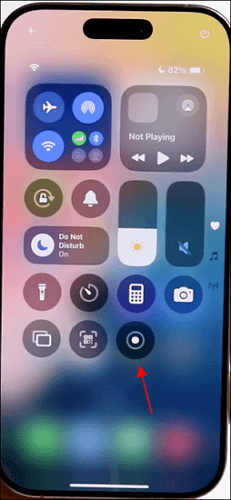
Step 2. Swipe down from the top-right corner of your screen to open Control Center.
Step 3. Tap the Screen Recording button (a circle icon). After a 3-second countdown, your screen recording will begin.
Step 4. Watch the Story as usual while it records. Make sure your volume is on if you want to capture sound.
Step 5. Tap the red recording bar at the top of your screen and select Stop.
Step 6. The recording is automatically saved to your Photos app, ready to view or share.
💡Tips for better recording:
- Turn on Do Not Disturb to avoid interruptions.
- Use headphones if you only want to capture audio privately.
- Make sure your iPhone has enough storage to save the recording.
- If you don't see the Screen Recording icon on the Control Center, long-press the blank area, choose "Add a Control", find Screen Recording, and tap "+" to add it.
Share this post to help more users!
Screen Record Instagram Story Android Step by Step
For Android users, screen recording Instagram Stories is just as easy as on an iPhone, thanks to the built-in screen recording features in most modern Android devices. Whether you want to save a Story for personal use or capture content to revisit later, Android offers several options for recording seamlessly.
Step-by-step guide to screen record Instagram Stories on Android:
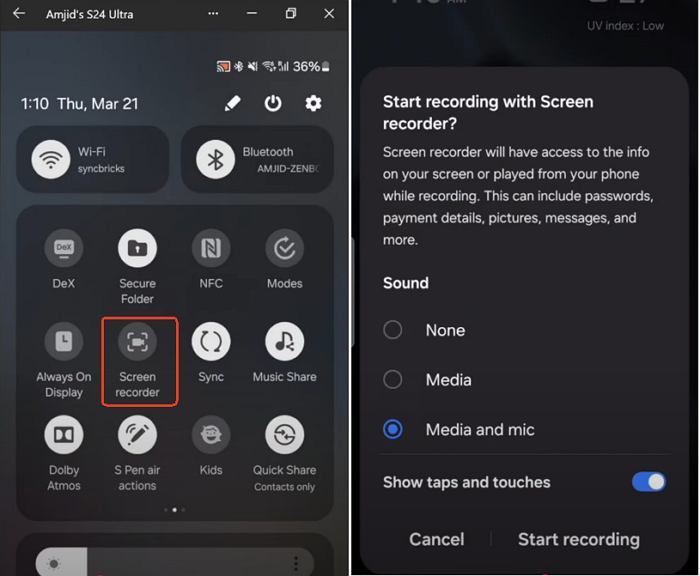
Step 1. Swipe down from the top of your screen to access the Quick Settings panel.
Step 2. Look for the Screen Recorder icon. If it's not there, you may need to add it by editing Quick Settings.
Step 3. Launch the Instagram app and find the Story you want to record. Make sure the Story is fully loaded and ready to play.
Step 4. Tap the Screen Recorder icon in Quick Settings. Adjust settings as needed (e.g., enable internal audio, the microphone, or both).
Step 5. Press Start and wait for the countdown (usually 3 seconds).
Step 6. Play the Story as usual. Your device will record both video and audio (if enabled) while you watch the Story.
Step 7. Swipe down from the top of the screen to open the notification panel, then tap Stop.
Step 8. The recording will automatically be saved to your Gallery or Photos app, ready for viewing, editing, or sharing.
💡Tips for better recording
For Samsung Galaxy A series, budget-friendly models, or older models (pre-Android 11), there is no built-in screen recorder. Resort to some third-party Android screen recorders instead.
Share this post to help more users!
How to Screenshot or Record IG Story on PC
If you spend a lot of time on Instagram from your PC, you might wonder how to capture Stories, Reels, or posts directly from your computer. Unlike mobile devices, desktop platforms don't have built-in screen recording features for Instagram, which makes it slightly trickier — but not impossible.
One of the easiest and most reliable ways to record Instagram content on a PC is by using EaseUS RecExperts, a versatile screen recording tool for Windows and Mac. With this software, you can screen-record Stories with audio, take screenshots, and even schedule recordings without missing any content.
Step-by-step guide to screen record Instagram Stories on Windows or Mac:
Step 1. Launch EaseUS RecExperts and adjust your recording settings.
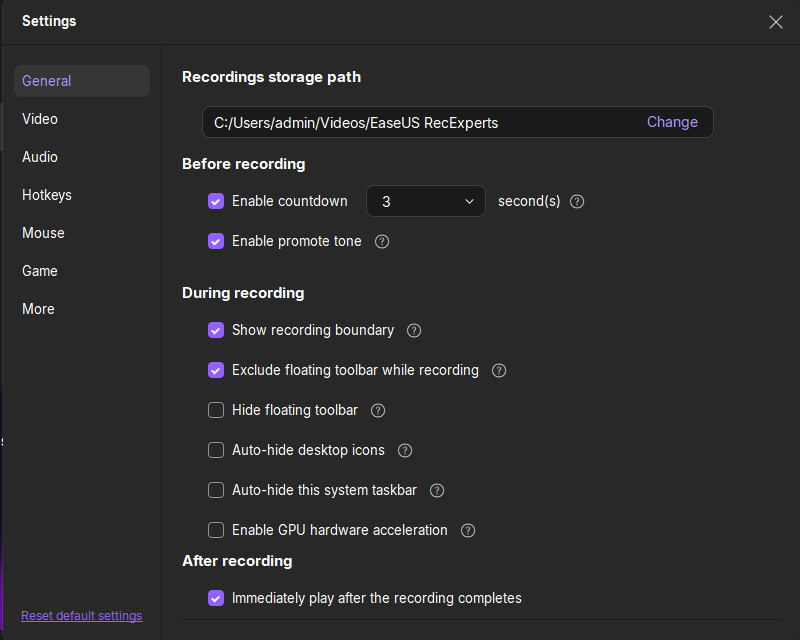
Before you start recording, you can customize your settings by clicking the Menu icon (three horizontal lines) in the top-right corner and selecting Settings. From there, you can change the save location, video format, frame rate, audio format, and other preferences. All changes will be saved automatically.
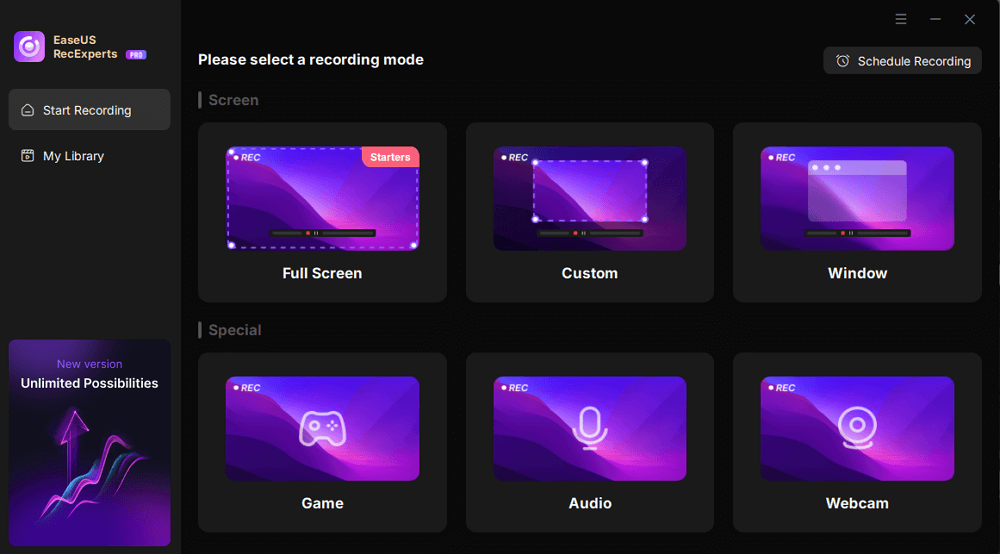
Step 2. Choose a recording mode based on your needs.
On the main interface, you'll see several recording options: Full Screen, Custom, Window, Game, Audio, and Webcam. Simply click the one that matches what you want to record.
Step 3. Set up your webcam and audio sources.
In the toolbar, you can turn the Webcam, Speaker, and Microphone on or off by clicking their icons. If multiple devices are connected, click the small arrow next to each icon to choose your preferred input source.

Step 4. Start and control the screen recording.
Click the red REC button to begin recording. A floating toolbar will appear on your screen, where you can pause the recording using the pause icon or stop it by clicking the red square icon.

Step 5. Preview, edit, and manage your recordings.
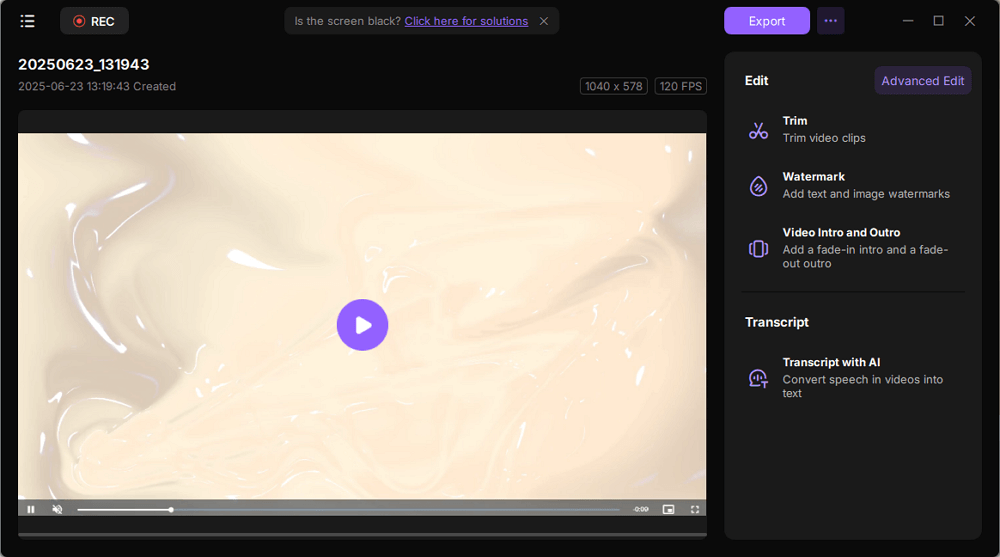
Once you stop recording, you'll be taken to the preview window. Here, you can watch your video, trim it, add watermarks, transcribe audio to text, and organize your recordings. To record again with the same settings, just click the REC button in the top-left corner.
Further Reading: Screenshot Instagram Stories Black Screen | How to Fix
Some users report getting a black screen when taking screenshots on modified Instagram apps like Theta+ or SC Insta IG. This usually happens because these unofficial versions add extra protection layers or break iOS screenshot APIs during rendering. For example, these side-load apps may let you view Instagram highlights anonymously. If so, enable Screenshot Suppression in Theta and try again.
It's worth noting these apps are not supported by Instagram and may:
- cause unstable features like blank screenshots
- expose your account to security risks
- violate Instagram's terms of service
For reliable recordings, it's always safer to use the official Instagram app with a trusted screen recorder.
Screen Record Instagram FAQs
1. Does Instagram notify when you screen record a story?
No, Instagram does not notify users when you screen record their Stories. Stories, Reels, posts, and regular chat messages can be recorded or screenshotted without sending any alerts. Only disappearing messages or "View Once" media will trigger a notification.
2. Does Instagram notify when you screen record a photo in DM?
It depends. Regular direct message photos can be screen-recorded without notification. However, if you capture images or videos sent as "View Once," they will trigger a notification to the sender.
3. Does Instagram show screen recording messages?
Yes, but only for specific types of content. Screen recording notifications appear for disappearing messages (self-destructing texts, photos, or videos) in Instagram Direct. Normal chats, posts, and Stories are not tracked.
4. Can you tell if someone screenshots your Instagram story?
No, Instagram does not alert users when someone screenshots or screen records their Stories. You can safely capture Stories without notifying the sender, and this rule has remained consistent since Stories were introduced in 2016.
Share this post to help more users!
EaseUS RecExperts

One-click to capture anything on screen!
No Time Limit, No watermark
Start Recording