-
![]()
Daisy
Daisy is the Senior editor of the writing team for EaseUS. She has been working in EaseUS for over ten years, starting from a technical writer to a team leader of the content group. As a professional author for over 10 years, she writes a lot to help people overcome their tech troubles.…Read full bio -
Jane is an experienced editor for EaseUS focused on tech blog writing. Familiar with all kinds of video editing and screen recording software on the market, she specializes in composing posts about recording and editing videos. All the topics she chooses …Read full bio
-
![]()
Alin
Alin is an experienced technical blog writing editor. She knows the information about screen recording software on the market, and is also familiar with data cloning and data backup software. She is expert in writing posts about these products, aiming at providing users with effective solutions.…Read full bio -
Jean is recognized as one of the most professional writers in EaseUS. She has kept improving her writing skills over the past 10 years and helped millions of her readers solve their tech problems on PC, Mac, and iOS devices.…Read full bio
-
![]()
Jerry
Jerry is a fan of science and technology, aiming to make readers' tech life easy and enjoyable. He loves exploring new technologies and writing technical how-to tips. All the topics he chooses aim to offer users more instructive information.…Read full bio -
![]()
Rel
Rel has always maintained a strong curiosity about the computer field and is committed to the research of the most efficient and practical computer problem solutions.…Read full bio -
![]()
Gemma
Gemma is member of EaseUS team and has been committed to creating valuable content in fields about file recovery, partition management, and data backup etc. for many years. She loves to help users solve various types of computer related issues.…Read full bio
Page Table of Contents

Jean
Updated on Aug 28, 2026
0 Views |
0 min read
Camtasia remains one of the most popular screen recording and video editing tools for tutorials, presentations, and online courses. But with rising subscription costs and stronger competitors, many users now wonder whether it is still worth buying in 2026. In this review, we tested Camtasia's features, performance, pricing, and usability to see who it's really best for.
Quick Verdict
After testing Camtasia for everyday screen recording, tutorial creation, and light video editing, it's easy to see why the software still has a loyal user base. The biggest advantage is convenience. You can record your screen, webcam, and microphone, and then immediately edit everything in the same timeline without switching tools.
For beginners, educators, trainers, and business users, the workflow feels much simpler than using separate recording and editing software. Features like annotations, cursor effects, transitions, and captions are also polished and easy to use.
That said, Camtasia is no longer the obvious choice for everyone. The subscription price is higher than that of many competitors, and performance can feel heavy on older PCs when editing large projects. Advanced creators may also find the editing tools somewhat limited compared to professional video editors.
Overall, Camtasia remains one of the best beginner-friendly screen recording and tutorial-editing tools in 2026, but whether it is worth the price depends heavily on your workflow and experience level.
|
Category |
Rating |
|
Ease of Use |
9/10 |
|
Screen Recording |
8.5/10 |
|
Video Editing |
8/10 |
|
Performance |
7/10 |
|
Pricing |
6.5/10 |
|
Overall |
8/10 |
Best for
✔
Tutorial creators
✔
Online teachers and educators
✔
Business presentations
✔
Training videos
✔
Beginners who want an all-in-one workflow
No ideal for
●
Gamers and streamers
●
Advanced video editors
●
Users on a tight budget
●
Low-end or older PCs
Share this post if you find it helpful!

What Is Camtasia?
Camtasia is an all-in-one screen recorder and video editor developed by TechSmith. It is designed primarily to create tutorials, training videos, software demos, presentations, online courses, and other educational content.
Unlike traditional screen recording tools that only capture video, Camtasia combines recording and editing in a single workflow. Users can record their screen, webcam, microphone, and system audio, then immediately edit the footage using a drag-and-drop timeline editor.
One reason Camtasia has remained popular for years is its accessibility. The interface is much easier to learn than professional editing software like Adobe Premiere Pro or DaVinci Resolve, making it especially appealing to beginners and non-technical users.
Today, Camtasia is available for Windows, Mac, and web, including various features.
In short, Camtasia focuses less on professional filmmaking and more on helping users quickly create polished instructional or presentation-style videos without a steep learning curve.
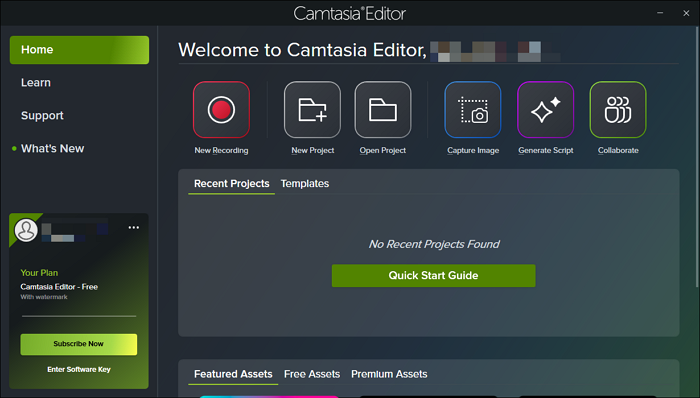
Key Features and Real-World Experience
During testing, the software handled basic screen recording and tutorial creation reliably, though the overall experience felt more polished in some areas than others.
Screen Recording
Camtasia supports screen recording, webcam capture, microphone input, and system audio recording. It works well for tutorials, presentations, meetings, and educational videos.
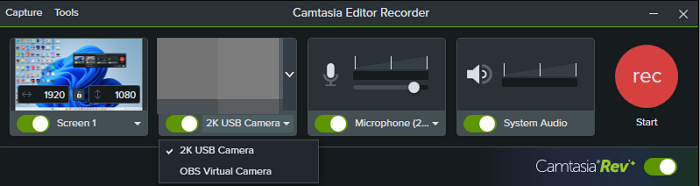
The installation package was around 309MB. On a standard home network, the download took roughly 5 to 8 minutes, while installation itself finished in about 2 minutes. One thing we noticed immediately is that both downloading and launching the software for the first time required account registration or login, which may feel inconvenient for users who prefer quick access.
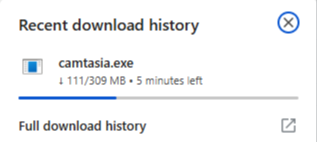
Another noticeable detail is startup speed. Compared with lightweight screen recorders, Camtasia takes noticeably longer to launch after installation. However, once opened, the recording process itself was stable during testing.
We also liked that fully closing the app actually exits the software, rather than leaving background processes running. Many recording tools continue operating silently in the system tray, so this behavior felt cleaner and less intrusive.
Webcam and Visual Effects
Camtasia includes basic camera and visual editing tools directly after recording. Users can quickly adjust:
- Layout
- Background
- Camera settings
- Filters
- Screen appearance
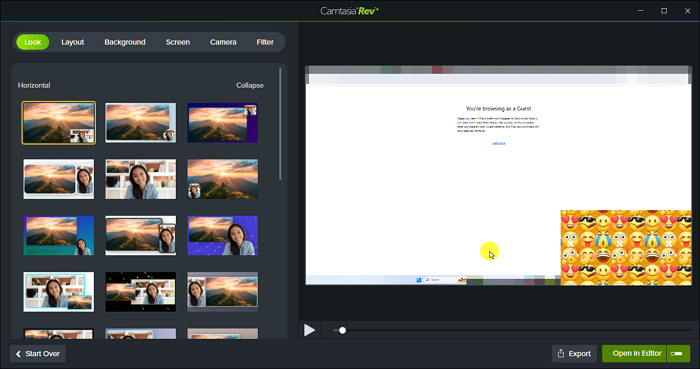
The built-in effects are beginner-friendly and easy to apply for tutorial-style videos. However, one limitation we noticed is that webcam recordings do not support virtual backgrounds recording natively, which may disappoint users who frequently create remote presentations or online course content.
Editing Workflow
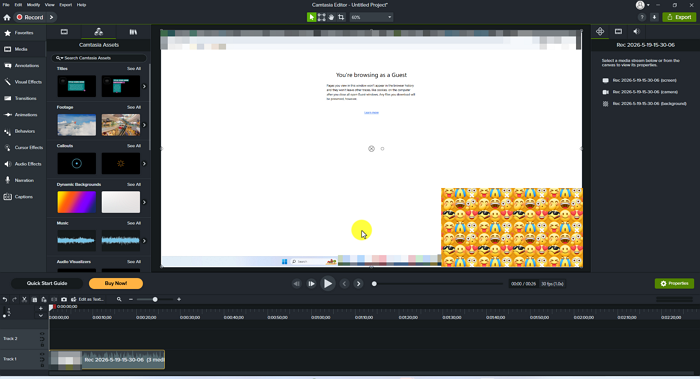
The editing experience is clearly designed for beginners rather than professional editors. The timeline interface is relatively simple, and adding narration after recording is surprisingly convenient for tutorial creators.
One usability issue we encountered is that many editing options in the left panel cannot be activated with a single click. Instead, effects must be dragged onto the timeline manually. New users may need some time to understand this workflow.
Still, for lightweight editing tasks like:
- trimming clips
- adding callouts
- zooming into screens
- inserting narration
- applying transitions
Camtasia feels much easier to learn than professional tools like Adobe Premiere Pro.
Exporting and Video Quality
Camtasia allows exporting videos locally or uploading directly to platforms like YouTube and Screencast. Users can adjust export settings such as:
- aspect ratio
- frame rate (FPS)
- resolution
However, export format support feels somewhat limited compared with modern editors. During testing:
- Video exports mainly supported MP4 and GIF
- Audio exports supported M4A only
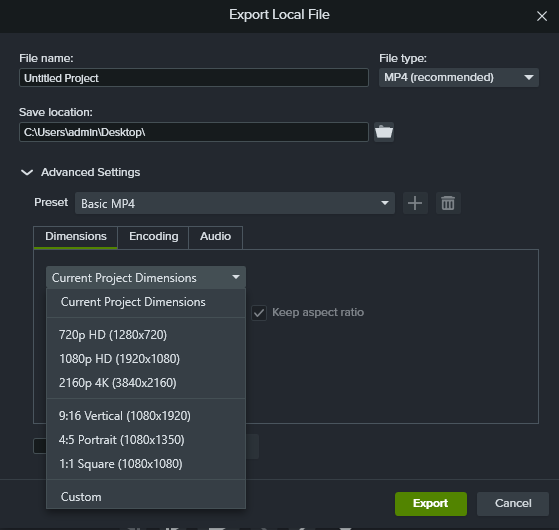
Export speed was acceptable but not especially fast. A 30-second test video typically took 30 to 60 seconds to export using default settings.
For reference, a 30-second video exported with default settings resulted in a file size of approximately 3.66MB.
Overall, Camtasia delivers a smooth and beginner-friendly experience for tutorials and educational videos, but some workflow limitations, startup speed issues, and export restrictions make it feel less competitive for advanced creators in 2026.
Camtasia Pricing: Is It Worth the Cost?
One of the biggest reasons users hesitate to buy Camtasia is the pricing. Compared with free screen recorders and lightweight editors, Camtasia is clearly positioned as a premium product, especially since it moved to annual subscription plans.
At first glance, the software may seem expensive for casual users. However, whether it's worth the money depends heavily on how often you create tutorials, training videos, or other educational content.
Camtasia Free Trial
Camtasia does offer an unlimited free tier rather than a traditional time-restricted free trial, but it comes with several major restrictions:
- Exported videos include a large watermark
- Access to premium assets is limited
- Some advanced AI features are unavailable

For basic testing, the free version is enough to understand the workflow and interface. However, the watermark is extremely noticeable, making the exported videos unsuitable for professional publication.
Camtasia Pricing Plans
Camtasia now offers multiple subscription tiers based on creator type and workflow needs.
|
Plan |
Price |
Best For |
Features |
|
Starter |
$39/year |
Basic screen capture |
|
|
Essentials |
$179.88/year |
Tutorial creators and educators |
|
|
Create |
$249/year |
AI-assisted video production |
|
|
Pro |
$599/year |
Teams and large-scale production |
|
- Tips
-
If you want to remove the watermark from the exported recording, you need to upgrade to Camtasia Essentials or higher. The Starter plan still contains a watermark restriction.
Want to learn detailed comparison information? Check the official Camtasia comparison page.
System Requirements and Performance
Compared with lightweight screen recorders, Camtasia demands relatively modern hardware, especially if you plan to edit longer videos or use AI-powered features.
Windows
|
Minimum System Requirements |
Recommended Windows Specs |
|
Windows 10 (64-bit) version 20H2 or later Intel 8th Gen CPU or AMD Ryzen 2000 Series or newer 8GB RAM minimum 2GB GPU memory 4GB available storage |
Windows 11 (64-bit) Intel 12th Gen or AMD Ryzen 4000 Series or newer 16GB RAM or more SSD storage 4GB+ GPU memory |
macOS
|
Minimum System Requirements |
Recommended Mac Specs |
|
macOS 14.0 or later Intel 7th Gen CPU or newer 8GB RAM minimum |
Apple Silicon M1 Pro, M1 Max, or newer 16GB RAM or greater SSD storage |
Online
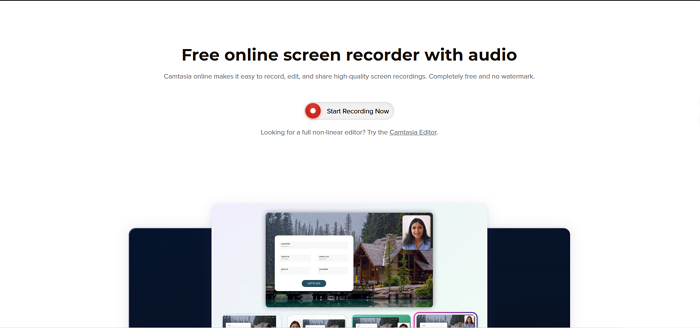
In addition to the desktop editor, Camtasia Online offers a browser-based screen recorder.
The online version supports:
- Screen recording at 1080p
- Webcam recording
- Microphone and system audio capture
- Quick sharing through Screencast
- Simple visual templates
One major advantage is that the online recorder is completely free and does not apply watermarks to exported recordings.
However, there are some limitations:
- Recordings are limited to 5 minutes per scene
- Editing tools are relatively basic
- Advanced editing still requires the desktop editor
Real-World Performance
Camtasia feels noticeably heavier than many basic screen recording tools. Startup time was one of the first things we noticed during testing. The software takes longer to launch than lightweight recorders, especially immediately after installation or on older systems.
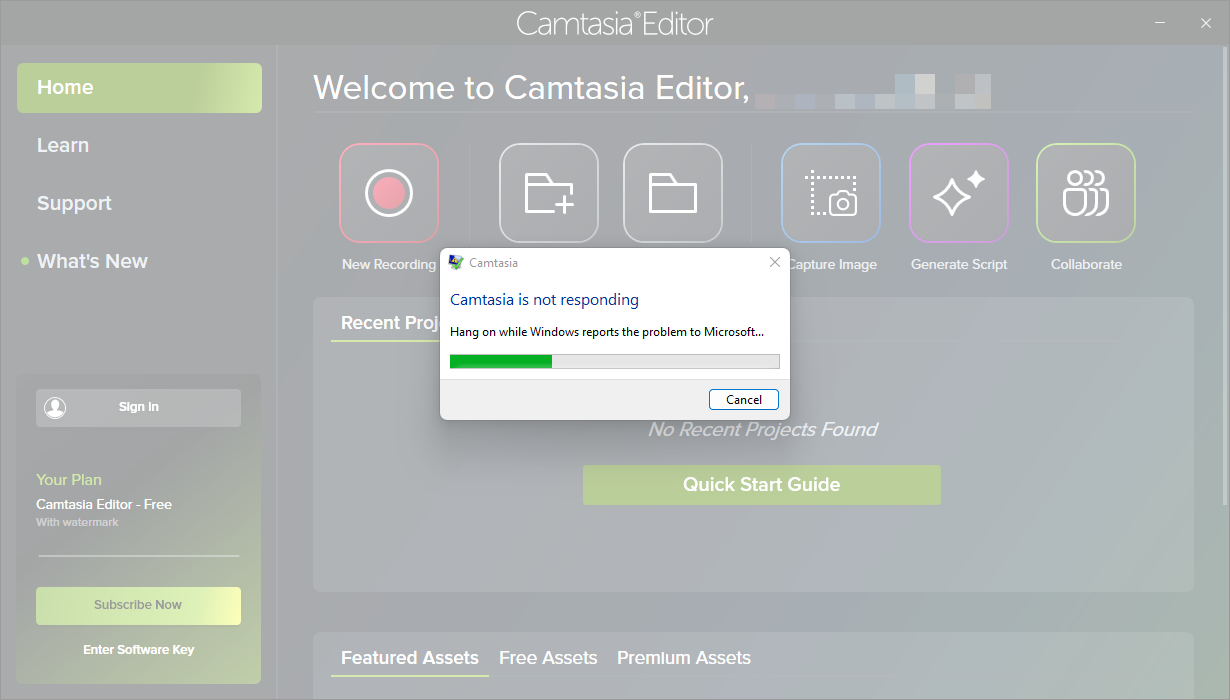
In one test, the editor became temporarily unresponsive during startup and displayed a "Camtasia is not responding" message before eventually loading normally. While the software recovered after waiting, the experience reinforced the idea that Camtasia feels heavier than most lightweight screen recorders.
The editing experience is where hardware starts to matter more. On modern systems with SSDs and at least 16GB RAM, timeline editing feels reasonably smooth for tutorial videos and presentation-style projects. However, larger projects with multiple tracks, animations, effects, or high-resolution footage can start to feel sluggish on mid-range or older laptops.
Export performance was acceptable but not especially fast. In our testing, exporting a simple 30-second video took roughly 30 seconds to 1 minute using default settings. Video rendering speed depends heavily on CPU and GPU performance.
Another thing worth mentioning is resource usage. Compared with tools focused purely on recording, Camtasia behaves more like a lightweight video editor, so RAM and CPU usage are noticeably higher during editing and exporting.
Pros and Cons
Based on hands-on testing and consistent feedback from users across communities like Reddit and review platforms, Camtasia clearly sits in a "love it or hate it" category. Most users appreciate how easy it is to use, but many also point out performance and pricing frustrations that become more obvious with heavier usage.
✅Pros
- The workflow from recording to editing is extremely smooth and intuitive
- No need to switch between multiple tools for capture and editing
- Built-in assets (transitions, annotations, cursor effects) save time
- Great for tutorials, training videos, and software demos
- Stable performance for short and medium-length recordings
❌Cons
- Performance slows down noticeably with larger or longer projects
- Rendering and exporting can feel time-consuming
- Some users report laggy timeline behavior during editing
- Limited advanced editing capabilities compared to professional tools
- Occasional bugs or instability after updates
- Pricing feels high for solo creators
Who Should Use Camtasia?
Camtasia is best suited for users who need a simple, all-in-one tool for creating instructional or presentation-style videos without a steep learning curve.
It's a strong choice for educators, online course creators, corporate trainers, and marketers who regularly produce tutorials or walkthroughs. The built-in recording and editing workflow helps save time and keeps everything in one place.
However, it's less ideal for gamers, advanced video editors, or users on a tight budget who may prefer more powerful or free alternatives.
Camtasia vs OBS vs EaseUS RecExperts
These three tools often come up together in user discussions because they target completely different types of workflows. Based on feature sets, performance behavior, and community feedback (including Reddit users comparing real-world usage scenarios), the key difference is not "which is better" but "what kind of workflow you need".
|
Attribute |
Camtasia |
OBS Studio |
EaseUS RecExperts |
|
Price |
Paid subscription |
Free |
Freemium / Paid |
|
Editing Tools |
Full built-in editor |
None |
Basic editing only |
|
Ease of Use |
Very easy |
Difficult |
Easy |
|
Performance |
Medium (heavier) |
Efficient but setup-heavy |
Lightweight |
|
Best Use Case |
Tutorials, training videos |
Streaming, advanced recording |
Quick recordings, simple tutorials |
|
Learning Curve |
Low |
High |
Low |
If you want maximum control and zero cost, OBS Studio is the strongest option, but it requires time and technical setup.
If you want an all-in-one workflow for professional tutorials, Camtasia is the most complete solution, but it comes at a premium price and higher system demand.
If you just want something simple for quick recordings without complexity, EaseUS RecExperts is the lightest and most beginner-friendly choice.
Final Thoughts
Camtasia still succeeds in 2026 for the same reason it became popular in the first place: it removes friction from creating tutorial-style videos.
After testing the software across recording, editing, exporting, and everyday workflow scenarios, the biggest strength of Camtasia is not raw power—it's efficiency. The software is designed for people who care more about finishing videos quickly than endlessly tweaking timelines, codecs, or advanced effects.
That distinction matters because many competing tools today focus either on professional editing complexity or completely free recording. Camtasia sits in a different category: convenience-focused content production.
For educators, trainers, business teams, and creators who regularly produce software walkthroughs or instructional content, the time savings can genuinely justify the price. Being able to record, edit, annotate, caption, and export inside one interface still makes Camtasia one of the easiest video production tools to learn.
At the same time, its weaknesses are becoming harder to ignore. The subscription pricing is increasingly expensive for individual creators, performance can feel heavy on older systems, and advanced editors may quickly outgrow its limitations.
In other words, Camtasia is no longer the default recommendation for everyone. But for users who prioritize simplicity, workflow speed, and beginner-friendly editing over maximum customization, it remains one of the most practical tutorial video tools available today.