-
![]()
Daisy
Daisy is the Senior editor of the writing team for EaseUS. She has been working in EaseUS for over ten years, starting from a technical writer to a team leader of the content group. As a professional author for over 10 years, she writes a lot to help people overcome their tech troubles.…Read full bio -
Jane is an experienced editor for EaseUS focused on tech blog writing. Familiar with all kinds of video editing and screen recording software on the market, she specializes in composing posts about recording and editing videos. All the topics she chooses …Read full bio
-
![]()
Alin
Alin is an experienced technical blog writing editor. She knows the information about screen recording software on the market, and is also familiar with data cloning and data backup software. She is expert in writing posts about these products, aiming at providing users with effective solutions.…Read full bio -
Jean is recognized as one of the most professional writers in EaseUS. She has kept improving her writing skills over the past 10 years and helped millions of her readers solve their tech problems on PC, Mac, and iOS devices.…Read full bio
-
![]()
Jerry
Jerry is a fan of science and technology, aiming to make readers' tech life easy and enjoyable. He loves exploring new technologies and writing technical how-to tips. All the topics he chooses aim to offer users more instructive information.…Read full bio -
![]()
Rel
Rel has always maintained a strong curiosity about the computer field and is committed to the research of the most efficient and practical computer problem solutions.…Read full bio -
![]()
Gemma
Gemma is member of EaseUS team and has been committed to creating valuable content in fields about file recovery, partition management, and data backup etc. for many years. She loves to help users solve various types of computer related issues.…Read full bio -
![]()
Shelly
"I hope my articles can help solve your technical problems. If you are interested in other articles, you can check the articles at the bottom of this page. Similarly, you can also check my Twitter to get additional help."…Read full bio
Page Table of Contents

Alin
Updated on Jun 09, 2026
0 Views |
0 min read
In the world of game clips, tutorials, and streaming content, more creators than ever need simple and reliable screen recording tools. Medal Screen Recorder (also known as Medal.tv) has become a popular choice, especially for gamers. In this complete guide, you'll learn how to use Medal to capture gameplay and fix common issues. Moreover, you'll learn a reliable alternative to Medal.
Medal Screen Recorder Overview
Medal Screen Recorder (Medal.tv) is a lightweight, easy-to-use tool for gamers to capture highlights and share clips quickly. It's lightweight, easy to use, and includes basic editing features. That said, it's not perfect: full screen recording can be hit-or-miss, audio sometimes gets out of sync, and it's mainly for Windows. Great for casual gamers, but if you need stable, long recordings or Mac support, you might want to look at alternatives.
Pros
- Simple and intuitive interface
- Quick gameplay capture and sharing
- Basic in-app editing tools
- Lightweight and fast
Cons
- Full-screen recording can be unreliable
- Audio sync issues reported by some users
- Limited stability for long recordings
- Windows-focused, limited support for Mac
- The initial startup time is a little long, about 1-2 minutes
Don't hesitate, share this post now.

How to Record on Medal
With Medal.TV, you can easily record the last 30s on PC and capture videos up to 720p or 1080p from 24 to 60fps. Plus, users can set a list of games to be automatically recorded in the Auto Clipping option, which is really wonderful.
How to Start Recording on Medal
Step 1. Download and install the Medal desktop app for Windows (current full recording support is mainly on Windows).
Step 2. Register a new account or log in with your Discord account. Then, run the game you want to record.
Step 3. Press the default hotkey (often F8) to begin recording. Medal will capture gameplay or the active screen.
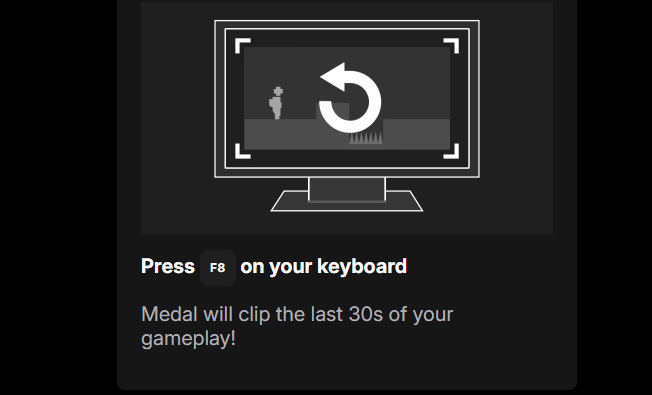
✨Tip: You can customize the recording hotkey inside Medal's settings for quicker control.
How to Make Medal Record Whole Screen
While Medal focuses on gameplay windows, you can record your full desktop screen too, even if you haven't launched any games.
When I first used Medal's desktop capture mode, I found that the Medal application window was always included in the recording content, even after minimizing the application. After some trial and error, I realized this was because desktop capture mode locks the entire monitor, rather than dynamically excluding specific windows. A possible solution is as follows:
- Medal desktop capture performs better in multi-monitor setups.
- After starting recording, close the Medal main window so that it runs only in the system tray.
Step 1. Open Medal and go to Settings. Choose Screen Recording mode.
Step 2. Select the display you wish to capture.
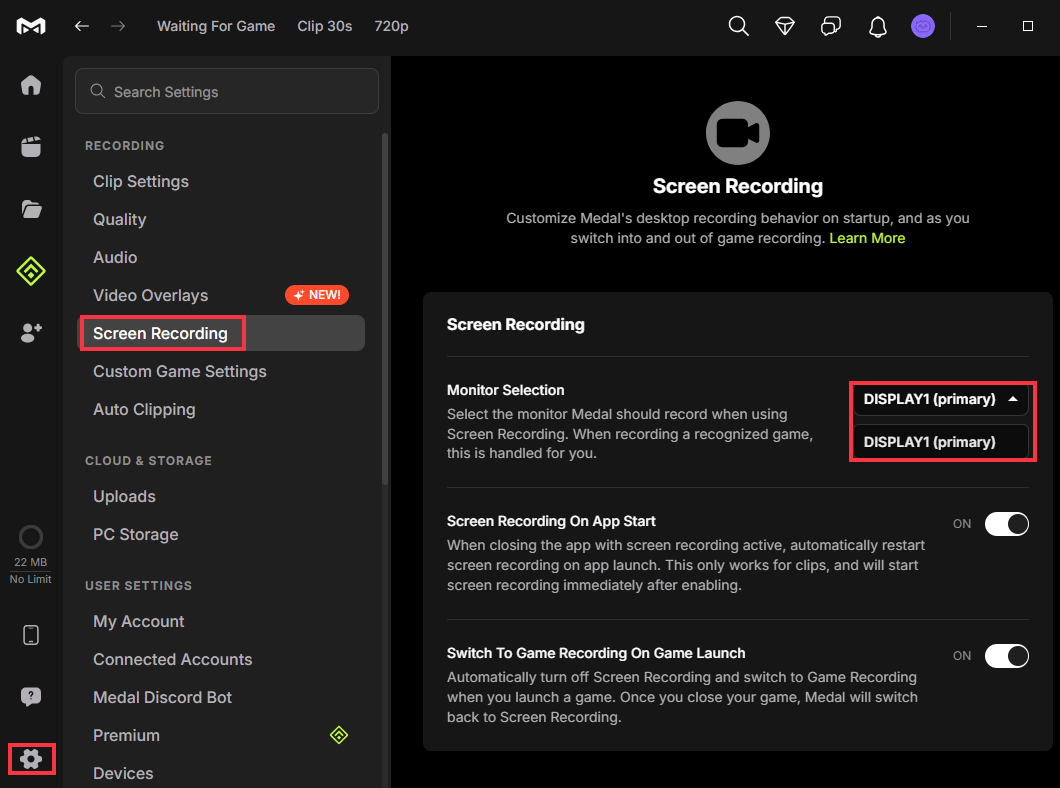
Step 3. Left-click the Wait for Game option in the top left corner and click on Switch to Desktop Capture. It will start recording.
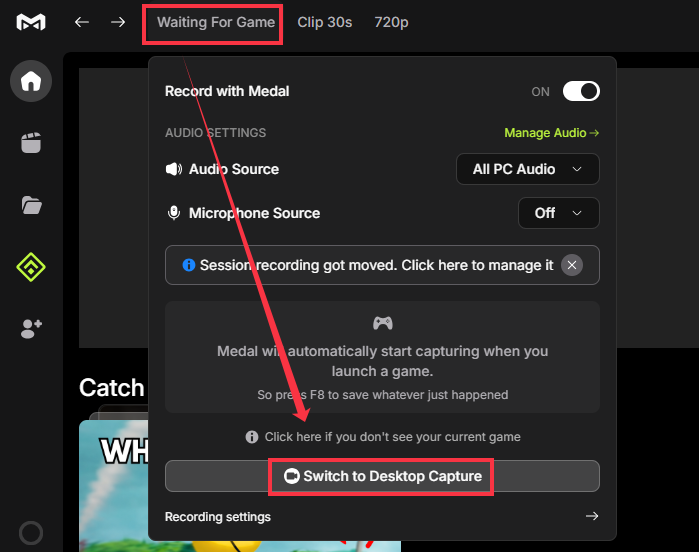
Step 4. Press F8 to stop and save recordings.
✨Note: Sometimes clicking "Stop Desktop Capture" doesn't save the clip, which seems to be a bug. Using the F8 shortcut is the most reliable method.
Where Do Medal Screen Recordings Go
For cloud storage,users can go to the Library to view, edit, and get the copy link. If you want to find the locally saved folder on your PC, go to C:\Medal\Clips\Screen Recording by default.
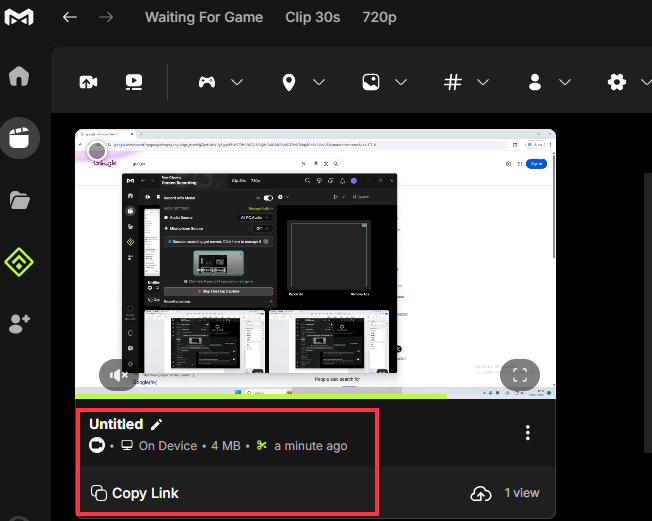
Don't hesitate, share this post now.
Medal Alternative for Mac and Windows
While Medal is popular for quick gameplay clips and highlights, some of its limitations,such as Mac non-support and instability in full-desktop recording, deter many creators. For users who need a more reliable all-purpose screen recorder rather than a game-focused clipping tool, a dedicated solution like EaseUS RecExperts is often a stronger alternative.
This screen recorder supports both Windows and macOS, making it suitable for cross-platform teams and content creators who switch devices. It also performs well for recording system audio on Mac with one click, eliminating the complicated virtual-audio-driver setups that many apps require. It also offers far greater capture flexibility: users can switch effortlessly between full-screen recording, custom regions, or specific application windows, which is ideal for tutorials, presentations, browser demos, and long-form recordings.
- More stable desktop capture for long sessions and multi-monitor environments
- Independent audio tracks for the microphone and system sound
- Scheduled recordings and automatic stop options
- Higher-resolution output and frame-rate control
- Built-in editing tools for trimming and quick exports
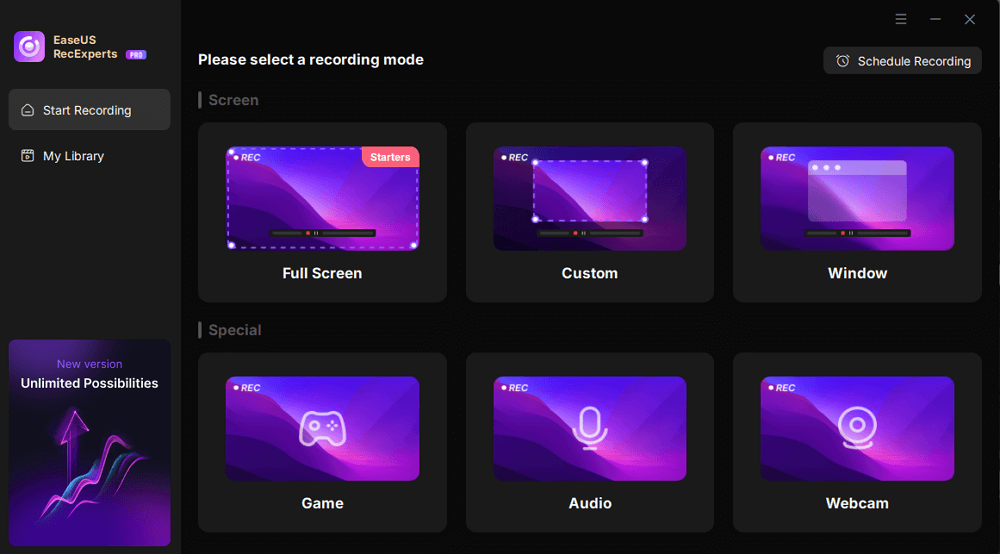
How to use EaseUS RecExperts to record gameplay or other screen activities with ease:
Step 1. Open EaseUS RecExperts and choose the screen (full or custom area).
Step 2. Select audio sources (system and/or mic).
Step 3. Hit REC to begin recording.
Step 4. Once done, go to My Library to view and edit your recorded videos.
Don't hesitate, share this post now.
Final Thoughts
Medal screen recorder works well for quick gameplay clips and casual use, but issues such as unstable desktop capture, audio problems, missing files, and full-screen limitations are common among users who record more than just games. In those cases, a more full-featured recorder, such as EaseUS RecExperts, can be a better fit thanks to its stability and flexible screen and audio capture.
Whether you stay with Medal or switch tools, this guide covers key workflows, common fixes, and real-world user experiences to help you choose the right screen recorder for your needs.
FAQs about Medal Screen Recording
1. Is Medal good for full-screen capture?
Medal is built mainly for capturing game highlights rather than long full-screen desktop sessions. While it supports full-screen recording, users often encounter issues on multi-monitor setups or when switching capture modes, making it less reliable for tutorials or extended recordings.
2. Why is Medal not recording my game?
This usually happens because the wrong capture mode or monitor is selected, the game is running in an unsupported display mode, GPU drivers are outdated, or system permissions (especially on Mac) are missing. Overlay conflicts and running Medal on a different GPU can also prevent recording.
3. How to fix Medal not recording a game?
Try these steps to fix Medal screen recording not working issues:
- Switch to Game or Window Capture instead of Desktop Capture
- Make sure the correct monitor or game window is selected
- Run Medal and the game using the same GPU (especially on laptops)
- Update Medal and your graphics drivers
- Disable conflicting overlays or recording software
- On Mac, recheck Screen Recording and Audio permissions
If problems persist and you frequently record full-screen content, using a more full-featured recorder such as EaseUS RecExperts or OBS may be more reliable.