-
![]()
Daisy
Daisy is the Senior editor of the writing team for EaseUS. She has been working in EaseUS for over ten years, starting from a technical writer to a team leader of the content group. As a professional author for over 10 years, she writes a lot to help people overcome their tech troubles.…Read full bio -
Jane is an experienced editor for EaseUS focused on tech blog writing. Familiar with all kinds of video editing and screen recording software on the market, she specializes in composing posts about recording and editing videos. All the topics she chooses …Read full bio
-
![]()
Alin
Alin is an experienced technical blog writing editor. She knows the information about screen recording software on the market, and is also familiar with data cloning and data backup software. She is expert in writing posts about these products, aiming at providing users with effective solutions.…Read full bio -
Jean is recognized as one of the most professional writers in EaseUS. She has kept improving her writing skills over the past 10 years and helped millions of her readers solve their tech problems on PC, Mac, and iOS devices.…Read full bio
-
![]()
Jerry
Jerry is a fan of science and technology, aiming to make readers' tech life easy and enjoyable. He loves exploring new technologies and writing technical how-to tips. All the topics he chooses aim to offer users more instructive information.…Read full bio -
![]()
Rel
Rel has always maintained a strong curiosity about the computer field and is committed to the research of the most efficient and practical computer problem solutions.…Read full bio -
![]()
Gemma
Gemma is member of EaseUS team and has been committed to creating valuable content in fields about file recovery, partition management, and data backup etc. for many years. She loves to help users solve various types of computer related issues.…Read full bio
Page Table of Contents

Jean
Updated on Aug 28, 2026
0 Views |
0 min read
🚩TL;DR: How to Turn on DRM on Chrome
1. Windows: Open chrome://settings/content/protectedContent and enable "Sites can play protected content," then update Widevine Content Decryption Module at chrome://components.
2. Mac: Go to chrome://settings/content/protectedContent, allow protected content, and update Widevine in chrome://components.
3. Chromebook: DRM is usually enabled by default; check chrome://settings/content/protectedContent and keep Chrome OS updated if playback fails.
4. Android: Open Chrome → Settings → Site settings → Protected content, then enable protected playback.
5. iPhone: DRM cannot be manually enabled; it is automatically managed by iOS and supported websites.
6. Incognito/Guest Mode: DRM cannot be changed in incognito; enable protected content in your main Chrome profile instead.
This guide explains how to turn on DRM on Chrome so you can play protected content without errors. Many desktop or mobile users encounter black screens or playback failures when DRM is disabled or outdated. By enabling DRM, Chrome can properly handle protected streams. If you also record streaming content, understanding DRM helps explain why recordings may appear blank or restricted.
Share this post if you find it helpful!

What Is DRM in Chrome and How It Works
DRM (Digital Rights Management) in Chrome protects copyrighted media, allowing streaming services to control playback on authorized devices. Services like Netflix and Disney+ use DRM technologies (such as Widevine) to encrypt video and prevent unauthorized copying.
When DRM is enabled, Chrome verifies permission before playing protected content. If DRM is disabled or outdated, streams may fail or show black screens. It does not affect regular websites or screenshots of non-protected content.
Enabling DRM simply allows Chrome to meet streaming requirements so videos play correctly. Understanding this helps explain why recording DRM-protected videos and streams is restricted and why playback errors often relate to DRM settings.
Why DRM May Be Disabled in Chrome
DRM can be turned off or malfunction for several reasons. An outdated Chrome version or a missing Widevine component often prevents protected playback. Some enterprise policies or browser settings may disable protected content.
If DRM is disabled, streaming services cannot verify permissions, resulting in playback errors. Keeping Chrome up to date and allowing protected content usually resolves the issue.
How to Check If DRM (Widevine) Is Enabled in Chrome
To verify DRM support in Chrome, you can check the Widevine component and protected content settings:
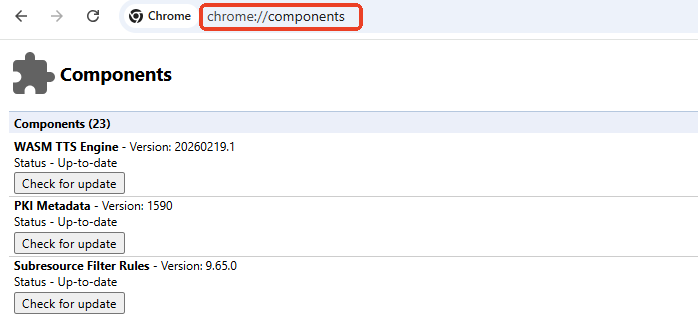
Step 1. Open Chrome and type chrome://components in the address bar, then press Enter.
Step 2. Scroll down until you find Widevine Content Decryption Module. Click Check for update and wait for it to finish. If the update completes successfully, Widevine is enabled.
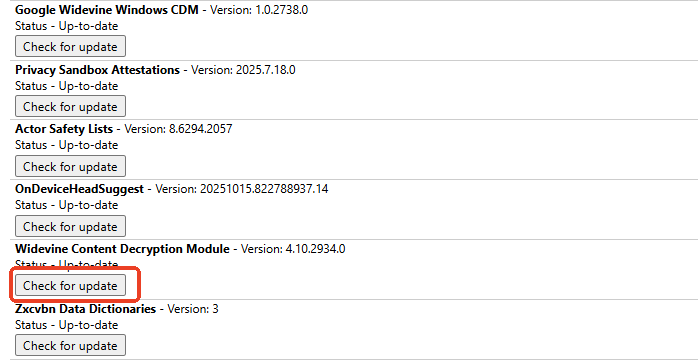
- Tip: If Widevine is missing or fails to update, reinstall Chrome or reset components. Checking these settings helps confirm DRM is ready for protected streams.
Step 3. Go to chrome://settings/content/protectedContent and make sure Sites can play protected content is turned on. This allows streaming services to use DRM for playback.
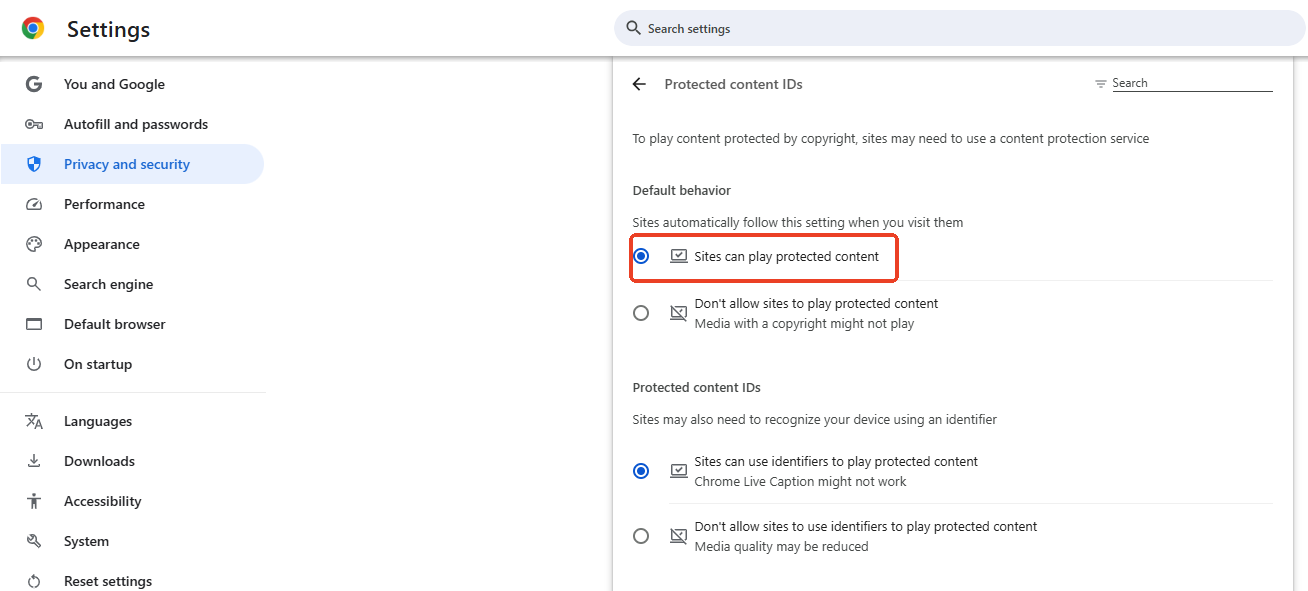
- Tip: You cannot access Sites can play protected content if you are using Chrome's incognito mode or guest mode. Make sure you log in to Chrome with your account properly.
Share this post if you find it helpful!
How to Turn on DRM on Chrome Desktop
DRM settings on desktop ensure Chrome can play protected streams from services that require content protection. The steps are simple and do not affect normal browsing. Follow the instructions for your operating system.
Windows
To enable DRM on Chrome for Windows:
Step 1. Open Chrome and go to chrome://settings/content/protectedContent.
Step 2. Turn on Sites can play protected content under Default beahavior.
Step 3. Visit chrome://components, find Widevine Content Decryption Module, and click Check for update.
Step 4. Once updated, restart Chrome. This allows DRM-protected streams to play correctly.
Mac
On macOS, the process is similar:
Step 1. Open Chrome and navigate to chrome://settings/content/protectedContent.
Step 2. Enable Sites can play protected content.
Step 3. Open chrome://components, update the Widevine Content Decryption Module, and restart the browser. This ensures DRM functionality for streaming services.
Chromebook
Chromebooks usually support DRM by default, but settings can be checked:
Step 1. Go to chrome://settings/content/protectedContent and confirm that protected content playback is allowed.
Step 2. If streaming still fails, update Chrome and the device system software. Chromebooks rely on DRM to play licensed media properly.
Share this post if you find it helpful!
How to Enable DRM on Chrome Android
On Android, DRM support is usually enabled by default so streaming apps and websites can play protected content. If streams show errors or black screens, checking Chrome's protected content setting can help. The steps are quick and do not require advanced configuration.
To enable DRM on Chrome for Android:
Step 1. Open Chrome and tap the three-dot menu in the top-right corner.
Step 2. Go to Settings > Site settings.
Step 3. Tap Protected content.
Step 4. Make sure you select Allowed - Allow sites to play protected content (recommended).
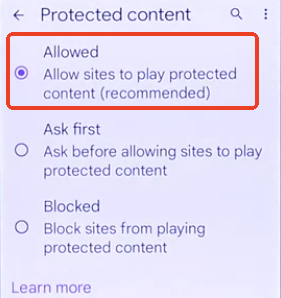
Step 5. Restart Chrome and try streaming again.
If playback still fails, update Chrome from the Play Store and ensure your device's software is up to date. This allows Android Chrome to handle DRM-protected streams properly.
Can You Turn on DRM in Chrome on iPhone?
Chrome on iPhone cannot independently control DRM settings. iOS uses Apple's WebKit engine, and DRM support is managed by the system rather than the browser. Protected streams should play if the app or website supports DRM on iOS. There is no manual "DRM on/off" switch in Chrome for iPhone.
If playback fails, updating iOS or the streaming app often resolves compatibility issues.
Share this post if you find it helpful!
Why DRM Causes Black Screen When Recording in Chrome
DRM blocks screen capture on protected streams so recording tools show a black screen. This is not a bug—content providers use DRM to prevent unauthorized copying of licensed media. When you try to record Prime Video, Netflix, or similar services, Chrome hides the video layer, leaving only audio or a blank screen.
If you need to record content legally permitted, a dedicated recorder can help capture videos that are not subject to DRM restrictions. Tools like EaseUS RecExperts offer high-quality screen recording for non-protected content with simple controls. They do not bypass DRM but provide a reliable solution for general recording tasks. Understanding these limits helps you choose the right approach for screen capture while respecting content protection rules.
Chrome Protected Content Playback Settings FAQs
1. How to turn off DRM on Chrome?
You cannot fully disable DRM in Chrome because it is required for streaming services to play protected content.
However, you can control protected content playback settings. Go to chrome://settings/content/protectedContent and toggle Sites can play protected content off. This may prevent DRM streams from playing but does not affect regular browsing.
2. How to turn on DRM on Chrome incognito?
Incognito mode does not have separate settings for DRM. You cannot enable or change DRM specifically inside an incognito session. DRM settings are tied to your Chrome profile, so they must be configured in normal browsing mode under:chrome://settings/content/protectedContent
Once enabled in the profile, DRM works in both normal and incognito windows (if the site supports DRM playback).
3. How to turn on DRM on Chrome Mobile Samsung?
On Samsung devices using Chrome, DRM is usually enabled by default. If streaming fails, open Chrome and go to Settings → Site settings → Protected content. Enable Sites can play protected content and restart the browser. Updating Chrome and your device software can also resolve playback issues.
4. How to update Widevine in Chrome?
Widevine is the DRM component Chrome uses for protected streams. To update it, open Chrome and type chrome://components in the address bar. Find Widevine Content Decryption Module and click Check for update. After updating, restart Chrome so the new version takes effect.
5. Where is Chrome protected content playback settings?
Protected content settings are located in Chrome's privacy settings. Open Chrome and go to chrome://settings/content/protectedContent. Here you can allow or block sites from playing protected media. Enabling playback ensures streaming services can use DRM to deliver content correctly.