-
![]()
Daisy
Daisy is the Senior editor of the writing team for EaseUS. She has been working in EaseUS for over ten years, starting from a technical writer to a team leader of the content group. As a professional author for over 10 years, she writes a lot to help people overcome their tech troubles.…Read full bio -
Jane is an experienced editor for EaseUS focused on tech blog writing. Familiar with all kinds of video editing and screen recording software on the market, she specializes in composing posts about recording and editing videos. All the topics she chooses …Read full bio
-
![]()
Alin
Alin is an experienced technical blog writing editor. She knows the information about screen recording software on the market, and is also familiar with data cloning and data backup software. She is expert in writing posts about these products, aiming at providing users with effective solutions.…Read full bio -
Jean is recognized as one of the most professional writers in EaseUS. She has kept improving her writing skills over the past 10 years and helped millions of her readers solve their tech problems on PC, Mac, and iOS devices.…Read full bio
-
![]()
Jerry
Jerry is a fan of science and technology, aiming to make readers' tech life easy and enjoyable. He loves exploring new technologies and writing technical how-to tips. All the topics he chooses aim to offer users more instructive information.…Read full bio -
![]()
Rel
Rel has always maintained a strong curiosity about the computer field and is committed to the research of the most efficient and practical computer problem solutions.…Read full bio -
![]()
Gemma
Gemma is member of EaseUS team and has been committed to creating valuable content in fields about file recovery, partition management, and data backup etc. for many years. She loves to help users solve various types of computer related issues.…Read full bio
Page Table of Contents

Jean
Updated on Aug 28, 2026
0 Views |
0 min read
If you've been looking for a screen recorder, chances are OBS Studio has appeared in almost every recommendation. But is it actually the best choice for your needs? While OBS is powerful and completely free, it isn't the perfect fit for everyone. In this OBS Studio review, we'll look beyond the hype and examine its real strengths, weaknesses, ease of use, safety, and who should (or shouldn't) use it in 2026.
Quick Answer: Is OBS Still the Best Screen Recorder and Streaming Software?
Yes—for many users, OBS Studio is still the best free screen recorder and streaming software available. It delivers excellent recording quality, powerful customization options, and professional-grade streaming features without watermarks or subscription fees.
| Category | Verdict |
|---|---|
| Price | Free and open source |
| Safety | Safe when downloaded from the official website |
| Screen Recording | Excellent |
| Live Streaming | Excellent |
| Ease of Use | Moderate learning curve |
| Watermarks | None |
| Mac Compatibility | Fully supported |
| Best For | Streamers, gamers, creators, and power users |
That said, "best" doesn't mean "best for everyone." OBS has a steeper learning curve than most modern screen recorders, making it a great choice for creators, gamers, and streamers, but potentially overwhelming for users who simply want to record their screen with minimal setup. The real question isn't whether OBS is good—it's whether it's the right tool for your needs.
Share this post about OBS Studio review to help more users!

What Is OBS Studio?
OBS Studio is often described as a screen recorder for Windows, macOS, and Linux, but that definition doesn't tell the full story.
One mistake many first-time users make is evaluating OBS as a screen recorder. In reality, OBS was designed as a broadcasting tool that also happens to be an excellent screen recorder.
Unlike traditional screen recording software built around quick recordings, OBS combines screen capture, webcam recording, audio mixing, scene management, and live streaming into a single application.
The easiest way to think about OBS is this:
- If you only want to record your screen and save a video, OBS can do that.
- If you want to create professional tutorials, record gameplay with overlays, manage multiple cameras, or stream live to Twitch and YouTube, OBS was built for that.
This difference matters because many users expect OBS to behave like a one-click recorder. Its flexibility comes from giving users complete control, which is also why it takes longer to learn than most alternatives.
|
If You Want To... |
Is OBS a Good Choice? |
|
Record occasional meetings or classes |
Maybe |
|
Record gameplay in high quality |
Yes |
|
Create YouTube tutorials |
Yes |
|
Live stream to Twitch or YouTube |
Yes |
|
Record your screen with one click |
Not ideal |
|
Edit videos after recording |
No (requires separate editing software) |
Share this post about OBS Studio review to help more users!
Pros and Cons: What Reddit Users Think About OBS Studio
After testing OBS for screen recording, gameplay capture, and live streaming, one thing became clear: most users don't dislike OBS because it's lacking features. They struggle with it because it's far more powerful and complex than the average screen recorder.
That impression is echoed across Reddit discussions. Long-time users often praise OBS for its flexibility and professional-grade capabilities, while beginners frequently mention the learning curve and the overwhelming number of settings.
Pros
|
What Users Like |
Why It Matters |
|
Completely free and open source |
No subscriptions, watermarks, or feature restrictions |
|
Excellent recording quality |
Supports high-resolution and high-FPS recording with hardware encoding |
|
Powerful streaming features |
Supports Twitch, YouTube, Kick, and custom streaming setups |
|
Highly customizable |
Scenes, sources, overlays, hotkeys, filters, and plugins offer near-unlimited flexibility |
|
Large plugin ecosystem |
Users can extend OBS with additional tools and automation features |
|
Strong community support |
Thousands of tutorials, guides, and troubleshooting resources are available online |
|
Multi-purpose workflow |
One tool can handle recording, streaming, audio mixing, and scene management |
Cons
|
Common Complaints |
Why It Matters |
|
Steep learning curve |
New users often need time to understand scenes, sources, and audio routing |
|
Interface feels technical |
The layout prioritizes control over simplicity |
|
Initial setup can be confusing |
Audio, webcam, and streaming settings may require manual adjustments |
|
No built-in video editor |
Recorded videos must be edited in separate software |
|
Easy to misconfigure |
Incorrect settings can lead to lag, dropped frames, or poor audio quality |
|
Overkill for casual users |
Many people only need basic screen recording and may never use most of OBS's features |
Overall, the strongest argument for OBS is also its biggest weakness. It gives users far more control than most screen recorders, which is exactly why creators and streamers love it—and why some beginners uninstall it after the first day. If you're willing to spend a little time learning the software, OBS can replace several tools at once. If you just want to press Record and be done, there are simpler alternatives.
My Real Testing Experience With OBS Studio
I've used OBS Studio on and off for several years for screen recording, gameplay capture, and streaming setup testing. What surprised me most over time is that OBS feels much more complicated on paper than it actually is in daily use. Once you've created a few scenes and profiles, you rarely need to rebuild everything again.
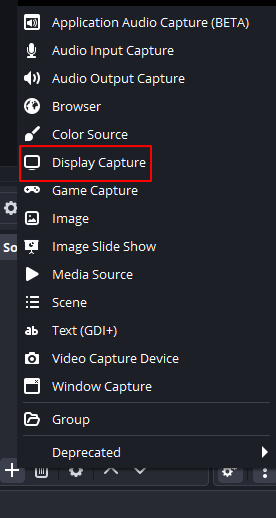
Screen Recording
For general screen recording, OBS is stable and reliable once configured. Unlike simpler tools, it doesn't force you into a fixed workflow. That flexibility takes longer to learn but becomes valuable over time.
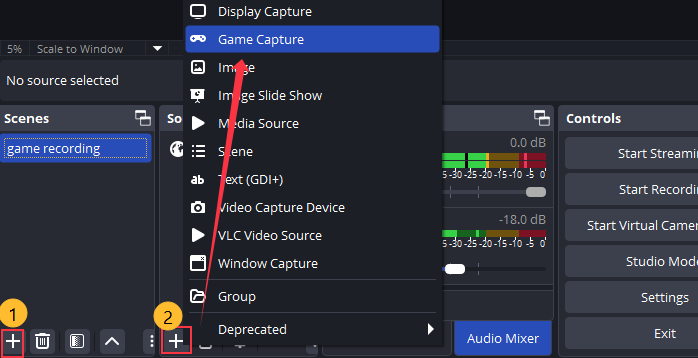
Gameplay Recording
This is where OBS shines.
On mid-range and high-end PCs, OBS can record high-FPS gameplay with excellent quality, especially when using hardware encoding such as NVENC.
On lower-end laptops or integrated graphics systems, however, recording demanding games may cause frame drops or stuttering. In most cases, switching to hardware encoding, lowering resolution, or reducing FPS solves the problem, or switching to a lightweight screen recorder instead.
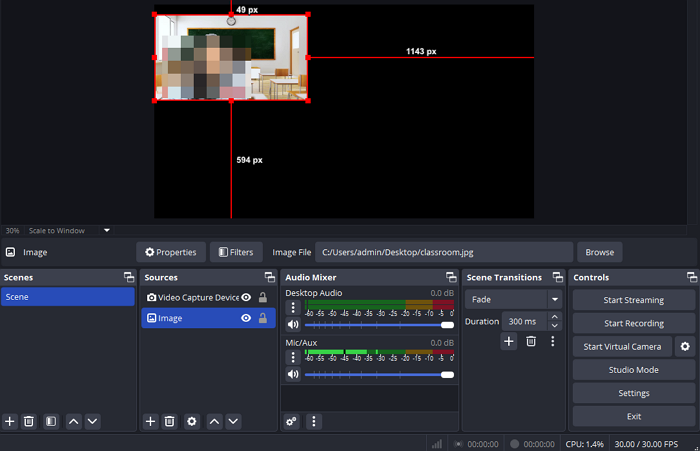
Webcam Recording
Webcam recording is more powerful than many users realize. What surprised me most was how far OBS can be extended with plugins.
Features like virtual cameras, background replacement, AI effects, filters, and multi-camera layouts make it feel closer to a lightweight production studio than a basic webcam recorder.
Audio Recording
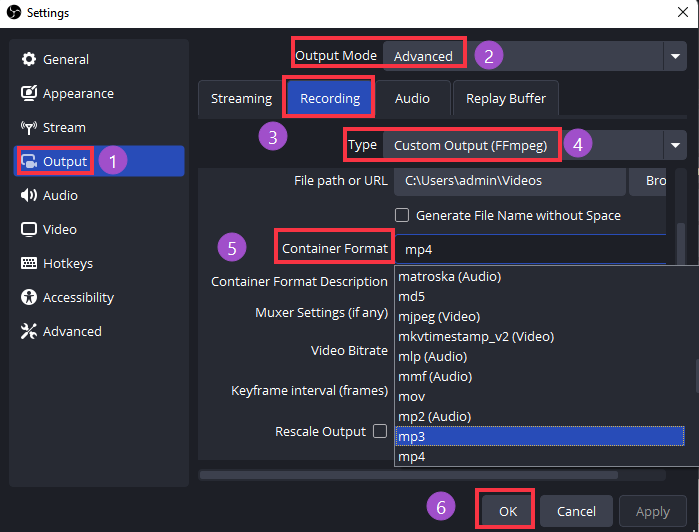
One underrated feature is using OBS purely as an audio recorder, which lets you record audio only.
Unlike many free tools, OBS allows microphone audio and system audio to be recorded separately. This makes editing podcasts, tutorials, interviews, and gameplay commentary much easier later.
OBS has also improved significantly on Mac. Recent versions can capture internal system audio on Mac without requiring some of the complicated workarounds that Mac users relied on in the past.
Streaming
OBS remains one of the most reliable free streaming tools available.
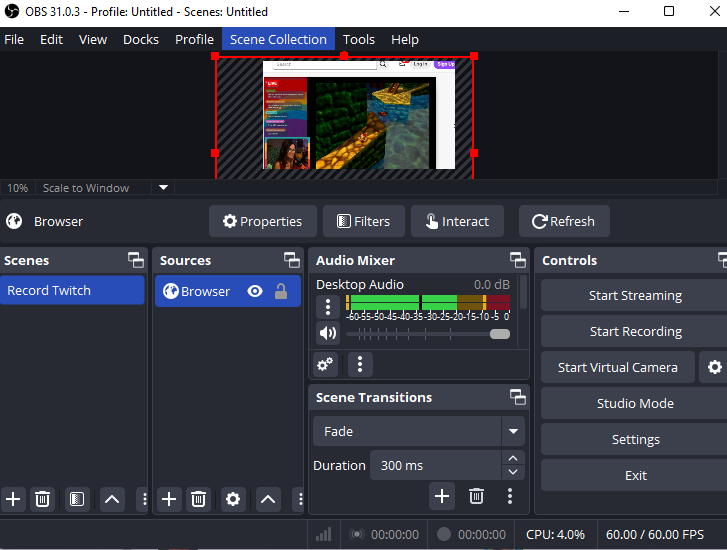
Whether streaming to Twitch, YouTube, or custom RTMP servers, the workflow is stable once configured. The biggest hurdle is understanding scenes and sources, but once that clicks, switching between layouts becomes incredibly efficient.
A Few Real-World Takeaways
After years of use, a few things stand out:
- OBS feels complex at first but becomes predictable after a few setups.
- Most OBS problems come from settings, not the software itself.
- Keeping OBS updated helps avoid compatibility and performance issues.
- The OBS ecosystem is a major advantage, with a large Discord community and countless tutorials available.
- OBS becomes less of a tool and more of a workflow that you build once and reuse.
Share this post about OBS Studio review to help more users!
Is OBS Studio Easy to Use?
OBS is easier to use than its reputation suggests.
Most people can start recording within 10–15 minutes. Becoming comfortable with scenes, audio routing, webcam layouts, and streaming workflows typically takes a few hours.
The learning curve is real, but it's often exaggerated online. Once you've built a recording profile and a few scenes, daily use becomes much simpler than the initial setup process suggests.
Is OBS Studio Safe and Legit?
Yes. OBS Studio is both safe and legitimate when downloaded from the official website.
It's an open-source project maintained by a large developer community and trusted by millions of creators, educators, businesses, and streamers worldwide.
Unlike some free software, OBS does not include ads, bundled software, subscription traps, or watermarks. As with any application, it's best to download it directly from the official OBS website rather than third-party sources.
Who Should Use OBS Studio?
OBS is an excellent choice for creators, streamers, gamers, educators, and anyone who wants greater control over recording and streaming.
If you need features such as scene switching, audio mixing, webcam overlays, virtual cameras, or live streaming, OBS offers capabilities that many paid tools still struggle to match.
It's especially valuable for users who record or stream regularly rather than occasionally.
Who Should Avoid OBS Studio?
OBS may not be the best choice if you only need occasional screen recordings.
If your goal is simply recording a meeting, presentation, online class, or tutorial with minimal setup, OBS can feel unnecessarily complex.
Users who prefer one-click recording, built-in editing tools, and guided workflows will likely be happier with a dedicated screen recorder.
OBS Studio Alternatives
OBS Studio remains one of the most powerful free recording and streaming tools available, but it isn't necessarily the best choice for everyone.
One alternative worth considering is EaseUS RecExperts. Unlike OBS, which focuses on flexibility and production workflows, RecExperts focuses on reducing setup time and simplifying common recording tasks.
|
Feature |
OBS Studio |
EaseUS RecExperts |
|
Screen Recording |
✔ |
✔ |
|
Gameplay Recording |
✔ |
✔ |
|
Live Streaming |
✔ |
✖ |
|
Webcam Recording |
✔ |
✔ |
|
Internal Audio Recording |
✔ |
✔ |
|
Learning Curve |
Moderate to High |
Low |
|
Setup Time |
Longer |
Minimal |
|
Built-in Video Editing |
Limited |
✔ |
|
Best For |
Streamers, creators, advanced users |
Everyday recording, tutorials, meetings, and quick captures |
|
Price |
Free |
Free trial + paid plans |
OBS is still the stronger choice if you regularly stream, need advanced scene management, or enjoy fine-tuning every setting. However, if you mainly want to record your screen, audio, webcam, or online videos without spending time configuring scenes and sources, EaseUS RecExperts offers a much smoother experience.
Final Verdict
After years of use, I've found that OBS rewards effort. The more time you invest in learning it, the more value you get back.
If your goal is occasional recording, OBS may be more than you need. But if recording or streaming is something you do regularly, it's difficult to find another free tool with the same level of flexibility and long-term potential.
OBS can handle everything from simple screen recordings to professional live streams, gameplay capture, multi-camera setups, and advanced audio workflows. Few free tools offer that range of capabilities.
In short: OBS isn't the easiest tool to learn, but it's one of the hardest to outgrow.